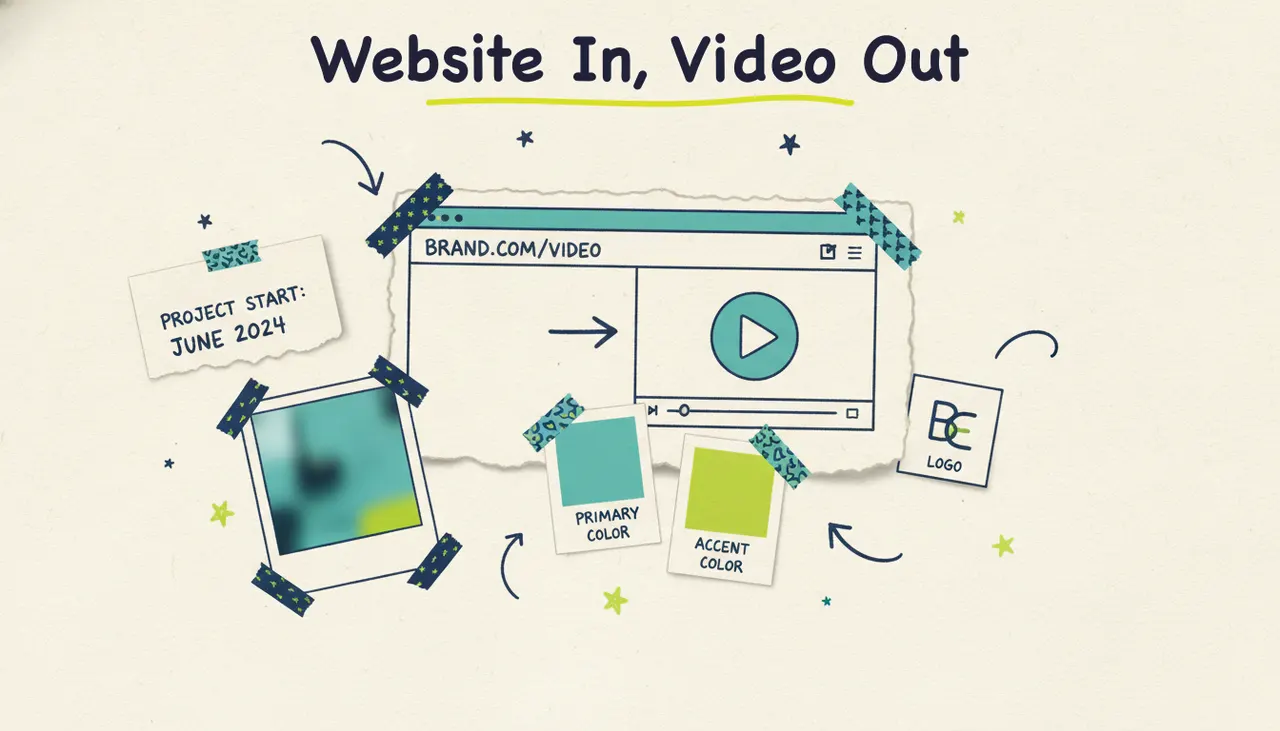
Paste a URL, get a finished video. That's the shortest version. You give Wavemaker a link to your homepage, product page, Yelp listing, or social profile, and it reads the page the way a creative team would: it pulls your brand colors, your imagery, your headlines and value props, then turns all of that into a scripted, voiced, music-backed video in a few minutes. No timeline. No design brief. No starting from a blank prompt.
Paste a website URL into Wavemaker to create a video using the page's text, images, and branding. Review what it selects before exporting.
What "URL to video" means
Most tools that claim to turn a URL into a video really mean "paste a blog post and we'll cut it into a stock-footage slideshow." That's not what's happening here.
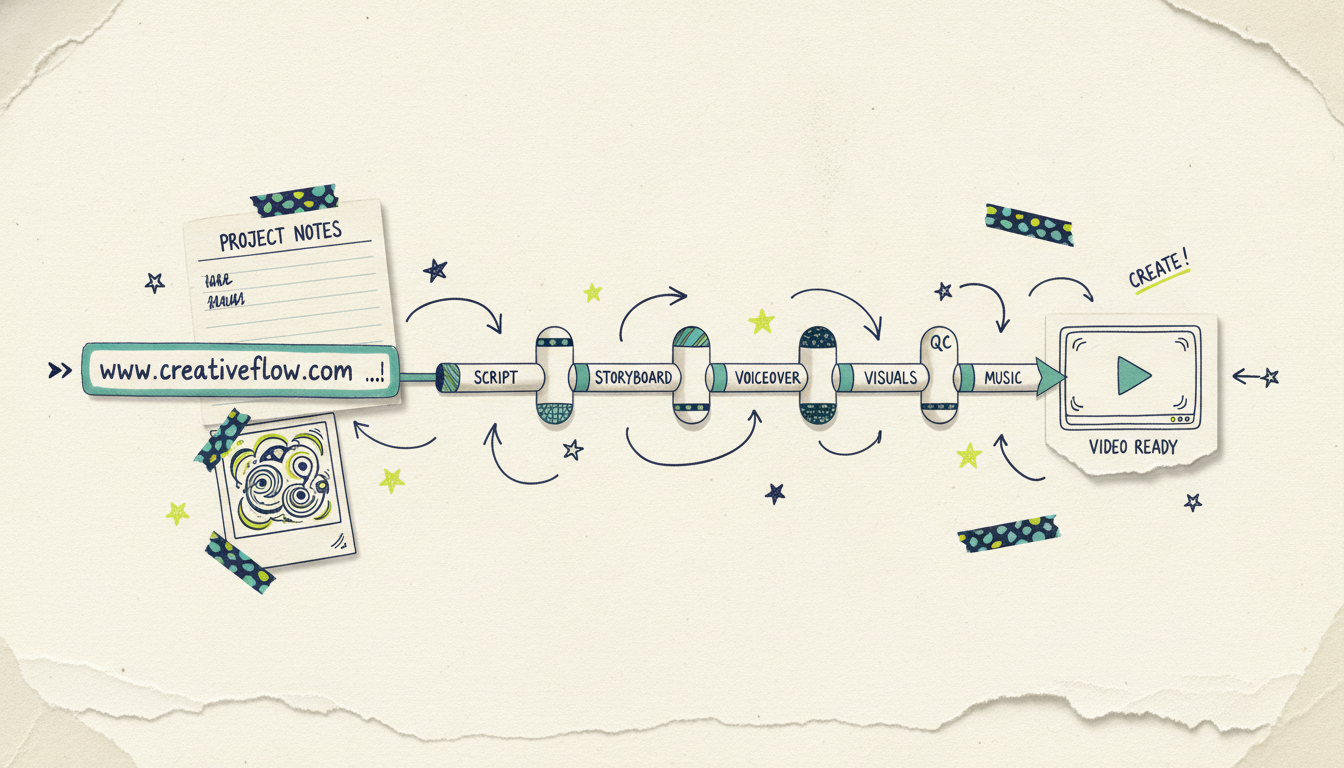
Wavemaker's URL input runs a real extraction pass. Behind the scenes, its `scrape_and_analyze` step visits the page, reads the visible content and structure, and builds a creative brief: what the business is, who it's for, the tone, the key messages, the palette, and the visuals worth echoing. That brief feeds the full production pipeline, so the video isn't just about your page, it looks and sounds like your brand from the first frame.
That makes this different from a template editor. You're not picking a layout and dropping in your logo. The AI is doing the interpretation work, turning a live web page into a directed, branded video. It's the difference between an assistant who reads your site and pitches you a concept versus a form you have to fill out yourself.
What gets extracted from your URL
When you paste a link, Wavemaker pulls the raw material a human creative would look for first. Here's what it reads off the page and what it does with each piece.
You stay in control. The extracted brief is a starting point, not a locked decision. If the AI reads your palette wrong or picks the wrong angle, you tell it in plain language ("use the darker blue from our logo," "focus on the catering menu, not dine-in") and it adjusts. More on that below.
How to turn a website into a video, step by step
The whole flow takes a few minutes. Here's what it looks like start to finish.
1. Paste your URL
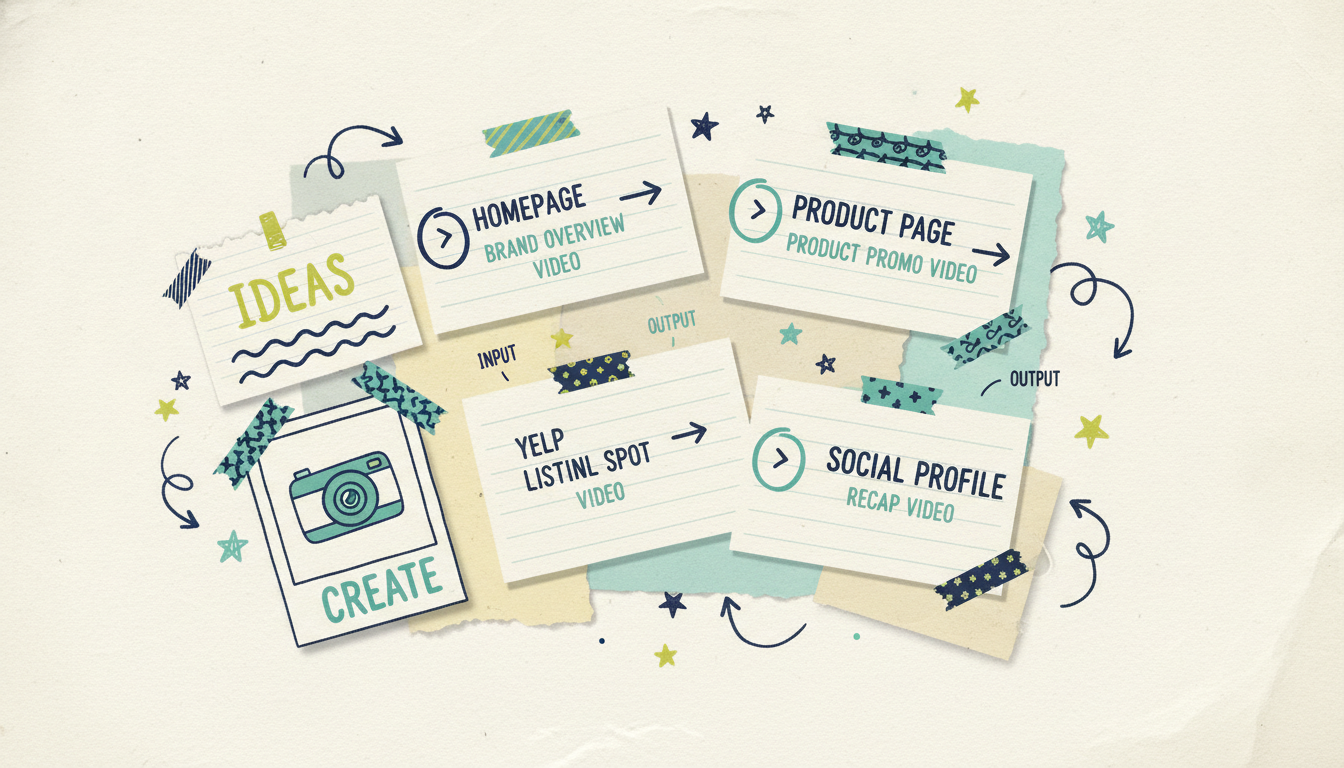
Drop in any public link. Your homepage is the obvious choice, but a single product page, a Yelp or Google Business listing, or a social profile often works better because the page is more focused. A tighter page gives the AI a tighter brief.
2. Pick your format and goal
Choose an aspect ratio for where the video's going: 16:9 for YouTube and the web, 9:16 for TikTok and Reels, 1:1 or 4:5 for feed posts. Tell it what you want the video to do, promote a product, explain what you offer, drive a booking, and it scripts toward that goal instead of just summarizing the page.
3. Let the pipeline run
This is where the AI production team goes to work. Wavemaker writes a script from your brief, storyboards it across one of 21 presets, generates the visuals and video clips (with subject consistency so faces and products stay coherent shot to shot), records an AI voiceover, and scores it with BPM-aware music that ducks under the narration. Then an AI vision QC pass reviews the result before it hands it to you. Most videos land in two to five minutes.
4. Refine by chatting
Watch it back, then talk to it. "Make the intro punchier." "Swap the music for something calmer." "Lead with the free consultation." There's no timeline to learn and no clips to drag. You describe the change and Wavemaker re-renders. A refine pass costs a fraction of a full generation, so iterating is cheap.
5. Export and publish
Export up to 4K on paid plans (the free tier exports at 480p with a watermark, which is plenty for a first test). From there it's yours: post it, embed it, or, if you're a business, send it further than the web. We'll get to that.
Why URL input is so good for brand consistency
Brand consistency is where this input mode earns its keep. When every video starts from your live site, they all inherit the same source of truth: the same colors, the same product language, the same tone. You're not re-explaining your brand to a tool every time or hoping a freelancer nailed the shade of teal.
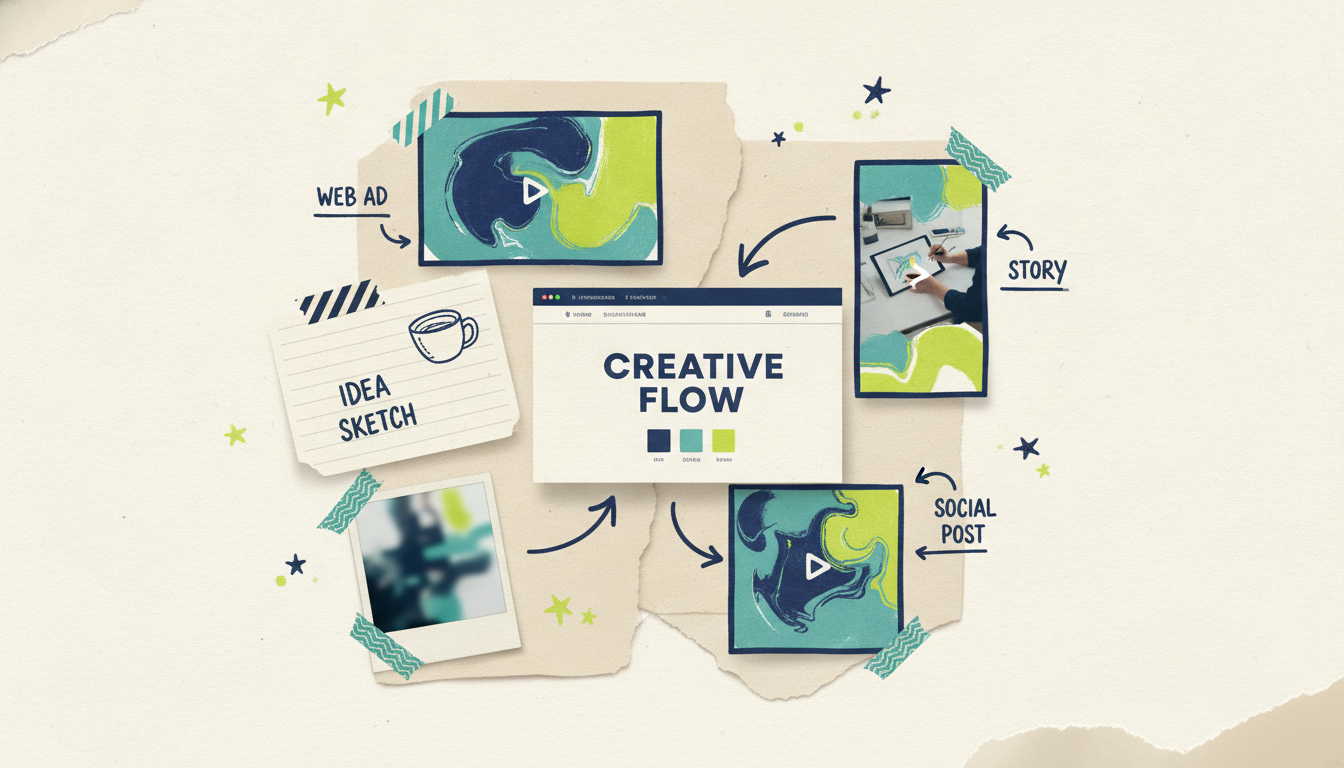
That matters more when you're making video at volume. A local chain producing a promo for each location, an online store making a clip per product, an agency spinning up drafts for a dozen clients, each URL is a self-contained brief. Paste, generate, done. And because your website is usually the thing that stays most up to date, the videos ride along with it. Update your homepage messaging, generate a fresh video, and the new positioning shows up automatically.
There's a quality angle too. A vague text prompt gives the AI room to guess and drift off-brand. A real URL removes the guesswork. The good news is you get the speed of "just type an idea" with the accuracy of a proper brief, without doing the briefing yourself.
Where URL to video works best
This input mode fits a lot of jobs. A few of the most common:
Video keeps eating a bigger share of how people decide what to buy. In Wyzowl's 2024 survey, 89% of consumers said watching a video convinced them to buy a product or service, and 91% of businesses reported using video as a marketing tool (Wyzowl, State of Video Marketing 2024). The catch has always been production cost and time. URL input knocks both down: the raw material is already published, and the machine does the assembly.
Tips for a better URL-to-video result
A few small moves that lift the output:
Point at your most focused page. A single product page beats a sprawling homepage when you want a specific message. The tighter the source, the sharper the video.
Set the goal explicitly. "Drive online orders" produces a different, better video than leaving it open. Tell the AI what success looks like.
Check the palette first. Glance at the extracted brand colors before you generate. If your site's CSS is messy, a quick correction in chat keeps things on-brand.
Refine in small steps. One change per message ("shorten the intro") is easier for the AI to nail than a paragraph of edits at once.
Keep a source page current. Since the video reflects your page, an up-to-date URL means an up-to-date video. Handy when you re-launch or reprice.
From a URL to a real TV commercial
Here's where a URL-generated video goes somewhere most tools can't follow. If you're a business, your finished Wavemaker video doesn't have to stop at a social post.
Through Adwave, that same 30-second video can run as a real streaming TV commercial on 100+ premium networks, from $50, alongside Google, YouTube, Meta, Reddit, and display. So the path is genuinely: paste your website, get a branded video in minutes, and put it in front of viewers on connected TV. The URL you started with, your own homepage, becomes a TV ad without a production crew, an agency retainer, or a five-figure budget.
Common questions answered
Does the video use my brand's colors and style? Yes. When you paste a URL, Wavemaker extracts your brand colors, imagery, and visual style off the page and uses them to shape the video, so titles, accents, and generated visuals match your brand. If it reads anything wrong, you correct it in plain language before or after generating.
What kinds of URLs can I use? Any public web page works: your homepage, a specific product or service page, a Yelp or Google Business listing, a landing page, or a social profile. Focused pages usually produce sharper videos than broad ones, because they give the AI a tighter brief to work from.
How long does it take to turn a website into a video? Most videos generate in about two to five minutes. That covers the full pipeline: reading your page, writing the script, creating visuals, adding an AI voiceover, scoring it with music, and running a quality-check pass before you see it.
Can I edit the video after it's generated? Yes, and you don't need editing skills. You refine by chatting in natural language, "make the intro shorter," "swap the music," "focus on the catering menu," and Wavemaker re-renders. There's no timeline and no clips to drag around.
Is it really free to try? Yes. The free plan gives you 75 credits, enough for your first video, with a 480p export and a watermark. Paid plans start at $29/mo for higher resolution (up to 1080p), no watermark, and more credits, with up to 4K on higher tiers.
Can I turn my website video into a TV ad? If you're a business, yes. A finished Wavemaker video can run as a real streaming TV commercial on 100+ networks through Adwave, starting at $50, plus other channels like Google, YouTube, and Meta. Wavemaker makes the video; Adwave handles putting it on TV.