
On the morning of December 24, someone searches your shop on their phone, reads open until 5 p.m., drives across town, and finds the door locked. You never hear about it. They add the trip to the list of reasons to try the other place next time.
Holiday hours on a Google Business Profile are dated operational data, not a marketing note you post when you remember. Each entry answers a stranger’s question about whether the phone will be answered, the door will open, or an order can be collected. Set the right entry type and the listing does quiet, reliable work all year. Set the wrong one and it tells people something untrue with total confidence.
Which Holiday Hours Setting Fits Your Closure
Before you open the editor, decide which of four things changed: the day, the length of the shutdown, the channel, or the difference between the office and the crew on call. Google handles calendar exceptions through Special hours, a feature built for holidays, special events, and other exceptional operating changes, as Google’s special hours help article sets out.
| Situation | Setting to use | What customers see | Watch for |
|---|---|---|---|
| One holiday with reduced hours | Special hours with revised opening and closing times | Revised times on that date only | Add a second period if the day has a split schedule |
| One holiday, fully closed | Special hours marked closed | Closed on that date in Search and Maps | Special hours cover closures of six consecutive days or fewer |
| Shutdown of seven or more days | Temporary closure approach, not one special-hours entry | Closure presented beyond the six-day special-hours limit | Google’s guidance on longer shutdowns |
| Only pickup, delivery or online service changes | Service-specific hours | Hours for that service only | Main operating hours stay separate |
| Appointment-only or on-call office | Special hours for the office, plus a clear note on emergency coverage | Office closed while on-call work continues | Phone coverage can differ from listed hours |
Read the middle column as a decision, not a suggestion. A restaurant closing at 3 p.m. on Christmas Eve needs special hours with revised times, and its normal schedule returns on its own the next day. Marking the whole day closed throws away the afternoon trade and confuses anyone who planned around it.
Long shutdowns break the usual workflow. Special hours are intended for closures of six consecutive days or fewer, so a two-week break between Christmas and the new year needs the temporary closure route rather than one ambitious holiday entry that expires halfway through.
Service hours are the row most owners miss. A dealership can close sales on a public holiday while the parts counter stays open, and a retailer can shut the shop floor while the pickup window runs a shorter day. Those changes belong in the service fields, not in the main hours.
Name the closure type before you open the profile. One day closed, one day shortened, one channel closed, one week shut. The field you choose decides what a stranger does next, and a wrong field is much harder to spot after saving than before.
Google also recommends confirming holiday hours even when they’re identical to your regular schedule, so the date carries an explicit confirmation instead of an assumption.
How to Add Holiday Hours in Google Business Profile
The controls are the same on desktop and in a mobile browser, and once you know where the fields sit, the job takes only a few minutes per location. The risk is not the time it takes. It is saving the wrong thing, because each entry tells a stranger whether they can call, visit or order on that date.
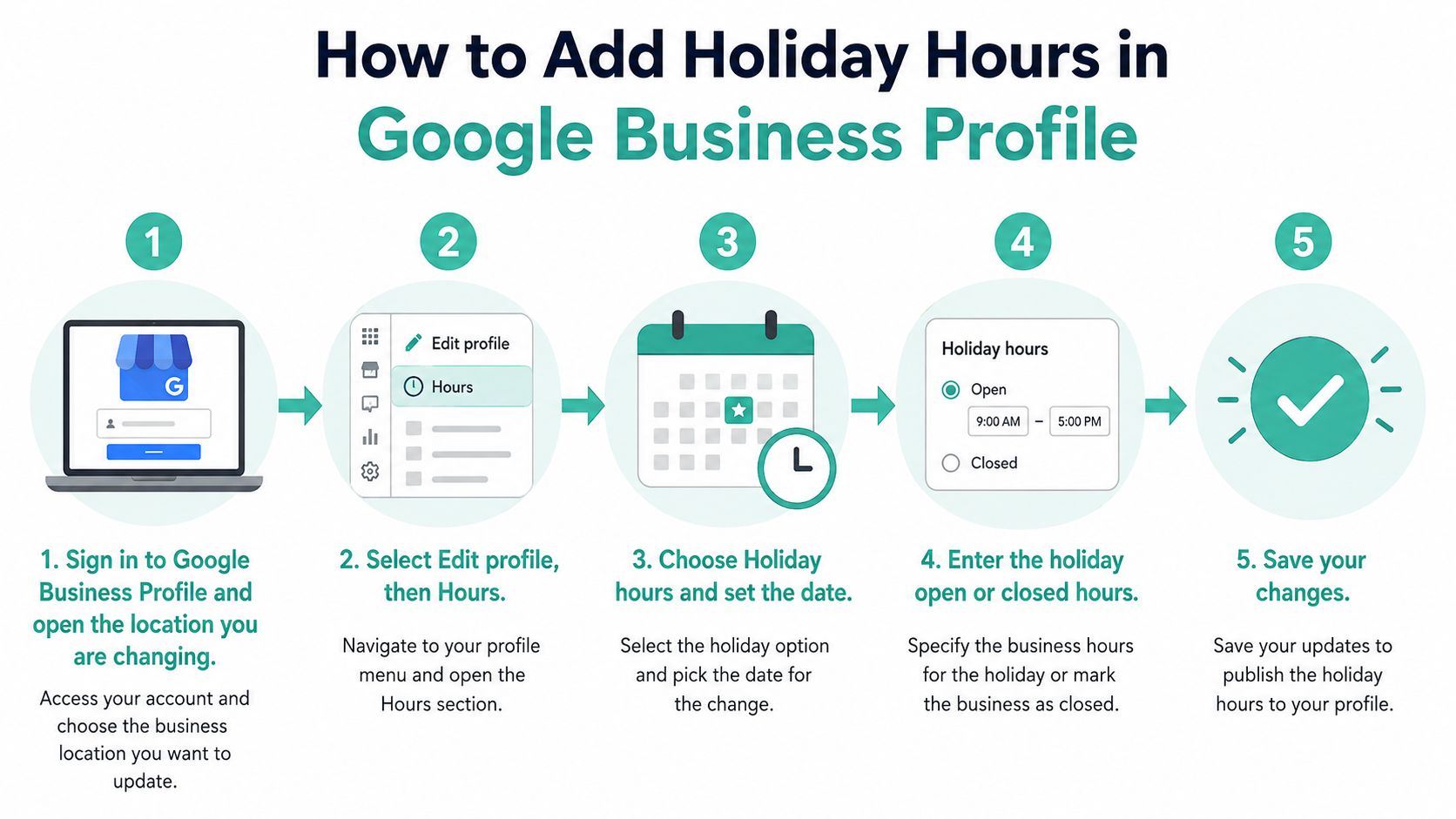
- Open the right location. Sign in to Google Business Profile and select the location you’re changing. On an account with several branches, the dashboard opens whichever profile you touched last, so read the business name at the top before you edit anything.
- Choose Edit profile, then Hours. Everything below happens inside these two controls. Resist editing the weekly schedule for a one-day exception, because regular hours apply every week until someone remembers to change them back.
- Pick the date. Select a suggested holiday from the list, or add a custom date for a local event, a staff training day, or a family closure. Google usually surfaces upcoming holidays before you have to hunt for them.
- Set closed or revised times. Mark the location closed, or leave it open and enter the holiday opening and closing times. A 10 a.m. to 2 p.m. trading day gets those times, not your usual nine to five.
- Add a second period for a split day. Use Add hours + when the day has a lunch break, a stocktake gap, or two separate service windows. One long block tells a customer you’re open straight through.
- Save even when nothing changes. A holiday that matches your regular schedule still gets confirmed, because that confirmation is what tells customers the date was checked rather than overlooked.
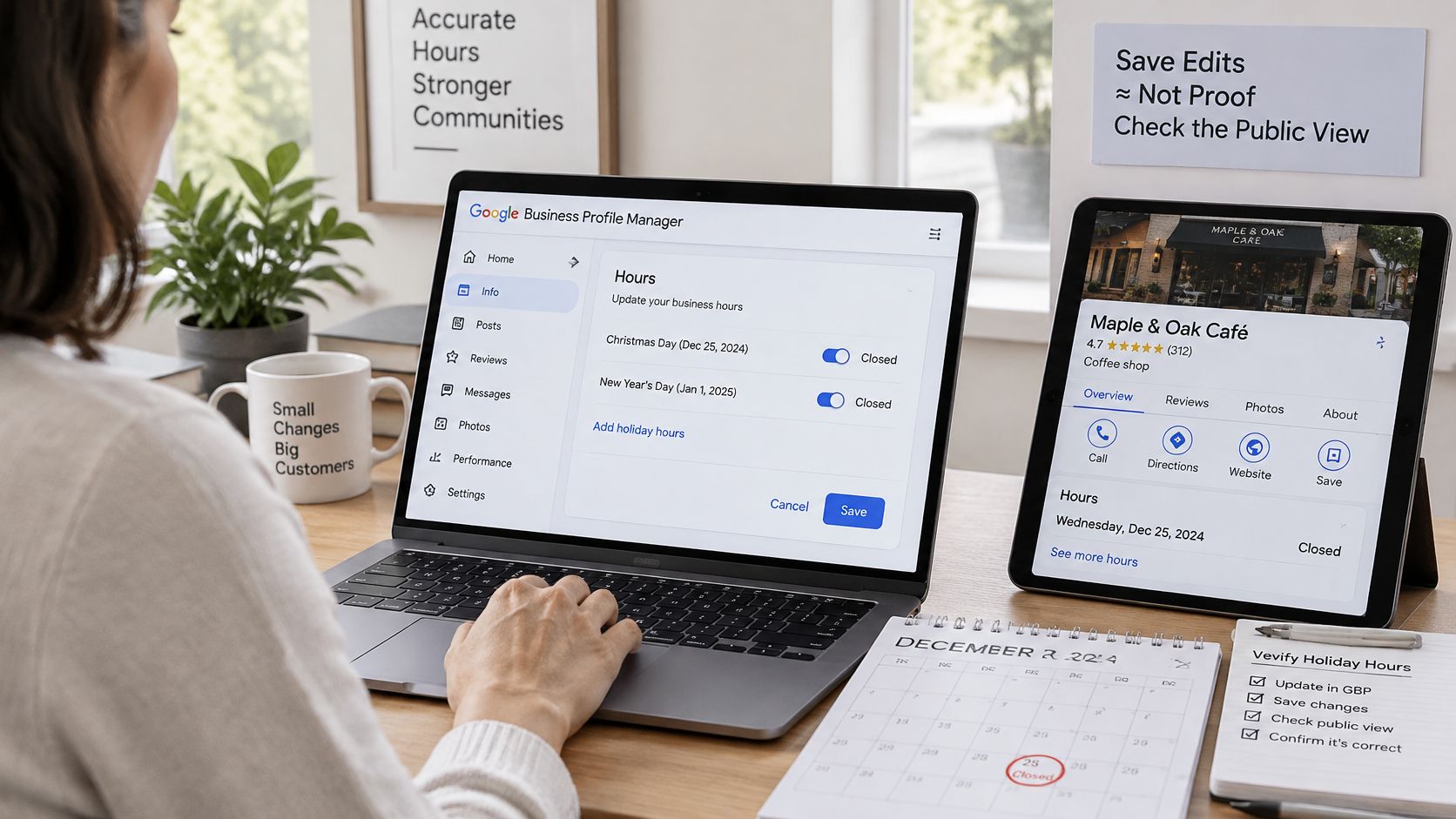
- Reload the public listing in Search and Maps. Load it on a phone that isn’t signed in to the profile if you can. The signed-in view can show your draft; the signed-out view is what customers get.
Special hours can be scheduled in advance, so the efficient move is to enter the whole year’s known dates in one sitting, before the calendar fills with work. Shifts that run past midnight need care: one entry ends at 12 a.m. and the next starts at 12 a.m. on the following day. Enter it as a single block and the listing shows a closed gap in the middle of a working night.
Where the profile is one of several systems holding your schedule, retyping dates by hand is where errors breed. A mistyped closing time is not a cosmetic flaw; it is a customer standing at a locked door. Connecting the profile so hours flow from the system of record, as the Purple Engage Google profile connector is built to do, removes a manual step that nobody enjoys repeating in December.
Search and Maps are not the only shopfront. Apple Business Connect and Bing Places hold their own holiday entries, entered through their own dashboards, and neither inherits what you typed into Google. Put the same dates into each one you control, because a customer checking their phone’s map app sees whichever record that app trusts, and a stale entry there costs the same call as a missing one on Google.
Handling Temporary Closures, Split Shifts and Service Hours
Take the New Year’s Day restaurant. The dining room is shut, the kitchen still sends takeaway and delivery from 4 p.m., and the owner marks the business closed for the date. Everyone who reads that listing orders elsewhere, and the delivery trade that would have carried the day never arrives. The change belongs in the service hours, not the main schedule.
That distinction separates a working listing from a technically accurate one. Google defines special hours as temporary changes for holidays and events and limits them to closures of six consecutive days or fewer, and its guidance distinguishes operating times from categories such as pickup or online-service hours, per Google’s special hours guidance. Choose the wrong field and the profile misstates whether someone can visit, collect an order, or get service, even though the business is open.
The same logic covers a retailer whose pickup window opens an hour after the store and closes an hour before it. One set of hours for the door and another for the counter, and the counter hours are the ones that stop people arriving to a shutter.
Updating holiday hours is a service statement, not a visibility task. The listing tells people what they can actually do on that date, and it needs to match the staffing behind it.
Where split shifts go wrong
A clinic that closes from 12 to 2 p.m. every day, or just on the holiday, needs two time periods on that date, not one block from 9 to 5. Enter the second period in the same special-hours entry. Customers read the gap, plan the visit after 2 p.m., and you stop fielding calls during a closed lunch hour.
Overnight trading and on-call coverage
A bakery that starts at 10 p.m. should check the listing the next morning to confirm the late hours landed on the correct calendar day, because entries that cross midnight are easy to shift by one. An appointment-only practice with emergency coverage has a harder question: does the office close while the on-call line stays live? Decide that first, then enter the office hours that match, and keep the phone-coverage reality in the answer customers get when the on-call line picks up.
Why Mismatched Hours Cost Calls and Visits
A prospect searching for a plumber on a holiday Monday sees a listing that says open now and calls. The phone rings in an empty office because both technicians are already on a job across town. They don’t leave a message. They tap back and call the next firm on the list.
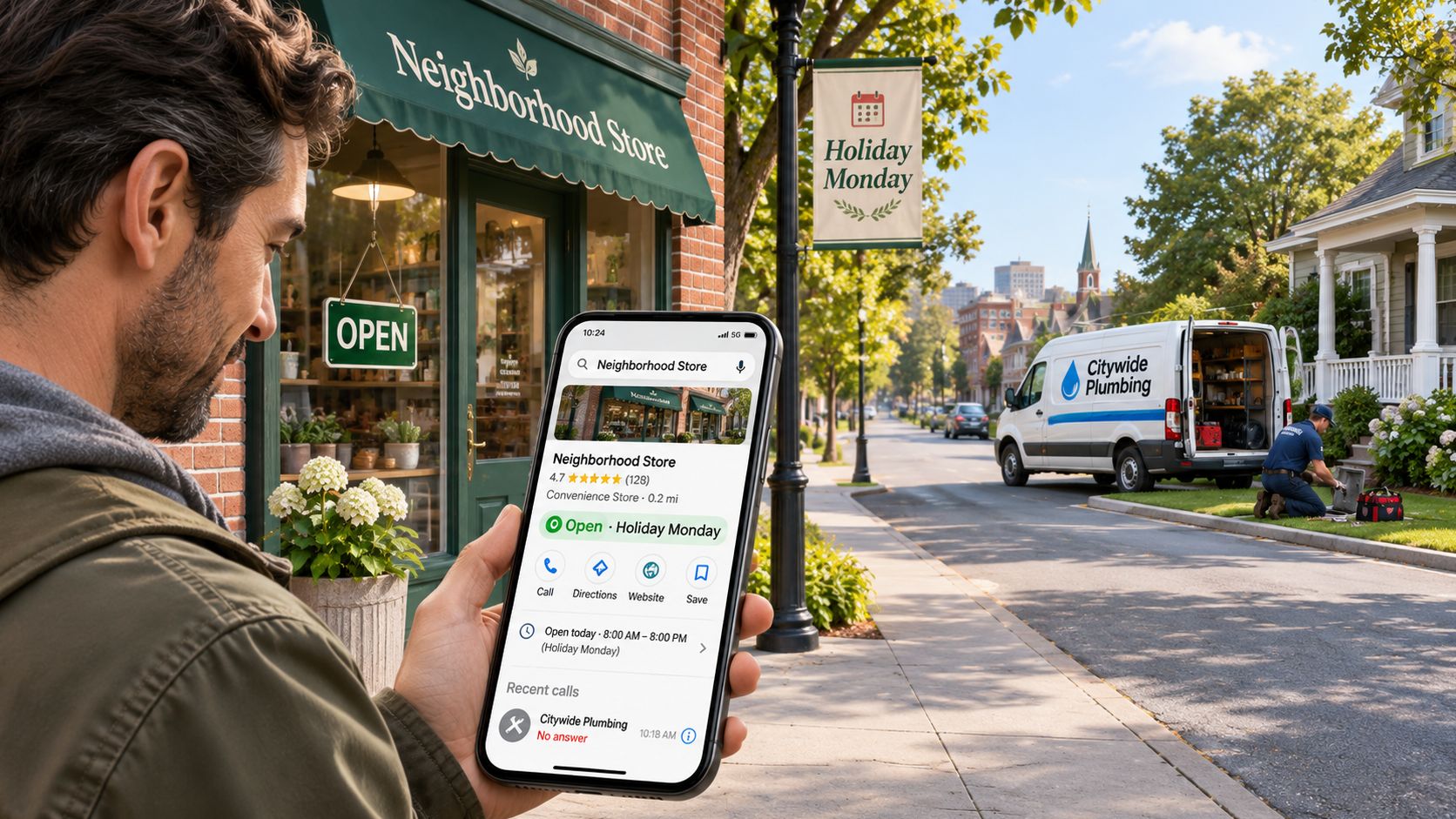
Say a home-services company lists its office open until 5 p.m. on a holiday with two technicians on call only. The listing is true in the narrowest sense and useless in practice. Anyone reading it expects a receptionist, an estimate, a booked slot. What they get is a voicemail box, and that gap between expectation and answer is where the job goes to a competitor.
What a wrong entry actually costs. The call that goes unanswered, the drive that ends at a locked door, and the quiet conclusion that the business wasn’t available at all.
Three losses stack up, and none of them show in a report:
- Lost calls arrive at the exact moment a customer has decided to spend money, and a closed-sounding business doesn’t get a second attempt.
- Wasted trips cost the customer fuel and an afternoon, and they remember which listing sent them.
- Repeated doubt spreads, because the same person tells a neighbour the shop is never open when they need it.
The scale of the gap is visible in the raw data. In a 2026 sample of 34 small-business Google Business Profiles, 14 had ever included at least one special-hours entry, which LeadLLS published from its Google Business Profile API review. That’s one small sample rather than a market rate, and it still points at something obvious: most small businesses have never touched the setting.
If the hours are accurate and the phone still isn’t ringing, the problem has moved elsewhere. The guide to optimizing a Google Business Profile for more calls covers the rest of the listing. And since accurate hours sit inside a wider demand picture, local marketing ideas for SMB growth is a sensible next read once the calendar is clean.
Checking Holiday Hours and Fixing Common Problems
An entry saved in the editor proves nothing about what customers see. The check takes three parts: confirm the date and the year, view the public listing in Search and Maps, and recheck after any staffing or weather change that alters the plan. Do the middle one signed out, on a phone, the way a customer would.
Most of what goes wrong has a known cause and a short fix.
| Symptom | Likely cause | Fix |
|---|---|---|
| Holiday warning appears on the profile | Google flags that holiday hours might differ | Confirm the special hours for that date, even if they match normal hours |
| Holiday shows regular hours | Date never entered as special hours | Add the date under special hours, then recheck Search and Maps |
| One branch shows another branch’s schedule | Schedule copied across locations | Edit each location separately using its own approved hours |
| Closure entered but listing still shows open | Wrong date or year saved | Check the date, then view the live listing |
| Split shift missing from listing | Only one time period entered | Add a second time period for the break |
| Shutdown of a week or more not displaying as expected | Closure runs longer than the six-day special-hours limit | Use the temporary closure approach |
| Service hours show standard times | Service-specific hours not updated | Update that service’s hours separately |
The warning row deserves attention because it looks like a technical glitch. It isn’t. Google’s documentation on holiday hours notes that a warning may appear on a Business Profile when holiday hours might differ, and special hours can be scheduled in advance to get ahead of it. Confirming the date clears the doubt, even when nothing about the schedule changed.
Multi-location businesses hit the copied-schedule problem most often. Dealerships, clinics, real estate offices and home-service firms run different holidays in different markets, and an office marked closed while an on-call crew is working produces a listing that’s wrong in both directions. Each location needs its own manager-approved hours and its own public check.
Hours also disagree off the profile. A website footer, an old directory record and a social page can each carry a different version, and search engines end up choosing between them. The citation workflow guide from StartupSubmit explains how to keep those records consistent. If you want a broader sweep of what else on the listing needs attention, the local SEO audit checklist covers the rest.
Keep one shared sheet listing every change, who made it, and when it was checked publicly. When two people disagree about whether the office is open on the 27th, that sheet is the answer.
A Yearly Holiday Hours Checklist
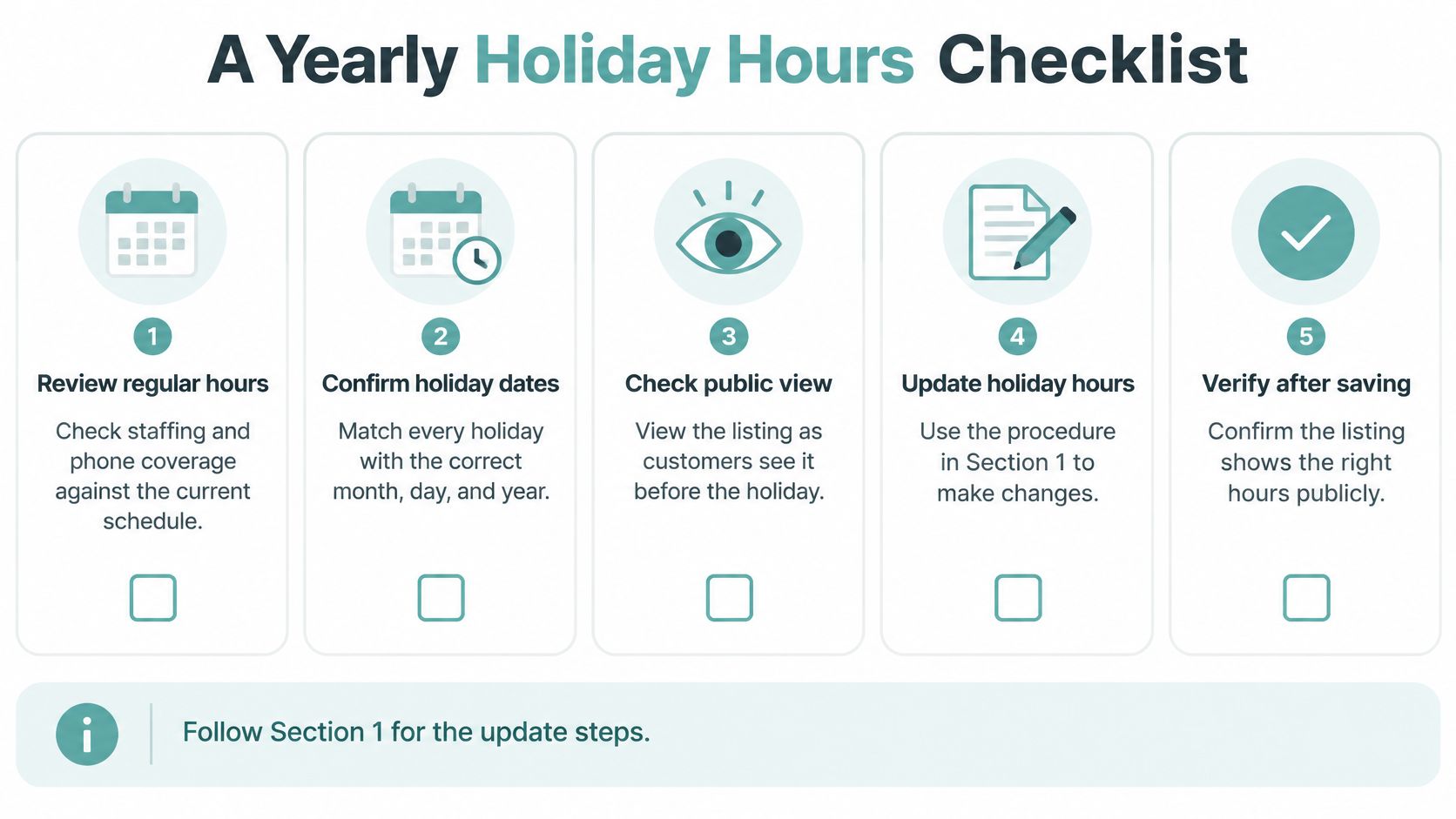
Run this once a year in one sitting, and diarise a mid-year pass. It assumes you already know the procedure for entering a date.
- Review the regular hours first. A holiday entry sits on top of your base schedule, so start by checking the weekly hours against current staffing and phone coverage. If the shop stopped opening Mondays in March, fix that before touching December.
- Build the year’s calendar. List every official holiday, every known local event, and every staff training or inventory day. Enter each one as a special-hours date so nothing depends on someone remembering in the week before.
- Separate the short closures from the long ones. Mark which entries are six days or fewer and which are week-long shutdowns that need the temporary closure approach. Mixing the two is how a two-week break ends up half-displayed.
- Flag anything that moves. A holiday that shifts date, a new service channel, or a change in phone coverage all need their own review. Put a calendar reminder in the quiet month, not the busy one.
- Name one owner per location. Every branch needs a single person accountable for its schedule and for the public check afterwards. Shared ownership is why a listing stays wrong for three weeks.
- Keep the change log current. The shared sheet is the team’s record of which version is correct, and it’s the first thing to open when a customer says the door was locked.
- Check the public view as the last step. Open Search and Maps signed out and look at the next three dates. That final look catches the wrong year, the missing second period, and the branch that inherited someone else’s calendar.
The recurring theme across locations is accountability rather than tooling. Once several branches, owners and managers are involved, the process needs one place to live. The guide to managing Google Business Profiles for multiple locations sets out how to keep that structure from drifting.
Confirm Your Next Closure Before Customers Notice
Pick the next closure on your calendar, name its type with the table above, and enter it under the matching setting today. Then open Search and Maps on a phone that isn’t signed in and confirm a stranger would read the right answer.
That order matters. Accurate hours come before every other detail on a listing, because a prospect who calls or visits is relying on the profile’s answer before they’ve read a single review or service description. Correct the calendar first, then worry about the rest.
Adwave publishes the practical guidance you’ve been reading here, and its team can point you to related resources on profile upkeep. If you’re also running a post for an upcoming holiday, the guide to Google Business Profile posts covers what to publish and when. For questions about Adwave’s own resources, support can help when you send your business website and the step you need help with, or you can book a call with the team.
Enter the next holiday before you close this tab.
Accurate hours keep the customer who found you on a holiday Monday. Adwave helps you reach far more of them, turning your business website into a broadcast-ready TV ad and placing it on channels like NBC, Hulu and ESPN, with no production crew required. Once your listing tells people the truth about when you’re open, visit Adwave to put your business in front of the local viewers most likely to walk through the door.