In 2025, approximately 6 billion people, 74% of the global population, used the internet, according to the International Telecommunication Union’s Facts and Figures 2025. Most of those people don’t meet your business on a large monitor in a quiet office. They meet it on a phone, often while they’re moving, distracted, or ready to act. Mobile first website design starts there, with the hardest screen and the shortest attention span, and builds outward only after the core task works.
What Mobile-First Web Design Means for Your Business
Think of packing a carry-on before a suitcase. The small bag forces a decision about what you actually need, and anything extra has to earn its space. Mobile-first design does the same for a website. You plan the smallest screen first, decide what a phone visitor must see and do, then add wider-screen features on top.
Say a homeowner searches for an emergency plumber at 7 a.m. with water on the floor. She doesn’t need your company history, a three-column feature grid, or a decorative video. She needs to know you serve her area, you answer now, and she can tap to call without pinching, zooming, or hunting through a menu. If that task works at phone width, adding richer desktop detail later is easy. If it doesn’t, the desktop polish won’t save the visit.

This isn’t a recent visual trend. The World Wide Web Consortium history of mobile best practices shows the W3C began work on mobile-web guidance in 2005, and its Mobile Web Best Practices 1.0 became an official Recommendation on July 29, 2008. That guidance covered small screens, limiting unnecessary page weight, varied device capabilities, and avoiding interactions that were difficult on phones. It contained 60 best practices, and roughly half could be traced to accessibility guidance.
The opposite approach and why it breaks
Desktop-first design builds a wide homepage first, then squeezes it onto a phone. That’s how you get hidden menus, tiny buttons placed too close together, heavy hero images, and forms that require sideways scrolling. The page technically fits, but the visitor does the extra work.
A mobile-first site stacks three layers in order. First comes content priority, what matters most on this page. Second comes touch-friendly interaction, controls a thumb can hit reliably. Third comes progressive enhancement, extra features for wider screens that don’t block the core task.
Mobile-first is a priority order, not a screen size.
Ask three questions of your current homepage today. What must a phone visitor do within five seconds? What can wait below the fold? What breaks at 360 pixels wide? If you can’t answer the first question in one sentence, that’s your starting problem.
Why Mobile Traffic Now Decides Search and Sales
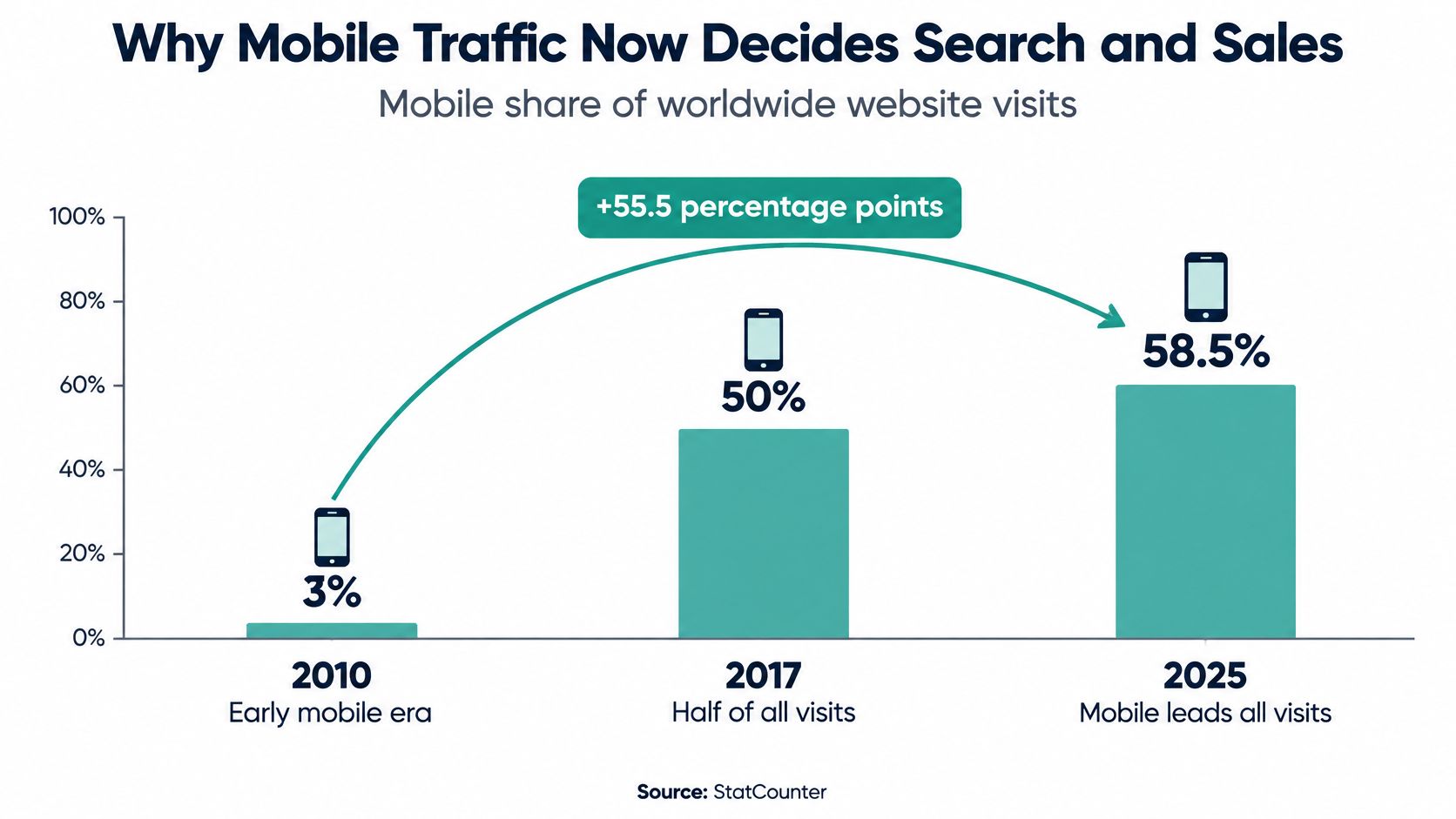
Mobile devices accounted for about 3% of worldwide website visits in 2010, reached 50% in 2017, and represented approximately 58.5% in 2025, according to the Statista chart of mobile website traffic since 2010. That is a rise of about 55.5 percentage points between 2010 and 2025. For most businesses, mobile is now the primary place to make a first impression, answer a question, and earn a conversion.
| Year | Mobile share of worldwide website visits |
|---|---|
| 2010 | About 3% |
| 2017 | 50% |
| 2025 | About 58.5% |
Search followed the same shift
Google moved most sites to smartphone-based crawling and made mobile-first indexing the default for new sites. The practical consequence is straightforward: content and links available only on desktop may be missing from the version Google uses to understand a page.
A mobile page should therefore carry the same important business information as its desktop counterpart. Keep service details, location information, prices where relevant, and links to related pages accessible on a phone. Then manage performance as part of the same decision: large images, chat widgets, and other revenue tools can slow a page, so keep the features that support a real customer action and reduce or remove those that do not.
For a local business, the visitor’s reason for arriving should shape what the page presents first. Someone tapping from a map listing may want directions, hours, or a call button. A visitor from a service search needs clear evidence that you provide that service in that location. Matching the page to how local search intent shapes the page a visitor expects to find helps connect the search to a useful next step.
A diagnostic you can run this afternoon
Compare mobile’s share of sessions with its conversion rate against desktop. Break conversions down by action, such as calls, bookings, quote requests, and direction taps. Total traffic alone won’t show whether the mobile experience is doing its job.
If mobile brings most visits but converts much less often than desktop, inspect the phone experience before paying for more traffic. Check whether the main action is easy to find, whether forms work without unnecessary effort, and whether slow features delay the page. More visits to a weak mobile page can mean more lost opportunities, not more sales.
Prioritized Checklist for Designers, Developers and Marketers
Teams often start with breakpoints and colors. I would start with the decision everything else depends on. Name the one primary action each page must drive, such as call, book, request a quote, or get directions. Until that action is written down, designers argue about layout and developers argue about components without a shared test for success.
The W3C mobile accessibility mapping guidance recommends reducing or prioritizing page information for small screens, using responsive CSS to adapt the same content to viewport width, placing form fields below their labels in portrait orientation, and designing touch controls with a minimum target size of 9 mm by 9 mm. Those aren’t aesthetic preferences. Smaller screens give you less visual space and less precise pointer input, so dense navigation, side-by-side fields, and undersized controls increase mis-taps, scrolling friction, and abandonment.
Why the order matters
Start with the marketer’s decision, because the designer can’t prioritize a screen without knowing the job. Then the designer builds the 320 to 390 pixel layout first and checks that the page reads in a single column with no sideways scrolling. Only then does it make sense to widen the layout for tablet and desktop.
Next, the developer sets touch targets with real spacing between them and stacks form fields vertically with labels above each input. A label beside a field may look tidy on desktop, but in portrait orientation it squeezes both the label and the input. Above is easier to scan, easier to tap into, and easier to associate when the browser zooms.
After the layout works, the marketer makes the revenue actions measurable. A map link should open navigation on a phone, not a static map image or a desktop directions page. Tap-to-call and booking links should log as conversions, or you’ll never know whether a redesign helped sales or just changed the look.
Finish with a test that resembles real use. Use a real mid-range Android phone on a throttled connection, not only a fast flagship phone on office Wi-Fi. Complete the primary action with the browser zoomed to 200 percent, turn the phone sideways, and try the flow one-handed. If a button disappears, a sticky bar covers the submit control, or the form requires precision tapping, the page isn’t done.
| Priority | Task | Owner | Done when |
|---|---|---|---|
| 1 | Name the one primary action per page | Marketer | One named action such as call, book, request a quote or get directions is written into the page brief |
| 2 | Build the 320 to 390 pixel layout first | Designer | The page reads in one column with no sideways scrolling at phone width |
| 3 | Set touch targets and spacing | Designer | Buttons measure at least 9 mm by 9 mm and a test phone shows no mis-taps |
| 4 | Stack form fields with labels above | Developer | Every field shows its label above the input in portrait orientation |
| 5 | Make map and directions links work on phones | Developer | The directions link opens navigation on a real phone |
| 6 | Track calls and bookings as conversions | Marketer | Each tap-to-call and booking link logs an event in analytics |
| 7 | Test on a real mid-range Android phone | Whole team | The primary action completes within the speed budget on a throttled connection |
Responsive layouts should preserve the same semantic content while changing arrangement through CSS, rather than maintaining a separate mobile-only page. A separate version doubles maintenance and invites drift, where prices, hours, or service details get updated in one place and forgotten in the other. One content source, rearranged by CSS, keeps campaign information consistent across devices.
For landing pages, present one primary conversion action, such as “Create your ad” or “Book a demo”, before secondary navigation. Stack lead-form fields vertically and keep buttons comfortably tappable without zooming. That sequence sounds simple, but it prevents the most common local-business failure, where a ready buyer lands on a page that asks her to explore instead of act.
Practical rule: If the primary action isn’t obvious, tappable, and tracked, later design work is decoration.
Pick the top three rows for this week. The first action affects every visit, the phone-width layout exposes the worst friction, and touch targets fix errors you can see immediately on a real device. You don’t need a full rebuild to learn whether those changes lift calls and bookings.
Layout Patterns That Work on Small Screens
Start with the same-content rule. Responsive CSS rearranges one set of content for each screen width, so the mobile page should carry the same text, images, headings, and metadata as the desktop page rather than a trimmed separate version. Under Google’s mobile-first indexing guidance, Google uses the mobile version of a webpage’s content, crawled with a smartphone user agent, for indexing and ranking. Google warns that content present only on desktop may not be used for Search indexing or ranking, and mobile pages should use equivalent robots meta tags.
That rule changes how you judge patterns. A component isn’t good just because it looks clean on a phone. It also has to keep important content present, reachable, and crawlable.
| Pattern | Best use | Mobile behavior | Watch-out |
|---|---|---|---|
| Sticky call or book button | Service and trade businesses | Fixed bar at the bottom with tap-to-call | Covers text, so keep it slim and hide it on dense forms |
| Stacked single-column form | Quotes, bookings, enquiries | Fields stack with labels above each input | Long forms lose visitors, so cut them to essentials |
| Short menu | Restaurants, clinics, real estate agents | Five or fewer top-level items plus one action | Hidden links reduce discovery of inner pages |
| Accordion | FAQs, service details, menus | Tap to expand each section | Text must sit in the page HTML, not load after a tap |
| Image carousel | Listings, galleries, inventory | Swipe between images | Keep the first image and its text crawlable |
| Full-width button | Primary calls to action | Button spans the screen width | Two equal buttons side by side split the tap |
A dental clinic example
Say a dental clinic has eight top-level menu items on desktop. On mobile, shrink that to five, such as Services, Pricing, About, Contact, and one pinned Book button. Keep the full service list in the page HTML inside an accordion, so a patient can expand implants or emergency care without the page becoming a wall of text.
The risk is hiding the wrong thing. The Google Search Central post on preparing for mobile-first indexing explains that Googlebot does not reliably activate content that depends on swiping, clicking, or typing, and site owners should avoid lazy-loading primary content based on those interactions. If ranking-critical text loads only after a tap, Google may never see it.
Carousels need the same caution. They’re useful for listings and galleries, but the first image, its caption, and the key details should be available without a swipe. Later images can support the decision, but they shouldn’t carry the only copy of price, availability, or location information.
Structured data follows the same-content rule too, and these layout choices work best when they’re paired with landing page practices that keep the primary action clear and measurable. Don’t strip markup from mobile to save a few lines of code. If it helps a search engine understand the page on desktop, the mobile version needs the equivalent signal.
Use this decision rule. Pin the action that matters most, and use an accordion for reference text only when its full text is already in the page. Clean is good. Invisible to visitors and crawlers is not.
Speed Budgets for Revenue-Critical Mobile Features
Speed isn’t a technical vanity metric. Google’s mobile speed guidance for advertisers reports that, in retail, each additional second of page-load delay can reduce conversions by up to 20%. Google’s mobile guidance also recommends evaluating whether a page can render in under one second on a mobile network, while its broader guidance cites five seconds or less as a practical target for 3G conditions.
Headline scores can still mislead you. The HTTP Archive Web Almanac 2025 performance chapter found only 48% of mobile websites passed all Core Web Vitals in 2025, despite improvement from 44% in 2024. Mobile Interaction to Next Paint was good on 77% of sites, while median mobile Total Blocking Time increased 58%, reaching 1,916 milliseconds. A page can pass a headline check and still feel sluggish when a visitor taps a menu, opens a form, or tries to call.
| Element | Mobile budget or target | Why it matters | Measure with |
|---|---|---|---|
| Hero image | Compressed next-generation format sized to phone width | The largest visual shapes perceived load speed | Lighthouse mobile run |
| First-screen script | Deferred and minimal | Blocks taps while the page loads | Total Blocking Time |
| Third-party tools (chat, pixels, maps) | Loaded only on pages that need them | Each adds blocking time and extra requests | Browser waterfall view |
| Primary action ready | Render in under one second on a mobile network | Google sets one second as the render target | Time to interactive on a throttled test |
| Full page on a 3G-like connection | Five seconds or less | Google’s practical target for slow networks | Throttled mobile test |
Decide what earns its weight
Use a six-step sequence. First, name the first revenue action. Second, set the budget. Third, list every revenue tool on the page, including booking forms, maps, chat widgets, analytics, video, and ad pixels. Fourth, score each tool by the incremental leads it produces against its blocking time and request weight. Fifth, defer, lazy-load after the primary action, or drop the tools that fail that score. Sixth, retest on a mid-range Android phone and compare conversion rate, not just the speed score.
Build the page to protect that budget. Use compressed next-generation images at responsive sizes, minimal third-party scripts, deferred noncritical JavaScript, and server-side caching or a CDN. Watch text rendering too, because invisible or shifting text makes a fast page feel broken, and practical FOUT fixes from Font Checker Pro can help you control font loading without adding heavy workarounds. More detail on the business case is in this guide to why website speed matters and how to fix common problems for free.
Track Core Web Vitals and conversion rate together on the same page. If removing a chat widget improves blocking time but qualified enquiries fall, the widget may have been earning its cost. If a map embed slows the page but a simple directions link produces the same visits, keep the link and drop the embed.
Removing a conversion tool isn’t automatically the right answer. The question is whether its extra leads justify its performance cost.
I would test the first revenue action, not only the homepage. A visitor from a TV or QR-code campaign has already shown intent, but a slow page delays the offer and gives her more chances to exit before calling or submitting a form. Speed protects money you’ve already spent to earn the visit.
Accessibility Failures and Build Rules to Enforce
A minimal mobile interface isn’t automatically accessible. WebAIM data summarized in SQ Magazine’s web design statistics coverage shows low-contrast text affected 83.9% of homepages, missing alternative text 53.1%, and unlabelled form inputs 51%. Those failures persist on homepages, the pages businesses polish most, which suggests the problem isn’t lack of effort. It’s that accessibility gets treated as a later check instead of a build rule.
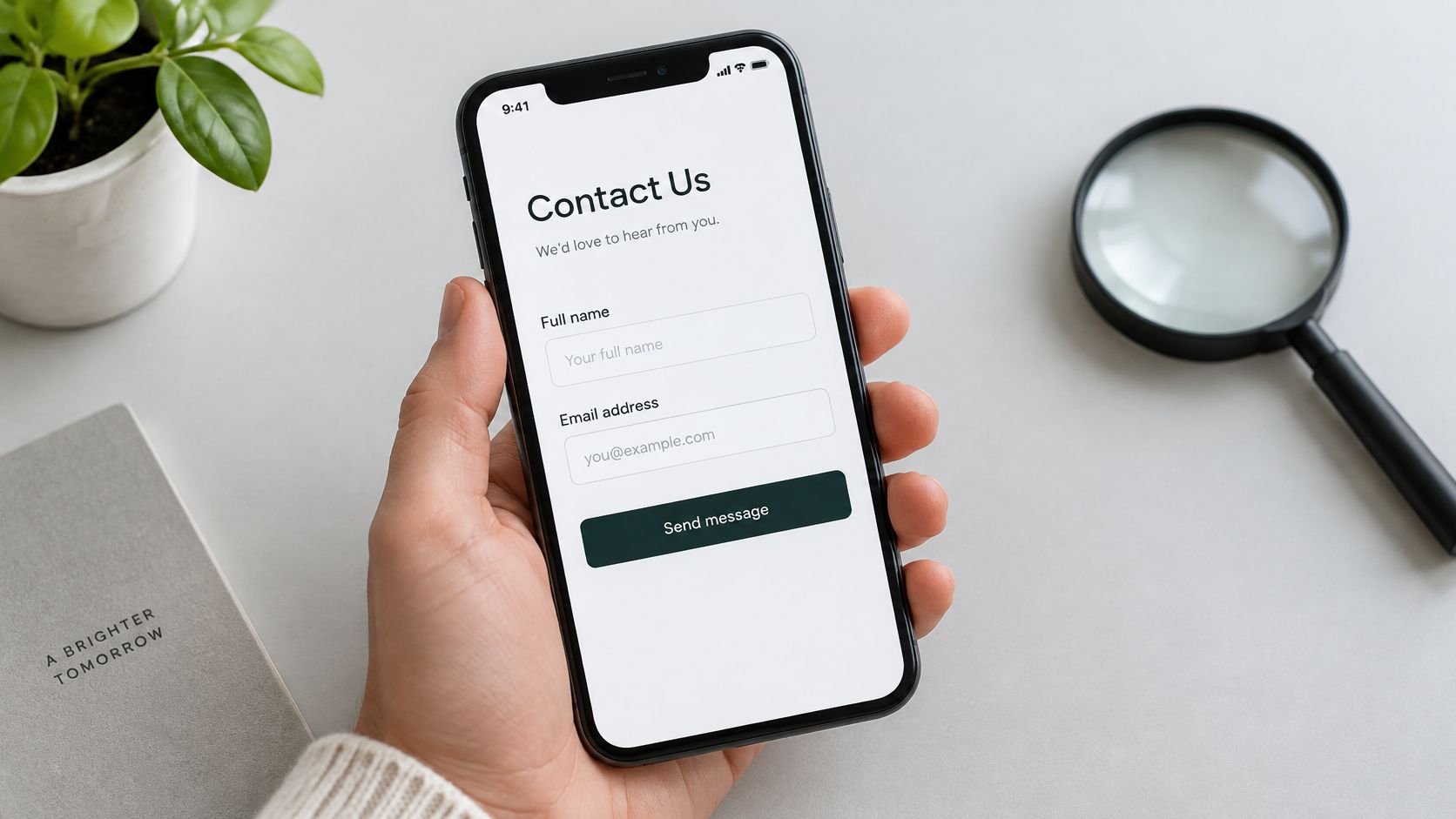
Compression causes many of these failures. Menus hide labels, icons replace words, carousels show images with no text, sticky bars cover content, and pop-ups can trap keyboard focus. Aggressive simplification can remove the very context a person using a screen reader, enlarged text, or limited dexterity needs to recover from a mistake.
Ask the harder question. How does your mobile conversion path work when images are disabled, text is enlarged, a screen reader is active, or a user makes an input error? If the answer depends on color alone, placeholder text, or a tiny icon with no label, the path is fragile.
Build rules to enforce
- Label every form field: Use visible text that stays on screen, not placeholder text that disappears when typing starts.
- Give icon buttons text alternatives: Keep a persistent word beside icons for call, directions, menu, and booking actions.
- Keep focus order logical: Tab order should move top to bottom in the same order a person reads the page.
- Avoid time-limited forms: Don’t erase a quote request because a visitor needed more time to type or listen.
- Write specific error messages: Name the field and the fix, such as which part of a phone number or date needs correction.
- Let text enlarge safely: Text at 200 percent shouldn’t cut off buttons, prices, or error instructions.
These fixes also help people in bright sunlight, on small screens, and on slow connections, which is why they belong in the same plan as speed and conversion. For the compliance side, review website accessibility and ADA compliance basics for small business sites before you redesign forms and navigation.
Run a ten-minute audit today. Turn off images, enlarge the text, then tab through the primary action using only the keyboard. Note each point where you can’t tell where you are, what a button does, or how to fix an error. Fix those break points before adding another pop-up or carousel.
Real Local Examples and Your First Move
A mobile-first page starts with the action a visitor came to take. The right setup varies by business, but a helpful tool can still hurt conversions if it blocks that action while loading.
- Dental practice: Put tap-to-call and booking actions on the first screen. A heavy booking widget can delay the button it is meant to support, so check whether visitors can call before the widget finishes loading.
- Real estate agent: Show listings with prices, beds, locations, and a clear request-a-viewing action. Image-heavy galleries can push those details down the page, while filters can make listing content harder for search engines to access.
- Restaurant: Put directions, today’s hours, a readable menu, and reservations up front. A menu PDF that is difficult to read on a phone can send a ready-to-order diner elsewhere.
- Home services company: Keep the quote form to the information needed to start a conversation. Asking for project history before contact details adds effort for someone who may only need a callback.
- Motorcycle dealership: Make stock and test-ride booking easy to find on each listing. Filters that rely on heavy scripts can slow the page and obscure available bikes.
Structured data is part of the mobile build. Google’s mobile-first indexing guidance on structured data says that structured data on desktop should also be present on the mobile version. It highlights Breadcrumb, Product, and VideoObject as useful priorities. Keep the mobile page’s content and markup aligned with what visitors can see and use in practice.
When a TV ad sends someone to your site, the landing page needs to work on the phone in their hand. Documented Adwave outcomes include 150% client growth in five weeks for Kaimuki Dental, significant revenue gains for Farrow Harley-Davidson, and broader reach for Mountain Burger and Kenny Patton Real Estate. Adwave can create a broadcast-ready spot from a website URL, but that destination still needs to load quickly and make the next action clear. A slow widget or buried booking button can waste the visit.
Start with one page: the destination linked from your ads, listings, or map profile. Check its load and time how long it takes to complete the main action on a mid-range phone. Fix the largest blocker first, whether it is a slow widget, a hidden call button, or a form label that disappears. Then compare calls and bookings before investing in a wider redesign.
After that page is ready, Adwave can turn its URL into a broadcast-ready TV ad and place it across premium channels without a production crew. Start with a focused local campaign, then track whether visits lead to the calls, bookings, or quote requests the page is designed to earn.