
You've probably already done the hard part. You paid for a site redesign, added online booking or quote forms, cleaned up your messaging, and maybe started pushing more traffic through search, social, or local ads. Then someone emails to say they can't use the menu with a keyboard, your form doesn't announce labels to a screen reader, or the text is too low-contrast to read.
That moment catches a lot of small business owners off guard. The site looks polished. It works for the staff in the office. But website accessibility for small business sites isn't judged by how it looks in a design review. It's judged by whether people with disabilities can use it.
Accessibility doesn't have to start with a full rebuild. For most small businesses, the right move is a prioritized plan. Fix the barriers that block real users first. Document what you've done. Build a repeatable process so each site update doesn't undo your progress.
Why Website Accessibility Is a Small Business Imperative
A small business website is part storefront, part receptionist, part sales rep. If someone can't move through it, read it, submit a form, or complete a purchase, that isn't a minor UX issue. It's a customer-service failure.
That's why accessibility matters beyond compliance. An inaccessible website turns away people who are trying to buy, book, call, or learn more. If your business depends on local discovery and digital conversions, accessibility affects the same goals as every other marketing improvement. Better usability, lower friction, clearer navigation, and stronger trust.
For owners balancing limited budgets, that's an important reframing. Accessibility isn't separate from growth. It supports growth. If you're already investing in traffic generation, content, and local visibility, your website has to work for the people you bring there. Adwave's guide on how to market my small business is useful in that context because it ties promotion back to the fundamentals of a site that can convert visitors.
What accessibility changes in practice
Small businesses usually feel accessibility problems in familiar places:
Contact forms fail: A user can't tell which field asks for email or phone because the labels aren't properly tied to the form fields.
Navigation breaks: Menus, popups, and booking widgets work with a mouse but not with keyboard-only navigation.
Content becomes unreadable: Light gray text on a white background may match a brand palette, but it can still be hard to read.
Media excludes users: Videos without captions and audio without transcripts leave some visitors behind.
An accessible site doesn't just avoid complaints. It removes unnecessary friction for people who already want to do business with you.
Why small businesses can't treat this as optional
A lot of owners assume accessibility rules are mainly for governments or national brands. That assumption causes problems. Public-facing small businesses still rely on their websites to provide goods, services, information, and communication. If the site blocks access, the business has exposure.
There's also a simpler ethical point. Most owners would never leave a customer stuck at the physical front door. A website can create the same result, just less visibly. Accessibility work fixes that. It makes the digital front door usable.
Decoding the Legal Landscape ADA and WCAG Explained
A small business owner usually asks me the same question after hearing about an accessibility complaint. What am I required to do?
Start with the split between law and standard. The Americans with Disabilities Act, enacted in 1990, is the civil-rights law that frames website accessibility obligations in the U.S. For public-facing businesses under Title III, the core issue is whether people with disabilities can access the goods, services, and information the business offers online. Small companies often assume the rules only hit big brands or government agencies. That is a risky assumption.
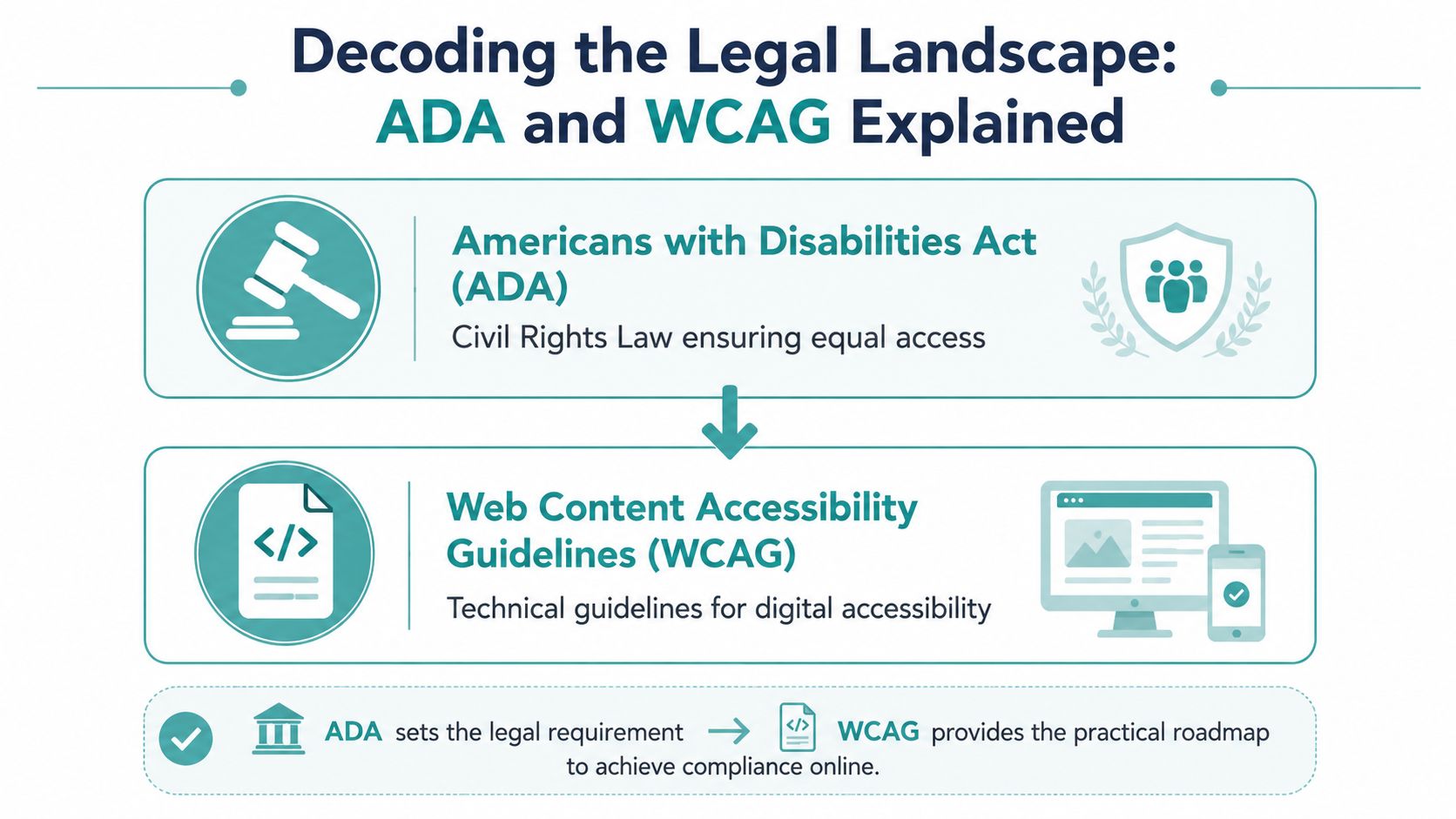
ADA is the legal requirement. WCAG is the technical benchmark
The ADA tells you the outcome you are expected to provide. It does not give you a page-by-page web checklist. WCAG, the Web Content Accessibility Guidelines, fills that gap by giving teams a practical standard for design, code, content, and testing.
For government entities, the Department of Justice has tied web compliance to WCAG 2.1 Level AA, with compliance dates set for April 26, 2027 for entities serving 50,000 people or more and April 26, 2028 for smaller public entities and special districts, as stated in the DOJ's small-entity compliance guide. The ADA statute does not give private businesses the same specific rule. WCAG remains the benchmark courts, consultants, and remediation teams commonly use to judge whether a site is accessible in practice.
For a small business, that distinction matters. You do not need to argue legal theory before you fix obvious barriers. You need a standard your developer, agency, or platform can work from. In most cases, WCAG 2.2 Level AA is the right planning target for private-sector sites because it aligns with current practice and covers the issues that generate the most user friction.
The four WCAG principles in plain English
WCAG is built around four principles. They give you a way to sort problems by type, which helps when budget forces you to prioritize.
That framework keeps owners from getting lost in technical jargon. If someone cannot read the content, use the menu, submit the form, or complete a purchase with assistive technology, the problem usually fits into one of those four buckets.
I advise small businesses to treat WCAG as a risk-reduction tool, not a memorization exercise. You do not need to master every success criterion before taking action. Fix the barriers tied to revenue and basic access first. Homepage navigation, contact forms, scheduling tools, cart and checkout flows, PDFs required for service access, and video captions usually deserve attention before lower-traffic pages and edge cases.
That prioritization is also how smart compliance work stays affordable. A full rebuild is sometimes necessary, but it is often not the first move.
If the legal side still feels abstract, compare it to the way businesses handle CAN-SPAM and GDPR compliance for small business owners. The law sets the obligation. A technical standard and documented process turn that obligation into day-to-day work. Website accessibility follows the same pattern.
Your DIY Website Accessibility Audit Checklist
A customer tries to book an appointment at 9 p.m. from a phone, tabs into your menu, loses the focus indicator, and gives up. That is the kind of failure a quick audit can catch before it turns into lost revenue or a legal complaint.
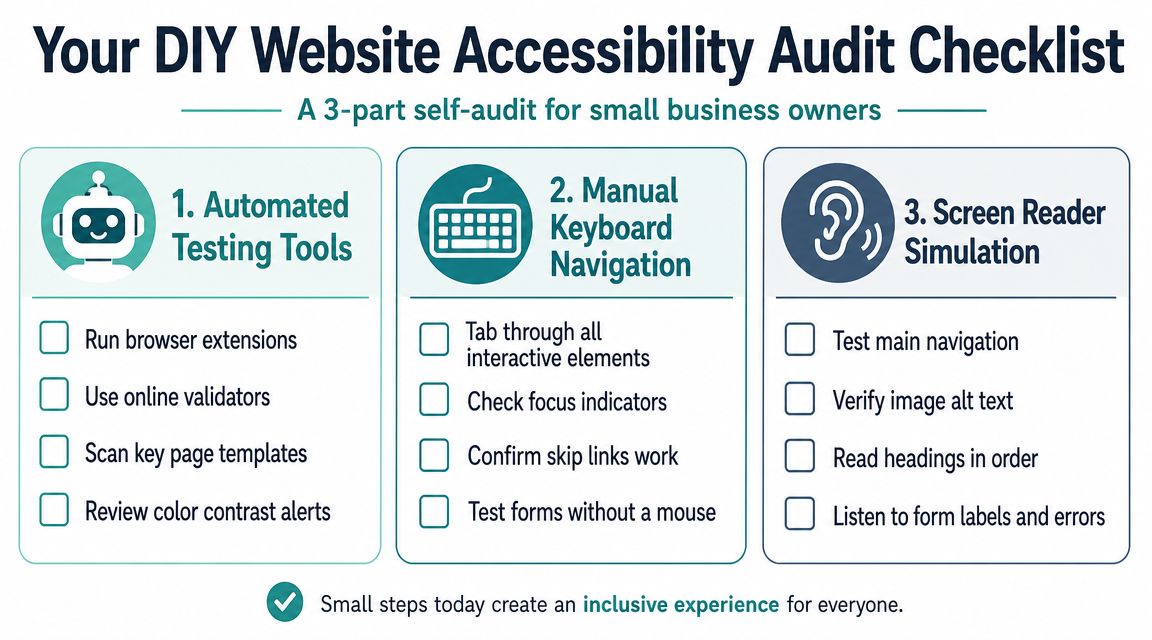
You do not need a formal audit to find the first round of problems. For most small business sites, a useful DIY review has three parts: scan for code-level issues, test key tasks without a mouse, and check whether the page still makes sense without its visual styling.
Start with automated scanning
Run a browser-based tool such as WAVE on your homepage, contact page, top service pages, booking flow, product pages, cart, and checkout. That gives you a fast read on repeated issues tied to templates. It is the cheapest way to spot patterns before a developer starts billing hours.
Look first for:
Missing text alternatives: Product images, service icons, logo links, and promotional graphics need alt text if they carry meaning or trigger an action.
Contrast failures: Body text, buttons, form labels, and linked text need readable contrast. A practical benchmark in small-business guidance is at least 4.5:1 for normal text and 3:1 for large text, based on the NFIB resource on ADA website accessibility.
Form problems: Unlabeled inputs, empty buttons, placeholder-only fields, and unclear error states are common.
Heading and landmark issues: Pages need a logical structure so screen reader users can move through them without guessing.
Automated scanners are good at finding what is in the code. They are weak at judging whether a real person can complete a task from start to finish.
Do a keyboard-only pass
If you only have time for one manual test, do this one.
Put the mouse away. Start at the top of the homepage and work through the site with Tab, Shift+Tab, Enter, Escape, and arrow keys where needed. Test the main menu, buttons, popups, forms, scheduling tools, cart controls, and footer links. Then try to complete one high-value task such as sending a contact form, requesting a quote, scheduling an appointment, or making a purchase.
Check for these specific problems:
Visible focus: You should always be able to see which link, button, or field is selected.
Keyboard access to all controls: Menus, modal windows, accordions, and date pickers should open, close, and operate without a mouse.
No keyboard traps: Focus should move forward and backward predictably. If a popup traps you, that is a serious barrier.
Task completion: Reaching a button is not enough. The full interaction has to work.
If you get stuck in a popup, cannot open a submenu, or lose track of focus, log it as high priority. Those issues block access to core functions.
Strip away presentation and review the page structure
Turn off images, reduce styling, or use a reader-style view. Then read the page top to bottom.
The goal is simple. Check whether the content still communicates clearly when layout, color, and visual grouping stop doing the heavy lifting.
Look for:
Headings that follow a clear order: The page should read like an outline, not a pile of bold text.
Link text that makes sense on its own: Replace vague calls to action like “click here” or repeated “learn more” links with specific labels.
Important information that exists only in images: If pricing, service details, hours, or instructions disappear with the image, users are missing content.
Labels and instructions that stay clear without visual cues: Do not rely on color alone to explain required fields or errors.
Mobile layouts deserve extra attention during this step. Hidden menus, sticky elements, duplicate buttons, and reordered content often create accessibility problems on smaller screens. If phone traffic matters to your business, review this alongside a mobile website design checklist for local businesses.
Keep a simple issue log
Do not trust memory, especially if several people touch the site.
Use a spreadsheet or shared doc with these columns:
Add one more field if you can: business priority. A broken checkout button and a low-traffic blog image do not belong in the same queue.
That issue log becomes your working plan. It helps you spend limited budget on the fixes that reduce the most risk and help the most users first.
A Prioritized Remediation Plan for Any Budget
Most small businesses don't need a lecture about perfection. They need an order of operations.
When audit results come in, owners often make one of two mistakes. They either freeze because the list feels too long, or they chase cosmetic fixes because those are easier to approve internally. Neither approach reduces much risk. The better path is to fix the barriers that block users from perceiving content and completing tasks.
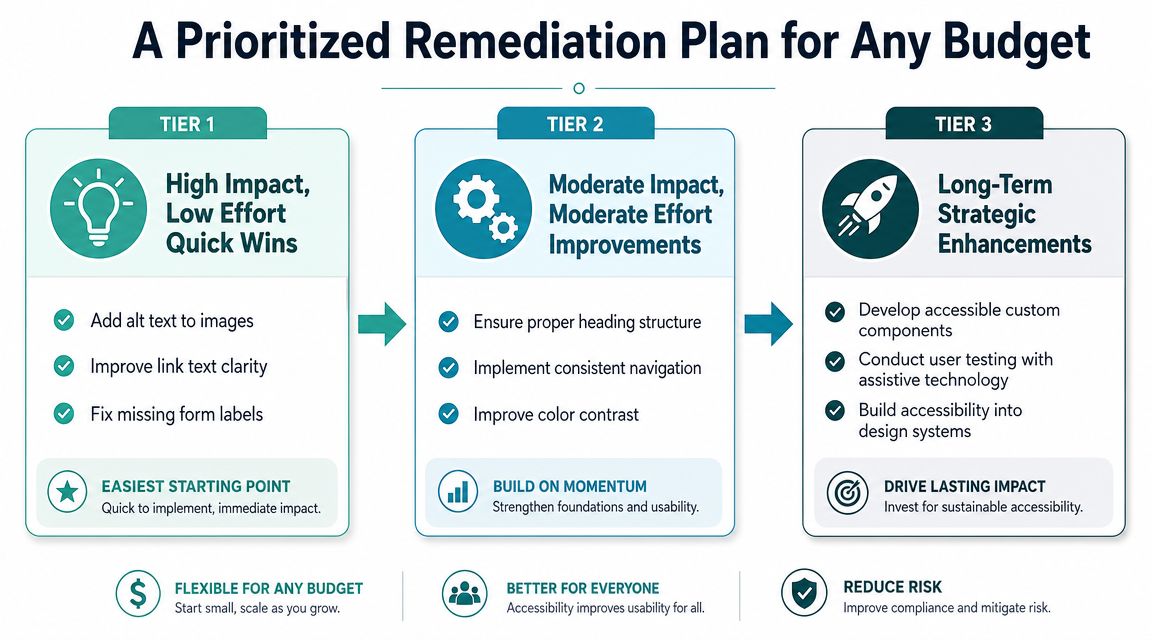
Tier 1 quick wins that remove common barriers
Government guidance points to a high-value sequence for remediation: add text alternatives to meaningful images, provide captions or transcripts for audio and video, use consistent headings and navigation, and make forms accessible, as described in the DOJ's Title III primer.
That list is useful because it maps well to what helps users fastest.
Focus first on:
Alt text for meaningful images: Product photos, staff headshots used as links, service graphics, and icon buttons need meaningful alternatives.
Clear headings and navigation: Pages should have a logical heading structure and menus that behave consistently.
Accessible forms: Every field needs a label. Errors need to be understandable. Users shouldn't have to guess what went wrong.
Captioned media: If you publish video or audio content, provide captions or transcripts.
Flash and seizure risk checks: No content should flash more than three times per second.
These are not glamorous fixes. They are the ones that stop users from hitting a wall.
Tier 2 fixes that improve task completion
Once the obvious blockers are addressed, move to recurring interaction problems that sit inside templates, widgets, and page-builder patterns.
Examples include:
This is often where SMB sites get the biggest payoff from template-level changes. If you fix a broken menu component or a form pattern once, you may remove the same issue across many pages.
Tier 3 structural work that may need outside help
Some issues require code-level changes or platform decisions. Custom sliders, third-party booking systems, ecommerce plugins, and heavily scripted navigation often fall here.
That's where vendor selection matters. If you're rebuilding or migrating, accessibility should be part of the platform decision, not a patch after launch. Adwave's comparison of website builders for small businesses across Squarespace, Wix, and WordPress is useful when you're evaluating how much control and maintenance your team can realistically handle.
For businesses that want support with accessibility remediation as part of a broader digital growth stack, Adwave is one option to evaluate alongside your developer, platform partner, or specialist consultant. The practical value is less about a one-time fix and more about making accessibility part of the website's operating model.
Don't spend your first dollar on a decorative accessibility layer if your main form still lacks labels and your menu still fails keyboard navigation.
What doesn't work
A few approaches consistently disappoint:
Relying on overlays alone: They don't correct underlying content and code problems.
Treating accessibility as a redesign-only issue: Many barriers live in content, forms, and plugins, not just visual design.
Fixing isolated pages but not templates: That creates churn. The same defects come back with each new page.
A prioritized roadmap works because it respects your budget without pretending low-priority work is enough.
Maintaining Compliance and Showing Your Commitment
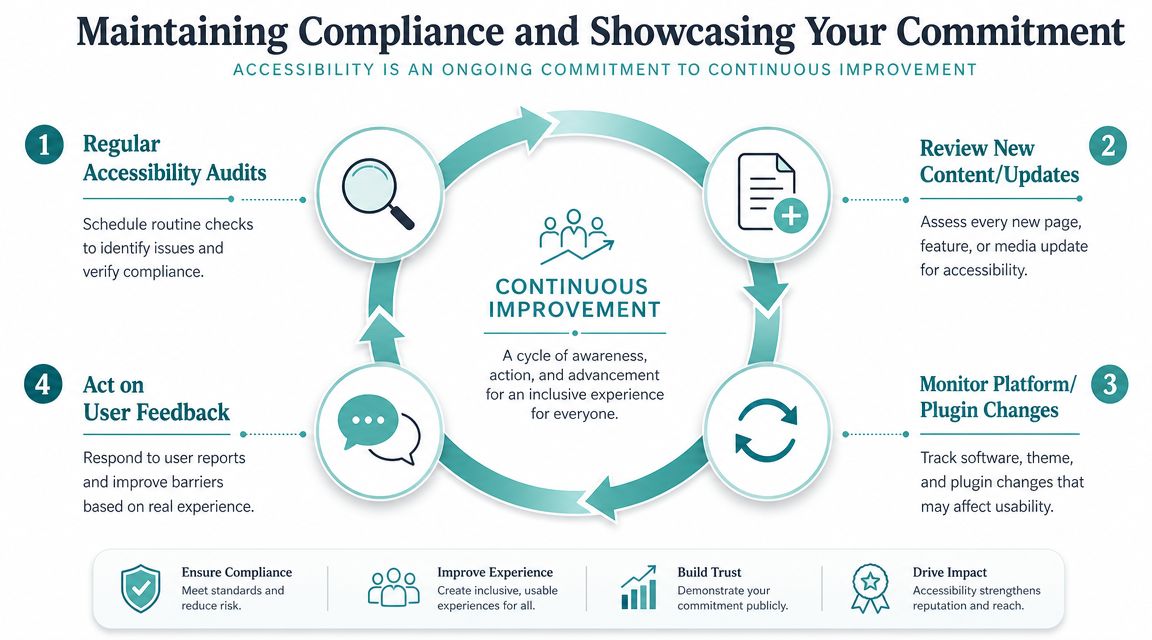
Accessibility doesn't stay fixed on its own. The homepage gets updated. A team member uploads a new image. A plugin changes a form flow. AI-generated content inserts unlabeled buttons or strange heading structures. What passed review last quarter may fail today.
That's why ongoing monitoring matters. Guidance discussing current enforcement trends notes that accessibility expectations are moving from aspirational to enforceable, especially after the DOJ finalized its April 2024 rule for state and local government websites, reinforcing the need for continuous attention as websites change through content updates, plugins, and AI-assisted workflows, as discussed in this overview of ADA compliance and ongoing monitoring.
A simple maintenance routine
You don't need an enterprise governance program. You need a repeatable habit.
A practical routine looks like this:
Monthly content review: Check newly published pages, blog posts, forms, and media for alt text, headings, captions, and readable links.
Quarterly keyboard testing: Re-test primary user paths such as contact, booking, checkout, quote request, and navigation.
Plugin and template review: Any CMS update, ecommerce app, booking embed, or layout change should trigger a quick accessibility check.
Issue log updates: Record what changed, what was found, and what was fixed.
Your accessibility statement matters
An accessibility statement won't make an inaccessible website compliant. It does something else that's still important. It tells users you're paying attention, what standard you're aiming for, where the site may still have limitations, and how they can report a barrier.
A solid statement should include:
Your commitment: A short sentence saying you're working to make the website accessible.
The standard targeted: State the benchmark you're working toward, typically WCAG Level AA.
Known limitations: Be honest about areas still under review or remediation.
Contact path: Give users a clear way to report a problem and request help.
A useful accessibility statement is specific, current, and connected to a real process. A vague paragraph with no contact option doesn't help users much.
Why this matters for marketing ROI
Accessibility and growth directly connect. If you run campaigns that drive people to your website, every barrier on the site wastes part of that spend.
That's especially relevant when a platform like Adwave helps small businesses launch TV campaigns that send new prospects to their digital front door. If the ad works and the website doesn't, you've paid to amplify friction. If the site is accessible, more visitors can browse, understand, and act on what they see.
Accessibility isn't separate from performance. It protects the value of the traffic you already worked to earn.
Frequently Asked Questions About ADA Website Compliance
Does my small business website really fall under ADA expectations?
A customer finds your business after hours, tries to book, order, or contact you online, and hits a barrier they cannot get past. From an ADA standpoint, that is the problem to take seriously.
If your business serves the public, treat the website as part of that public-facing experience. Small size does not put you outside accessibility expectations. As noted earlier, DOJ guidance makes that point clear. For a small business owner, the practical takeaway is simple. Do not assume “too small to matter” is a safe position.
What is the risk if I do nothing?
The risk is that an inaccessible website can lead to complaints, demand letters, lost sales, and rushed fixes under someone else's deadline.
It also creates day-to-day damage that is easier to miss. A customer cannot submit your form. A keyboard user cannot reach checkout. A screen reader user cannot tell what a button does. Those are business problems before they become legal problems. Fixing the highest-impact barriers early usually costs less than waiting until the issue is urgent.
Are accessibility overlay widgets enough?
No. A widget may add controls, but it does not repair the code, content, or structure underneath.
If form fields are unlabeled, headings are out of order, menus do not work with a keyboard, or custom components are not announced properly to assistive technology, the site still has accessibility failures. Some widgets also create a false sense of completion, which delays the work that reduces risk.
How much does remediation cost?
Cost depends on how your site is built and how much of the problem lives in shared templates versus individual pages. A five-page service site is usually a different project from an online store with filters, popups, booking tools, and third-party plugins.
For small businesses, I usually recommend a phased plan. Start with the items that affect every visitor or block core actions: navigation, forms, checkout, scheduling, mobile menus, and template-level contrast or labeling issues. That approach improves access for more people without turning the first round of work into a full rebuild.
Do I need an accessibility statement?
Yes. An accessibility statement gives users a way to report problems and ask for help. It does not by itself make a site compliant.
A useful statement should match reality. If you say you are working toward WCAG Level AA, there should be active review and remediation behind that claim. Keep it current, name a contact method, and respond when people use it.
Should I aim for WCAG 2.1 AA or WCAG 2.2 AA?
WCAG 2.2 Level AA is a sensible target for most small business websites today. If your developer or platform still references WCAG 2.1 AA, that is still a workable starting point, especially if budget is tight.
What matters most is not the label by itself. What matters is whether people can use the site, and whether your team catches new issues before they pile up.
Can I handle this myself?
You can handle the first layer yourself. A basic audit, content fixes, alt text review, heading cleanup, and link text improvements are often within reach for an owner, marketer, or site manager.
Bring in a specialist when the issues involve templates, code, third-party tools, or anything that breaks keyboard access, form behavior, or screen reader support. That split usually gives small businesses the best return. Handle the obvious content issues in-house, then pay for technical help where it will reduce the most risk.
If you're growing a local business and want your website to support that growth instead of creating friction, Adwave is worth a look. Alongside its AI-powered TV advertising platform for small businesses, Adwave fits naturally into the broader job of building a digital presence that's reachable, usable, and ready to convert the audience your marketing brings in.


