You’re paying to bring people to your website. Visitors reach the quote or booking page, but too few finish the form, and your team still has to chase submissions that aren’t a good fit. Cutting questions sounds sensible until you remove the answer that tells you whether a prospect is worth calling.
For local businesses, form optimization conversions should mean more than a higher submission count. The useful outcome is more qualified inquiries without making customers work unnecessarily or wonder why you need their information. That calls for field-by-field decisions, careful testing, and reassurance where deletion would create a different problem.
Audit Every Field Before You Redesign
Keep, defer or remove decisions for common lead-form fields
| Field | Decision | Test to run | Reason |
|---|---|---|---|
| Email address | Keep | Confirm it is the channel you reply to | Needed for most follow-up |
| Phone number | Keep if you call first | Compare completion with and without it | Required only when a call is the next step |
| Password or account creation | Remove | Offer a guest path or email link | Adds effort before any value is shown |
| Business category | Defer | Ask on the confirmation page | Useful for routing, not for the first contact |
| Budget range | Defer | Track sales-accepted leads with and without it | Often sensitive before the first conversation |
| Company size | Remove | Check whether it changes routing | Rarely changes the first response |
| Street address | Keep ZIP only | Test ZIP against full address | Full address only if a visit or quote needs it |
| Marketing consent checkbox | Keep as optional tick | Check unsubscribe and complaint rates | Separates consent from submission |
| Free-text message | Make optional | Measure completion and message length | Blank boxes add weight on mobile |
Treat these decisions as starting hypotheses, not permission to delete fields immediately. A cleaning company preparing a property-specific estimate may need an address earlier than a consultant arranging an introductory call.
Make every answer earn its place
Start with a spreadsheet, not a mockup. Work through the audit in this order:
- Export the fields. Record each field’s name, required status, and exact next action it supports, such as a callback, quote, booking, or service-area check.
- Ask the person handling inquiries. Would they respond differently without this answer? Request a concrete example rather than accepting that the information is useful.
- Assign a decision. Keep operational necessities, defer enrichment, and nominate unused questions for removal.
- Count displayed fields. Include conditional fields when they appear, and save the current form as your baseline.
The scale of unnecessary work can be substantial. Baymard Institute’s checkout benchmark found an average of 11.3 fields across 5.1 steps in 2024 and estimated that most sites could reduce displayed fields by approximately 20 to 60% without losing essential purchase information.
Those are checkout findings, not a prescribed length for a local lead form. The useful distinction is that field burden matters more than screen count: a hypothetical single-page form with nine questions can demand more effort than a three-step form with five.
A password on a quote request rarely supports the quote. A budget range may belong in the first conversation, while a company-size dropdown should disappear from the proposed design if nobody uses it for routing. Keep a phone number when the business calls first, not because the CRM happens to have a phone column.
Use heatmaps for small-business websites to investigate where visitors hesitate, alongside field-event tracking. Mask personal information in recordings.
Practical rule: Remove a field only when a test shows that the qualified-lead rate holds.
How to Test Forms Without Fooling Yourself
Instrument form views, field focus, first error, correction time, abandonment, successful submission, and sales acceptance before redesigning anything. Record field identifiers and event timing, not the personal information visitors type.
Baymard’s conversion optimization guidance provides a useful basis for diagnosing friction before making design changes. Your own funnel must establish which questions create that friction and which protect lead quality.
Define the winner before launch
- Choose the primary metric. Calculate completed submissions divided by form views. Count a submission only after the system accepts it.
- Set the quality guardrail. Define qualified-lead rate as sales-accepted leads divided by completed submissions. Give sales a consistent acceptance rule.
- Plan the sample size. Use your baseline rate, the smallest improvement worth implementing, and an A/B-test sample-size calculator. Don’t stop when the dashboard first looks favorable.
- Cover a business cycle. Plan for at least a full cycle, usually a week or more, including weekday and weekend traffic. Continue if the planned sample hasn’t arrived.
- Then inspect segments. Compare device and traffic source after evaluating the main result, rather than searching small segments for a winner.
Randomly assign visitors to variants and keep their assignment consistent. Changing the form, offer, and follow-up script together makes the cause of any improvement impossible to isolate.
First A/B tests for a lead form, with metrics
| Test | Primary metric | Guardrail | Run it when |
|---|---|---|---|
| Short form versus long form | Completed submissions per form view | Qualified-lead rate | Deferred fields can be collected later |
| Upfront qualification versus progressive profiling | Completions on the first step | Sales-accepted leads | A confirmation page or email can carry the rest |
| Phone optional versus required | Completion rate | Connect rate on callbacks | Calls are not the only next step |
| Single CTA versus staged submission | Completion rate | Time to submit | The form has more than one logical section |
| Reassurance line versus none on a sensitive field | Completion on that field | Complaints and unsubscribes | The field’s purpose is unclear to visitors |
| Outcome CTA versus Submit | Click-to-complete rate | Qualified-lead rate | The form has one clear next action |
Reject attractive false wins
Consider a hypothetical example, not a benchmark: a quote form drops from nine fields to five, and completions rise 14% over two weeks. Qualified-lead rate falls from 30% to 19%, with more inquiries from people who never book.
That version fails the agreed guardrail, even though the completion dashboard looks better. Reverse it and test a narrower change, such as restoring the service-area question while deferring the budget question.
Adopt when the primary metric improves and quality holds. Counting screens instead of fields, celebrating unusable leads, stopping early, or changing multiple variables won’t give you a dependable decision.
How to Rebuild Layout and Input Behavior
-
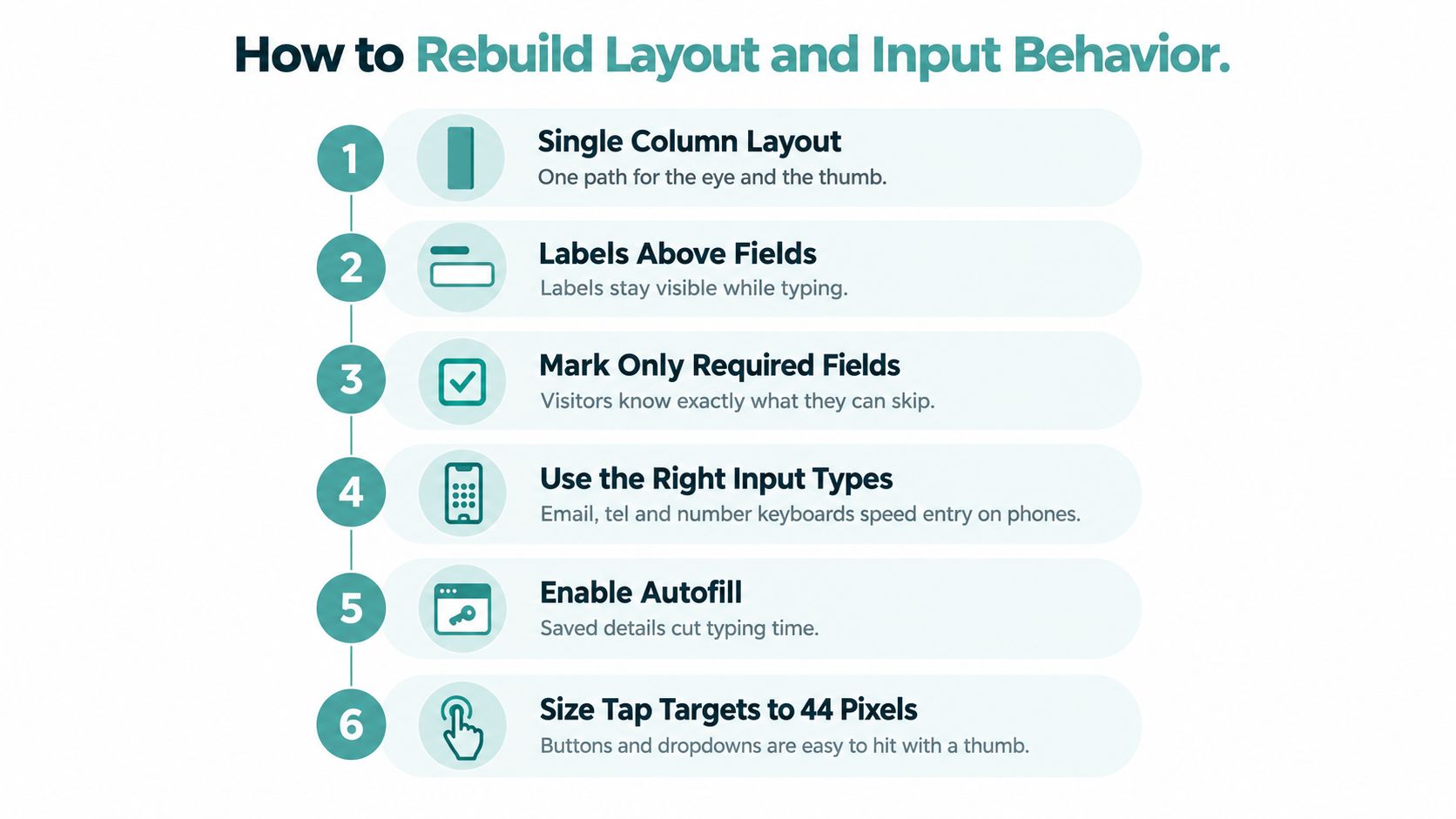
Switch to a single column. Give the eye and thumb a predictable route from the first question to the button. Side-by-side fields can create uncertainty about reading order, especially when the layout collapses on a phone.
-
Place persistent labels above fields. Placeholder text can offer an example, but it shouldn’t carry the field’s identity because it disappears during entry. Clearly distinguish required and optional questions before visitors begin.
-
Set semantic input types. Use
emailfor email addresses andtelfor phone numbers, then choose an appropriate input mode for other fields. For a US ZIP field, numeric input mode can help, but keep the value as text to preserve leading zeros and accommodate other countries when relevant. -
Enable browser autocomplete. Apply tokens such as
name,email,tel, andstreet-addressto their matching fields. Test the result rather than assuming the browser understands a custom label or embedded widget. -
Use progressive profiling. As a starting design, try three or four essential questions for the first submission, then collect deferred details on a confirmation page or follow-up email. Make that first submission useful on its own, so prospects don’t discover another mandatory form after believing they’re finished.
-
Give the form one primary outcome button. Use wording such as Get my quote, and preserve logical tab order and visible focus rings. Secondary actions shouldn’t compete with the action visitors came to complete.
Baymard’s form-design guidance supports combining mobile-friendly inputs, autocomplete, persistent labels, and prevention-oriented error handling. These changes reduce effort without requiring you to discard qualification questions.
Match the interaction to the promise
A contact request and an instant estimate have different information needs. A cleaning business can reasonably ask about property size when it returns a meaningful estimate, but the same question may be premature when the only promised outcome is a callback.
Estimatty’s comparison of AI estimators and traditional cleaning quote forms is useful when deciding whether to collect detailed scope information upfront or begin with a lighter inquiry. Choose the workflow around what customers receive, not around how advanced the form looks.
The implementation cost also differs. Labels and button copy are usually straightforward edits; progressive profiling requires reliable data handoff, confirmation-page logic, and follow-up ownership.
Put essential questions first. Optional questions at the top make visitors evaluate extra work before they understand how little is actually required.
Complete the finished form on a real phone with autofill enabled. Count taps, note every hesitation, and check that completing a deferred question updates the original lead instead of creating a duplicate.
Validation and Error Handling That Keep Leads Moving
Validation timing and error copy by field type
| Field type | Validate when | Error message style | Common mistake |
|---|---|---|---|
| On blur | Name the missing part and show an example | Rejecting valid plus-addressing | |
| Phone | On blur | Ask for the number with area or country code | Blocking international formats and spaces |
| ZIP or postcode | On blur, matched to country | Name the expected format for the country | Hardcoding a US five-digit rule |
| Password | As the visitor types | Show the rules before typing | Hiding requirements until submit |
| Radio or required choice | On submit | Highlight the whole group and say what to pick | Marking the group with colour only |
| Free text | On submit only | Keep text and show the character limit | Clearing the box after an error |
Blur means leaving a field. It’s a useful moment to check an email address or phone number because the visitor has finished entering it. Showing an error while someone is still typing the beginning of a valid address interrupts normal progress.
Password requirements belong before entry, with live feedback only for rules the account actually requires. If a visitor returns to correct another field, don’t repeatedly announce unrelated errors.
Tell visitors how to recover
Replace a generic invalid-input message with an instruction such as Add an @ and a domain, like name@company.com. Keep the message next to the field and programmatically associate it with that input; a summary can supplement local errors, but shouldn’t replace them.
Preserve every entered value after a failed submission. Required-field indicators also need explanation: an unexplained asterisk or red border asks visitors to infer what went wrong.
For more examples of actionable wording, use this guide to website microcopy that converts. Prioritize the message that helps someone finish, not the one that sounds most formal.
Accept valid information in familiar formats
Say a plumbing company near a border uses a booking form that rejects phone numbers beginning with a country code. A customer can be ready to book and still be unable to submit.
The practical fix is a permissive parsing rule that accepts valid country codes, spaces, and brackets, then normalizes the number behind the scenes. Don’t confuse a narrow formatting preference with evidence that a number is invalid.
Make error review a weekly habit. Find the field producing the first error most often, inspect correction time, and rewrite or relax the rule responsible for the most rework.
Trust, Copy and CTA Changes That Lift Submissions
A short question can still feel intrusive. Visitors may understand how to enter a phone number, home address, or health detail while remaining unconvinced that your business needs it.
CartFlows’ checkout-optimization statistics identify passwords and phone-number controls among recorded abandonment points. That doesn’t establish a universal removal rule for local lead forms, but it gives you a reason to investigate purpose and trust, not just typing effort.

Explain the exchange honestly
Start with a brief reason beside each sensitive field. If it’s true, explain that a phone number is used to confirm the appointment; don’t promise that use if the sales team will also make promotional calls.
Apply the same discipline near the button:
- Be specific about privacy. Describe the relevant use of the information and provide access to the privacy policy.
- Use accurate security cues. Display claims or badges only when they reflect the actual system.
- Make assistance accessible. Keep labels visible, connect error text to fields, use readable help-text contrast, and pair colour with words or icons.
- Offer an appropriate account alternative. Use a guest path or email link where a password isn’t necessary to deliver the requested service.
These changes take coordination, not just copywriting. Someone must verify that the promise matches how staff, software, and follow-up campaigns really use the submission.
Make the next action believable
Test outcome-led wording such as Get my quote or Book my visit against a generic Submit button. Match the promise precisely: a request for a callback isn’t a confirmed appointment.
The guide to call-to-action button wording and placement can help align that button with the visitor’s next step. Avoid countdowns or limited-availability claims unless the scarcity is real.
Test privacy wording a line at a time, watching field completion, complaint emails, and unsubscribes. Longer reassurance can introduce concerns visitors didn’t previously have.
Trust-adjusted decision: Explain a necessary sensitive question. Remove an unnecessary one.
For healthcare intake, legal consultations, mortgage pre-qualification, and property inquiries, a clear purpose can justify necessary detail. It can’t justify collecting information nobody uses.
Mobile and Page Speed Fixes for Local Traffic
A local form can fit a phone screen and still lose submissions. A visitor may have to switch keyboards repeatedly, re-enter autofilled details, or scroll to find a hidden button.
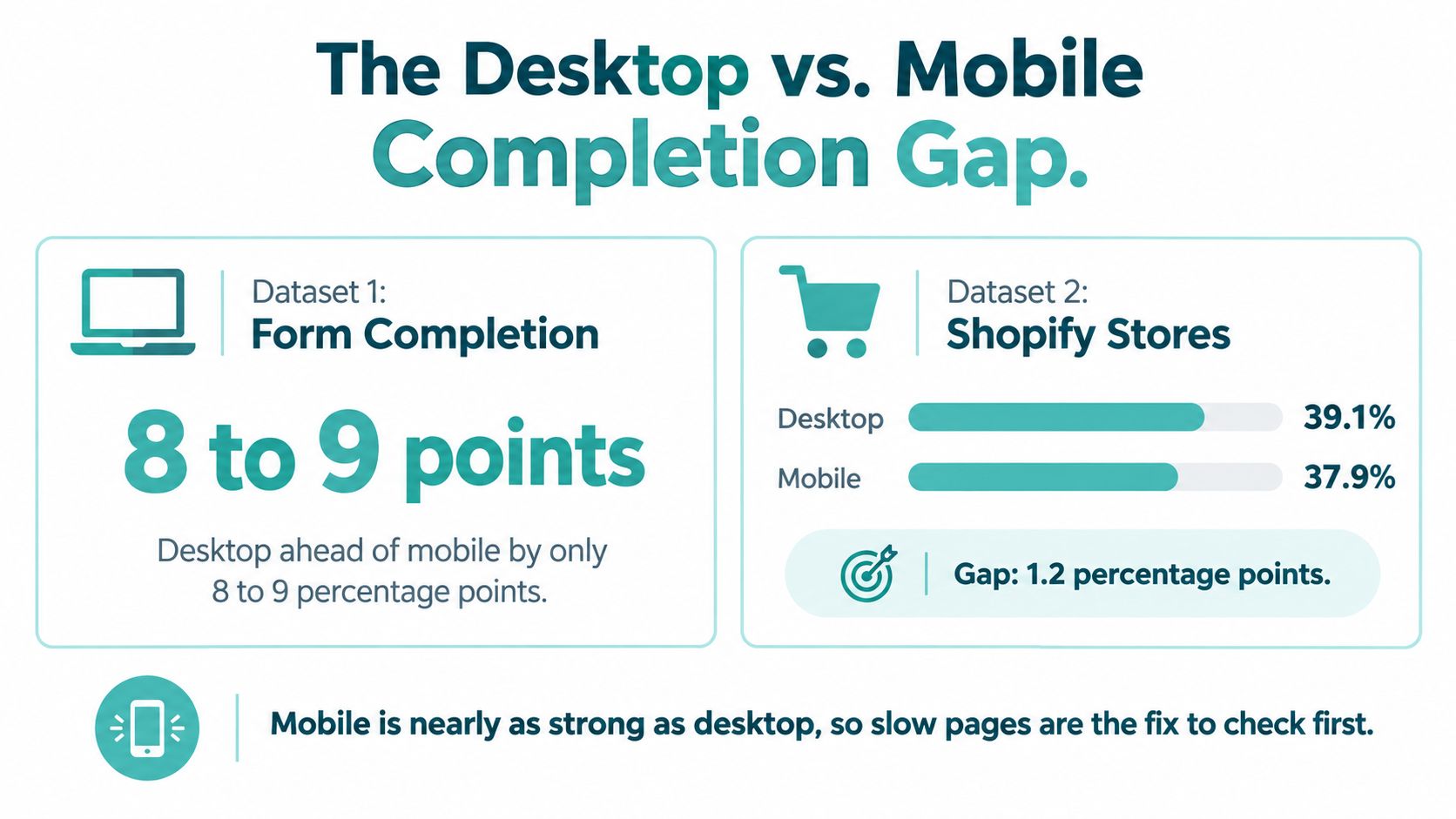
Shopify checkout figures compiled by pdfFiller’s online-form statistics put completion at 39.1% on desktop versus 37.9% on mobile. Those figures describe Shopify checkouts, not a target for your local booking form. Use them as a reason to inspect the phone experience, then judge changes by qualified leads, not submissions alone.
Check the complete phone journey
- Thumb reach. Keep the primary button wide and, where the layout allows, in the bottom third of the visible screen. A sticky button should not cover fields or errors.
- Keyboards. Try entering phone numbers, ZIP codes, and email addresses on iOS and Android. A browser preview may not reveal device-specific problems.
- Autofill. Populate saved details and check that dependent fields stay intact. Edit an autofilled value to make sure visitors can correct it.
- Address entry. Compare lookup with manual entry, retain a manual fallback, and check abandonment at the address step. Lookup adds a dependency and maintenance cost, so keep it only if it helps visitors complete the form.
- Payment methods. If payment is required, confirm supported Apple Pay or Google Pay options appear on compatible devices. Complete a transaction rather than checking only for a logo.
- Page weight. Remove unused scripts, compress images, and avoid autoplay video above the form. Keep necessary tracking, but remove duplicate or obsolete tags.
Use this guide to prioritize website speed fixes before paying for a rebuild. Script cleanup and image compression may cost less than replacing the form platform.
Diagnose the arrival context
Compare mobile completion by traffic source. Someone arriving through a brand search after seeing a television ad may need different context from someone arriving through a social referral or QR code. Check whether the landing page answers the questions each route is likely to raise.
During a campaign-related traffic spike, follow the actual arrival path on a phone. Confirm that the landing page, form, and confirmation state all work.
A pause at a qualification field does not prove the field should go. Check whether the visitor needs a better input control, a clearer explanation, or a shorter route. Remove the field only when testing shows qualified leads hold.
Pick One Form and Fix It This Week
Before launching a test, check the complete reporting connection, not just whether an analytics dashboard shows activity:
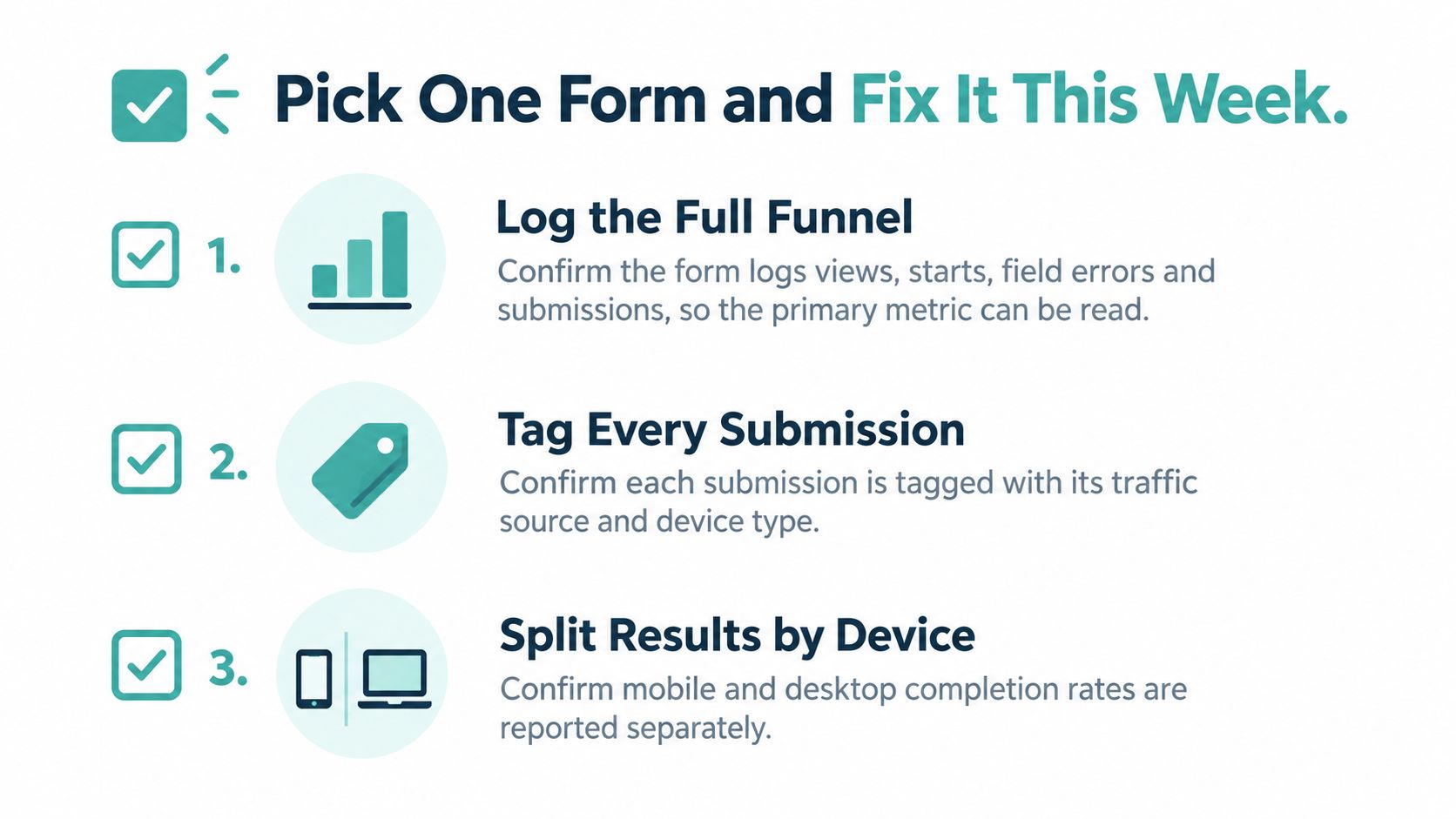
- Reconcile funnel events. Confirm that views, starts, field errors, and successful submissions appear in the expected order. Exclude failed requests from completion counts.
- Connect sales outcomes. Tag each submission in the CRM with traffic source, device type, test variant, and sales-accepted outcome. Make sure the outcome returns to a report you can compare.
- Use a real phone. Follow an actual campaign URL through submission and verify both the confirmation and the lead record.
Choose a test you can finish
Choose the eligible form with the most traffic, not the most complicated design. Try a focused change, such as deferring nonessential questions or replacing a vague button label, while leaving the offer and sales process unchanged.
As a practical planning window, reserve two to four weeks, then let the calculated sample requirement and business cycle determine whether that’s sufficient. Low-volume forms may need longer; a deadline doesn’t turn an inconclusive result into a winner.
Keep loading problems on the shortlist. Google’s mobile-site performance analysis found that bounce probability increased 123% as load time rose from one second to ten, and conversion probability fell 95% as page elements increased from 400 to 6,000.
Adwave is a good fit for this measured approach because it helps local businesses create, launch, and measure TV advertising that builds awareness and brings prospective customers toward their website. Ask its team which submission data can be passed back so you can compare accepted leads with campaign spend.
Keep the variant only when completion improves and the quality guardrail holds. If submission volume rises but qualification deteriorates, restore the original and test a narrower adjustment.
Adwave offers AI-powered TV ad creation, local audience targeting, and campaign measurement for small businesses. Visit Adwave to plan a campaign around a landing page you can measure, and ask how successful form submissions can inform your conversion reporting.