You’re looking at a page that gets a handful of visits a day and almost no finished actions. The button still says Submit. The headline still says welcome. A person who just searched for a local service is sitting on one quiet doubt, and nothing on the screen answers it.
That doubt changes with the moment. On the homepage it’s whether you can do the job today, near them. Beside a phone field it’s why you want the number. At payment it’s what the total will be and whether they can change their mind. Website microcopy that converts is the short answer to the doubt a visitor has at that exact spot, written where the doubt appears, not buried in a footer.
Decorative wording is what fails on small sites. Witty buttons, generic errors, and smooth AI drafts that no customer can check all force people to diagnose the interface. What works is a line that names the next step, keeps what they already typed, and tells them how to recover. Recovery, accessible labels, and a check on AI drafts belong in the writing method itself, not in a cleanup pass after launch. Traffic is often too thin to test every line, so each line has to earn its place.
Microcopy Templates for Each Key Page
Start with a page-level set you can paste into a draft and then rewrite in your own prices, places, and timings. The job column is the doubt that line has to answer. A weak version is what many small sites still ship. The stronger template is a starting point, not a slogan to keep forever.
| Channel | Job of the line | Weak version | Stronger template |
|---|---|---|---|
| Homepage headline | Name the result and who it serves | Welcome to Smith Plumbing | Same-day drain repair across Leeds, booked in two minutes |
| Primary button | State the outcome | Submit | Get my free quote |
| Secondary link | Lower perceived risk | Learn more | See pricing, no signup needed |
| Form helper text | Explain why you ask | Phone | We call only to confirm your appointment |
| Checkout reassurance | Answer the payment doubt | Checkout | Pay securely. Cancel within 14 days. |
| Modal opt-in | Name the benefit and the cost | Subscribe | Get the spring menu by email, one message a month |
| Modal exit | Make declining feel fair | No thanks | Not now, I’ll browse |
Read the table left to right. Channel is where the line sits. Job of the line is the doubt, so you don’t write brand voice before you know what the visitor is unsure about. Weak version hides the outcome, the cost, or the reason you asked. Stronger template puts that answer in the visitor’s words.
Swap the details before you publish. Leeds becomes your town. Two minutes becomes the booking time you can actually keep. Fourteen days becomes a cancellation window your terms support. A spring menu becomes the thing you really send, at the frequency you really send it.
Practical rule: Every line should answer one doubt the visitor has at that exact moment. If it answers two, or none, cut it back.
A headline that names the result and the place does more than a welcome line because the visitor already knows the business name from the tab. A secondary link that says there’s no signup removes a risk the word “learn” never mentions. A modal exit that sounds fair keeps people who aren’t ready, instead of trapping them.
Five Steps to Write Microcopy That Converts
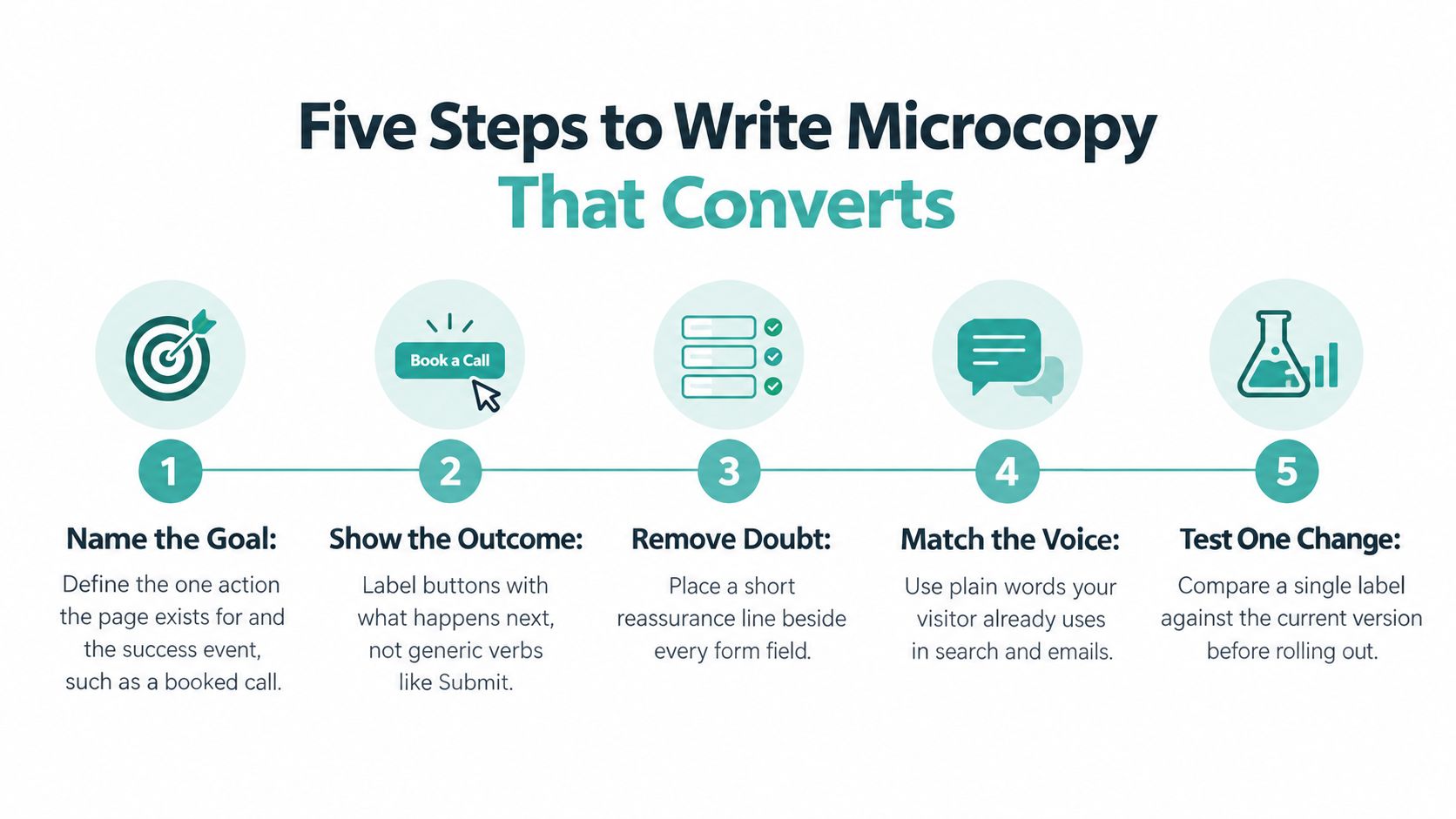
A visitor pauses at a quote form because the price, time commitment, or next step is unclear. Write in this order to answer that doubt before it becomes a reason to leave. Use these landing page practices that raise completions to check how the words work in context.
-
Name the one action and success event. Choose the outcome the page needs, such as a booked call, submitted quote, or completed checkout. Start with the action, not the brand voice. Otherwise, later lines can sound polished while leaving the visitor unsure what to do.
-
List three doubts in the customer’s words. Cost, time, and what happens to their data or card are useful places to start. Check emails and chats for the language customers really use, rather than relying on a tone deck.
-
Draft the button as outcome plus object, then add one reassurance nearby. “Get my free quote” tells the visitor more than “Submit.” Keep each line short enough to fit on a phone, and make sure the reassurance answers a real concern rather than adding generic comfort.
-
Place supporting detail beside the decision it explains. A field question belongs beside the field; a commitment deserves clarification near the button. Keep the explanation brief enough to scan, and make it available to people using assistive technology. A claim buried in a footer cannot help someone decide at the point of action.
-
Verify AI-drafted lines before they ship. Check every number and claim against your records, and replace generic praise with a detail you can substantiate. In healthcare, legal, finance, and real estate, assign a human reviewer to the final copy and scrutinize any personal or outcome claim.
When to disclose an AI draft
A 2026 review of 35 studies reports that AI-authorship disclosure can reduce perceived authenticity, credibility, brand attitudes, and behavioral intentions, with effects varying by content type, AI literacy, culture, and framing. The same review reports consumer-trend findings that only about 7% of consumers said visible AI-generated marketing increased trust, while roughly 31% said it reduced trust.
Natural-sounding copy can still raise doubts when it offers polished claims without proof. Consider disclosure when AI helped draft a personal claim, such as a named expert, customer result, or figure, especially in a credibility-sensitive category. For routine wording, keep the drafting record internal and ensure the published line remains accurate.
Test a human-written version against a verified AI-assisted version before settling on the wording. Judge by qualified actions, not clicks, and be realistic about what small traffic volumes can show. Show the page for five seconds, then ask what the visitor can do and what it costs. If the answer is wrong, rewrite the line.
Headlines, Buttons and Modals That Name the Next Step
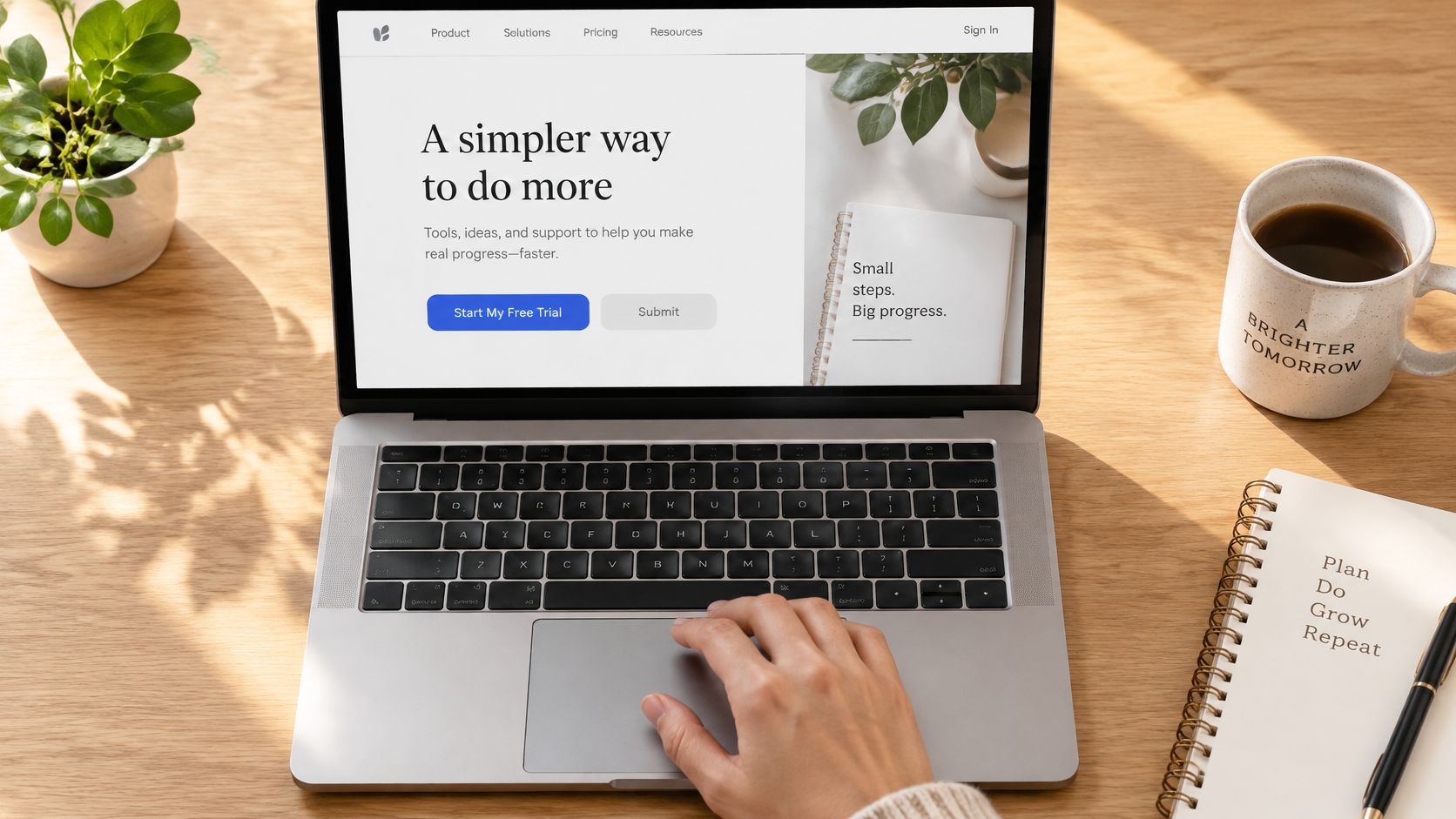
A visitor reaches a button and pauses: will it create something, open a review, or charge them? That moment of doubt is the test for the label. Button wording and placement matter when the words accurately describe the next screen.
Outcome labels versus process labels
Match the wording to what the visitor is about to do. Before a result exists, “Generate my TV ad” names the outcome. Before a decision or payment, “Review targeting” signals a check rather than a commitment.
Usability guidance on action labels favors specific labels such as “Save Changes,” “Invite Team Member,” and “Delete Project” over vague choices like “Submit,” “OK,” or “Continue.” Quinoid’s cited product example reported a 31% reduction in support tickets asking what buttons did after labels became more specific. The practical check is simple: can a visitor predict what happens next from the button alone?
For an advertising workflow, give each stage its own label: create the ad, review targeting, launch, and track performance. “Launch Campaign” belongs after targeting is confirmed. If it appears earlier, a small business testing TV on a modest budget may mistake a review step for a live campaign.
Modals should answer a real question
A modal earns its place when it resolves a doubt the visitor has already reached, such as what an offer includes or what it costs. Show it after engagement, state the offer and cost up front, and make dismissal as clear as acceptance. “Not now, I’ll browse” lets visitors continue without hiding the choice. Check the modal with a keyboard and screen reader, too: the close control must be easy to find and use.
A clever headline can obscure the point when a page needs to explain a service. Phone-led businesses should say where the call goes. Constellate’s 2023 review found that 76.6% of 303 law-firm websites included at least one click-to-call link, making phone-oriented labels the dominant path in that sample. “Call our Leeds office” answers a question that “Call us” leaves open. Before publishing, check each headline, button, and modal against the doubt it is meant to resolve.
Form Labels That Shorten and Explain Each Field
Length comes first. A Marketing Experiments comparison of forms with five, seven, and nine fields found the five-field version converted at 13.4%, against 10% for the longest. Treat that as one benchmark, not a rate you should expect on your site. Ask only for what this step needs, and make each field’s purpose obvious.
A labelling sequence
- List every field and ask if this step can proceed without it. If the answer is yes, it doesn’t belong here.
- Move optional fields to a later step, or to after first contact. Creative preferences can wait. A website, a location, and a goal usually can’t.
- Label the thing you need, not a category. “Website address” and “Service area” beat “Details” and “Preferences.”
- Put one helper line under the field. Say why you ask and what format to use. “We call only to confirm your appointment” does both jobs that the word “Phone” skips.
- Name each step by its outcome and show progress. “Choose your target area” and “Set your maximum spend” tell the visitor what’s left.
For an advertising intake in the same spirit, request the website, the location, and the campaign goal first. Leave look-and-feel questions for later. The same shortening logic applies to a single contact page built for more leads.
Layout and the mobile exception
Form-layout research drawing on Baymard found that 18% of users abandon forms because the layout is overly complex or confusing. Use a single column. Mark required fields in words, not only with an asterisk, so meaning doesn’t depend on a symbol or a colour.
On a small screen, keep the step name visible above the field. A progress label that scrolls away leaves the visitor unsure which question they’re on.
Labels that screen readers can use
Link every visible label to its input in code so a screen-reader user hears the same words as a sighted user. Attach helper text as a connected description, not as placeholder text, because placeholders vanish once typing starts. State required fields in words.
WebAIM’s 2025 analysis of one million home pages, as cited in UX writing coverage, found 94.8% had detectable WCAG 2 failures, missing form labels on 48.2% of pages, and 34.2% of form inputs not properly labeled. Check every field this way before you debate button colour.
For a baseline, Zuko Analytics data published by WPForms found that in 2024 two-thirds of people who started an online form completed it. Compare your own form-start-to-completion rate with that before you set a goal.
Error Messages That Let People Recover
Build the message as a recovery sequence, not as decoration on a failed submit.
First, classify the failure. Missing value, invalid format, unavailable account, or policy restriction. Each cause needs a different fix, so one sentence can’t cover all four.
Second, repair in place. Show the message next to the offending field, keep everything the visitor typed, and state the corrective action with an example.
Third, measure the recovery. Track completion rate, error-recovery time, repeat-error rate, and abandonment by device. A prettier sentence that doesn’t move those numbers isn’t done.
| Failure cause | Weak message | Recovery message | Where it appears |
|---|---|---|---|
| Missing value | Required | Enter your business phone so we can confirm the booking | Beside the field, on blur |
| Invalid format | Invalid URL | Paste a complete address including https://, for example https://yourbusiness.com | Beside the field, as the visitor types |
| Invalid email | Invalid input | Add the @ symbol, for example name@company.com | Beside the field, on blur |
| Unavailable account | Something went wrong | This email already has an account. Sign in or reset your password | Beside the email field and in a summary at the top |
| Policy restriction | Payment failed | This payment method is not accepted for this account. Choose another card or contact support | Above the submit button, with a link |
Baymard’s benchmark found that 98% of ecommerce sites use generic rather than problem-specific validation messages. In usability testing, vague wording made participants spend up to five minutes resolving simple sign-in errors. A URL field is the same pattern: “Invalid URL” diagnoses nothing, while “Paste a complete website address, including https://, for example https://yourbusiness.com” names the fix.
Inline, not after submit
A commonly cited Luke Wroblewski and Etre study reported that inline validation increased success rates by 22%, reduced completion time by 42%, and increased satisfaction by 31% compared with submit-only validation. The message has to name the specific problem. “Add the @ symbol” is usable. “Invalid input” is not.
Tie each error to its field in code and in text, not by colour alone. Unlabeled inputs, covered above, mean a screen-reader user may hear an error and not know which field it belongs to.
Pitfalls that hit mobile and first-timers hardest
- A global summary only. The visitor has to hunt for the field.
- Cleared inputs. They lose the work and often abandon.
- Validation only after submit. The mistake is expensive by the time they see it.
These patterns make people diagnose the interface instead of finishing the task. They’re especially damaging for mobile users and for first-time advertisers who don’t yet know your form’s habits.
Checkout Microcopy That Answers the Payment Doubt
Checkout copy answers three doubts at the moment of payment: what the total will be, whether the card is safe, and what happens if the buyer changes their mind.
- Show the full total on the line directly above the button. Include tax and any delivery or booking fee, for example “Total $84, including tax.” A surprise after the click is a broken promise.
- Put payment reassurance beside the card field, not in the footer. “Pay securely. Cancel within 14 days.” Name a payment processor only if it’s a recognised brand you use.
- Label the button with its outcome. “Pay $84 and book” instead of “Checkout” or “Continue.” The amount in the label should match the total above it.
- Offer the account choice without pressure. “Continue as guest, or save your details for next time” is clearer than a bare “Create account” prompt.
- Show progress as named steps. “Your details, Delivery, Payment, Confirm” tells the buyer how many steps remain.
Three pitfalls raise early clicks and lower completed purchases. Don’t promise a refund you can’t honour. Don’t reveal a fee only at the last step. Don’t run an urgency banner such as “Only 2 left” when the stock doesn’t support it.
Test the reassurance line against no line. Hold the button label and the price constant. Use completed checkout as the primary metric, and cancellation or refund requests as the guardrail.
Testing Microcopy Without Wasting Traffic
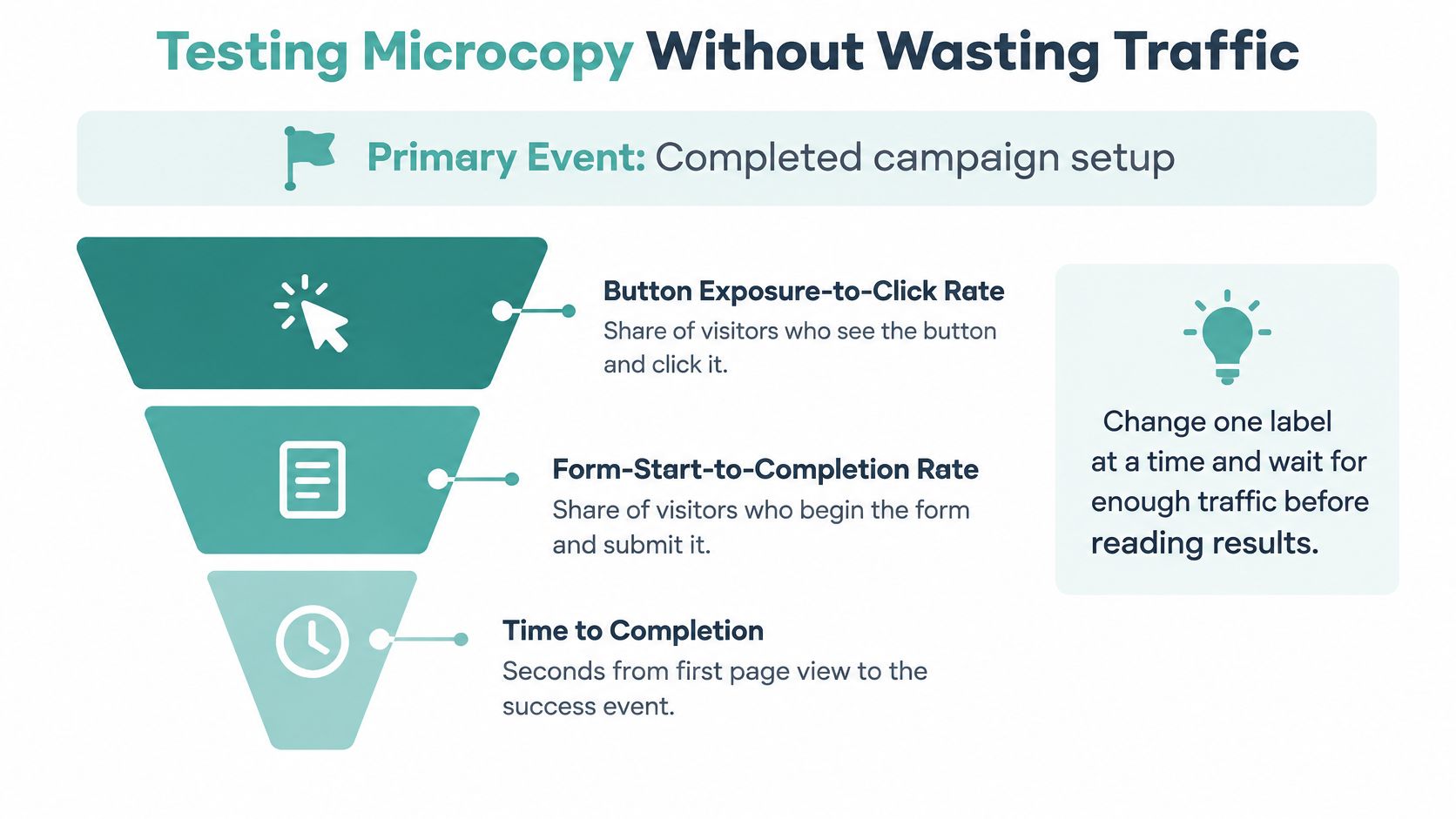
A wording change isn’t a test until you name the event that counts. Pick one primary event, such as a completed campaign setup or a qualified lead. Track diagnostics beside it: button exposure-to-click rate, form-start-to-completion rate, time to completion, and support-request rate. Heatmaps for a small-business site show where people stall, so you test the line at that stall instead of guessing.
| Test pair | Hold constant | Primary metric | Guardrail metric |
|---|---|---|---|
| “Generate my ad” vs “Start free preview” | Layout, offer, traffic split | Completed campaign setup | Support-request rate |
| Helper line on data use vs no helper | Field count, button label | Form-start-to-completion rate | Abandonment by device |
| Checkout reassurance line vs none | Button label, price | Completed checkout | Cancellation or refund requests |
| Five-field form vs seven-field form | Page copy, offer | Qualified lead rate | Follow-up reply rate |
| Human-written vs verified AI-assisted headline | Layout, offer | Qualified action rate | Unsubscribe or complaint rate |
Run rules, and one result you shouldn’t copy blindly
Set the sample size and the confidence threshold before launch. Run until both are reached. Segment by device, industry, and traffic source before you roll anything out. Changing copy, price, and page structure in the same test makes the winner impossible to trust. On an Adwave-style setup flow, label each step with its outcome, say why you ask, and show progress, then test one of those changes at a time.
One reported CTA-copy experiment attributed a 48% increase in form fills to a copy change at a 98.5% confidence level. Don’t expect the same lift. Check the original sample and the test design first. On a small site, a clean test can take months, so test a bigger contrast, such as a concrete outcome against a vague verb, and accept the longer run.
Stop for these three failures. Ending the test after an early uplift. Optimizing clicks instead of completed campaigns. Urgency or vague claims that raise the first click and cut qualified completion.
Test One Page This Week Before Rewriting Everything
A visitor reaches your contact form, hesitates at the first field, and leaves. Start with the page that gets the most traffic but has the weakest completion, often a contact form, checkout, or main service page. Apply the five-step method to its primary button and first field.
Before launch, record the primary event, diagnostic measures, and sample size. Run the test until you reach that sample, then check results by device and traffic source. Roll out the winner before changing another page.
Keep one working sheet: page, change, result, next page. It turns testing into a repeatable queue instead of a site-wide rewrite that stalls.
If TV advertising is already on your list, Adwave turns a website URL into a broadcast-ready ad. Its workflow labels cover creative, targeting, launch, and tracking. Use the first row of your sheet to start: name the page, write down one change to the button or first field, and record the result you will measure.
Adwave turns a business website into TV advertising that small teams can run, from creative through targeting, launch, and performance tracking. Visit Adwave when you’re ready to put a clear offer in front of local viewers.