You’ve opened your plumbing company’s Google listing to update the phone number, but Google wants verification first. Or you’re standing in your shop with your phone, wondering whether to film the sign, the register, or yourself opening the door. You want customers to find the right business and feel confident enough to call, not another administrative task.
Google Business Profile verification confirms that you manage or represent the business. The important preparation happens before you request a code or start recording: your profile needs to describe the business customers encounter in practice.
Verification Methods Google May Offer
Google decides which verification routes a profile sees, and the Get verified screen is where that decision shows up. When more than one option appears, you pick among the displayed choices. You can’t request a phone call or a postcard because it sounds easier. The table below explains what each pathway asks you to provide.
A dental practice owner who can answer the front-desk phone immediately might expect phone verification. Google may still display video instead, asking for evidence of the location, the equipment, and the owner’s authority to manage the practice. The options reflect Google’s assessment of the listing, not your preference.
Google Business Profile verification methods
| Method | What Google asks for | What it proves | When it applies |
|---|---|---|---|
| Postcard | A unique code mailed to the listed address | Control of that address | When Google displays postcard for the profile |
| Phone or text | A code sent to an eligible business number | Control of the listed phone | When that number is eligible and the option appears |
| A code sent to a business email | Access to the eligible inbox | Only when Google offers email for that profile | |
| Recorded video | An unedited mobile video of the location and operations | The business exists and is managed as claimed | When video is displayed; not from a desktop |
| Live video call | A real-time call with a Google representative | Identity plus on-site operations | When Google offers a live call |
| Bulk verification | An account-level review rather than one code per shop | Ownership across many locations | Organizations managing 10 or more locations after account approval, subject to Google’s verification guidance |
Each method supplies different evidence. A mailed code demonstrates control of an address, while filming business tools and opening a staff-only room demonstrates day-to-day operations. Every row confirms the same underlying point: someone manages the business as the profile describes it. None of them certifies that the business is eligible.
Follow the request attached to your listing rather than assembling proof for a method Google hasn’t offered.
Choose preparation, not a preferred method
Start by confirming your category describes the business accurately. A repair company that picks a retail category to chase a different verification option misstates what it does, and categories shape how customers find you long after verification ends. Adwave’s guide to choosing the right Google Business Profile categories walks through that decision based on the work you do.
Published adoption figures show how common verification is. Birdeye’s report on its 2024 Google Business Profile dataset stated that 64% of businesses had verified profiles. In a separate analysis of large global brands across more than 30 industries, Birdeye reported that 76% of profiles were verified in 2025, up from 71% in 2024.
Those figures come from different datasets, so neither predicts the outcome of your attempt. They measure how many profiles ended up verified, not how many attempts succeeded.
Practical rule: Prepare for the evidence Google requests, not the easiest method described in someone else’s tutorial.
Requirements do change, so treat the instructions on your own Get verified screen and Google’s current Business Profile Help Center as the authority when they differ from any guide. Older tutorials may still say Google Places or Google My Business. Google’s original Google My Business announcement documents that earlier product naming, not the steps you follow today.
Check Eligibility Before You Start
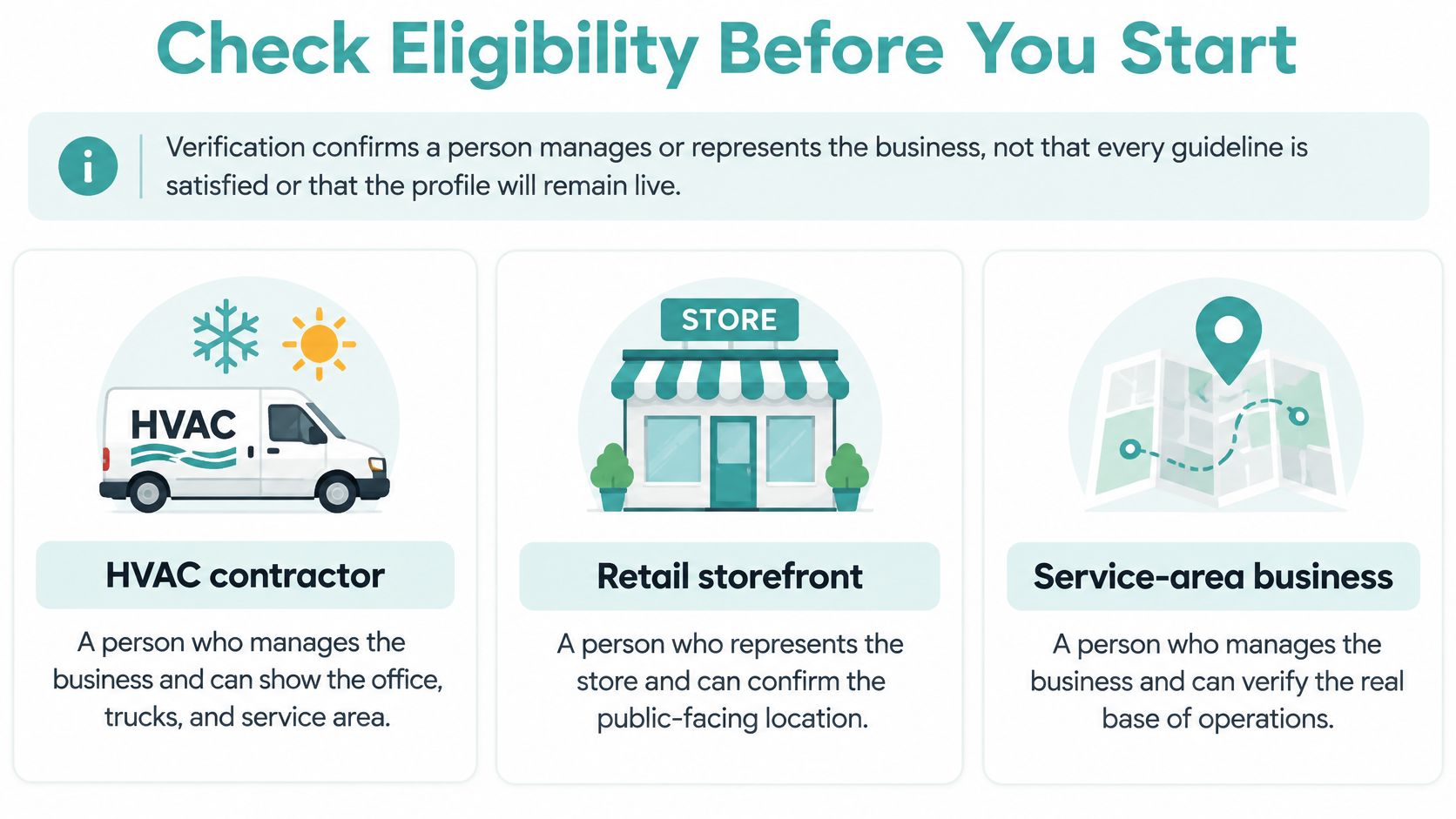
Verification isn’t a guarantee of ongoing eligibility. Google can establish that you represent a business without guaranteeing that its name, address, or operating model satisfies every profile requirement. Google’s verification troubleshooting guidance is the primary reference for resolving verification problems.
Consider an HVAC company whose technicians visit customers and whose home base isn’t open to the public. Its owner should configure the profile as a service-area business and hide the address rather than present the house as a walk-in office. Adwave’s service-area business profile guide explains that setup in more detail.
A salon inside a shared suite faces a different question: can customers identify that salon at the location? Its own signage and operating space matter. A realtor using a virtual office or P.O. box shouldn’t assume that receiving mail there makes it an eligible storefront.
Pre-verification eligibility check
Work through these checks in order, before requesting evidence or codes.
| Check | Passes when | Fails when |
|---|---|---|
| Business name | Matches the sign, van, website, and paperwork | Adds extra city or service keywords that aren’t part of the real name |
| Address or service area | A real place customers visit, or a hidden address with the service area set | A virtual office or P.O. box is presented as a storefront |
| Phone and website | Match what’s printed and published | An unrelated personal line or outdated site misrepresents the business |
| Google account | Belongs to an owner or authorized manager | Access rests with a former employee or unknown person |
| Category | Matches the work actually done | Is chosen for ranking rather than the actual business |
A mobile number isn’t automatically unsuitable. For a sole trader, it may be the genuine public business number. The problem is using contact information that doesn’t reliably connect customers with the represented business.
For owners still working out how their business should appear in search, Operosus’s UK guide to appearing in Google offers useful setup context. Keep that broader setup work separate from the specific proof Google requests during verification.
Correct the representation before recording
A polished video won’t repair an ineligible address or an invented business name. If your van says Oak Street Heating, adding a string of nearby towns to the profile name creates a mismatch rather than stronger evidence.
Standardize the name, address or service-area configuration, phone, website, category, and ownership access before submission. Then preserve that stable version while Google reviews it.
For the 2026 publication context, consult Google’s current Help Center separately for verification problems and suspension or appeal requirements. A verified status and permission to remain live are different controls, so don’t treat an accepted recording as permanent protection.
How to Finish Phone Email and Postcard Codes
Code verification is straightforward when the account, destination, and business details are ready. Most avoidable confusion comes from requesting a code before checking where Google will send it.
Google’s Business Profile verification Help Center page explains that Google determines the available methods and that you must follow the option offered to your profile. Use that live page to confirm current labels and requirements before submitting.
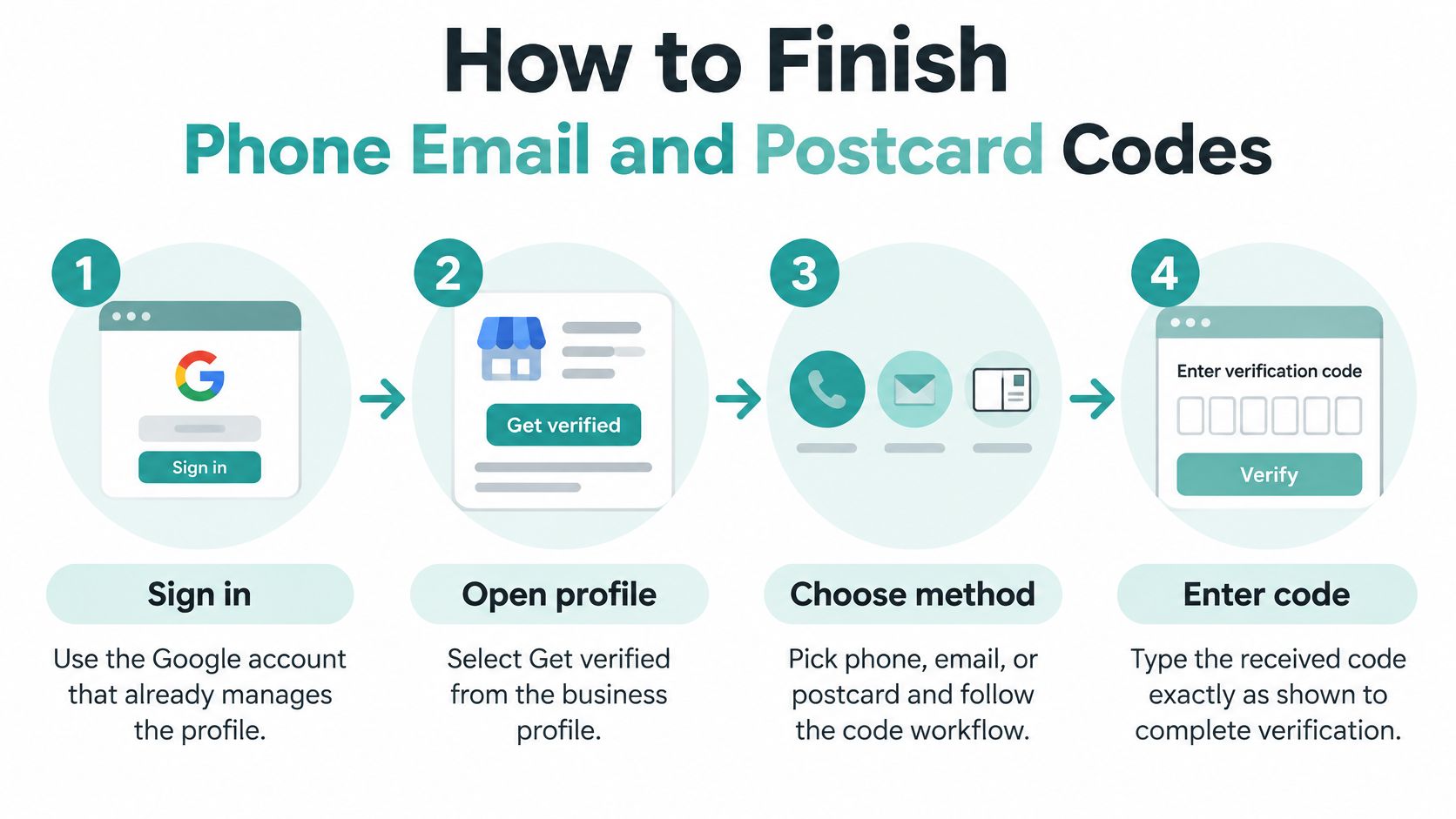
Complete the code workflow
-
Sign in to the Google account that already manages the profile. Check the account before making changes. Signing in with a personal account that has no management access can leave you looking at the public listing instead of its management controls.
-
Open the business profile and select Get verified. Confirm that you’re viewing the right business and location. A shop owner managing multiple branches can easily open the neighboring branch’s listing.
-
Use a displayed code method. If Google offers more than one code option, choose one you can complete reliably and stay with that request. Don’t change the phone or address merely to make another route more convenient.
-
For phone or text, receive the code at the eligible business number. The code goes only to the number Google has on file for the profile, so whoever can answer that line needs to be ready to read it out. If that number rings at the front desk, arrange for the receptionist or office manager to pick it up during the request.
-
For email, open the eligible business inbox. Use the address Google identifies, not whichever account is easiest to access. A personal inbox you use for everyday correspondence isn’t necessarily the eligible verification destination.
-
For postcard, confirm the mailing address, including the suite. Enter the code from the card Google sends. Don’t start a fresh request while an existing code is still in progress, and don’t assume mail addressed to your former suite will reach the new one.
-
Submit the code and preserve the submitted business details. Leave the name, address, phone, website, and category unchanged while Google decides. Reworking these fields during the process can create inconsistencies that require additional review.
Keep the destination under your control
Before starting, ask the person responsible for incoming calls, mail, or email to watch for the verification request. For a small contractor, that might be the owner; for a clinic, it might be the office manager. Give that person a clear task rather than assuming everyone will recognize the message.
If a contractor’s shared inbox is difficult to manage, Expressify AI’s resource on automated email triage for contractors is relevant to organizing incoming correspondence. It doesn’t replace access to the eligible inbox or Google’s verification process.
Keep a private record of the method and destination you used. Don’t send verification codes around a large team chat or give them to someone who doesn’t need profile access.
If the code fails, follow the displayed error instructions. Try another method only if Google still offers it for that profile, rather than repeatedly changing contact details.
Use Adwave’s guide to business name, address, and phone consistency to resolve mismatches before another attempt. Because delivery times vary by method, postal route, and region, plan your verification request for a window when the responsible person is available to receive it.
What to Show in a Video Verification
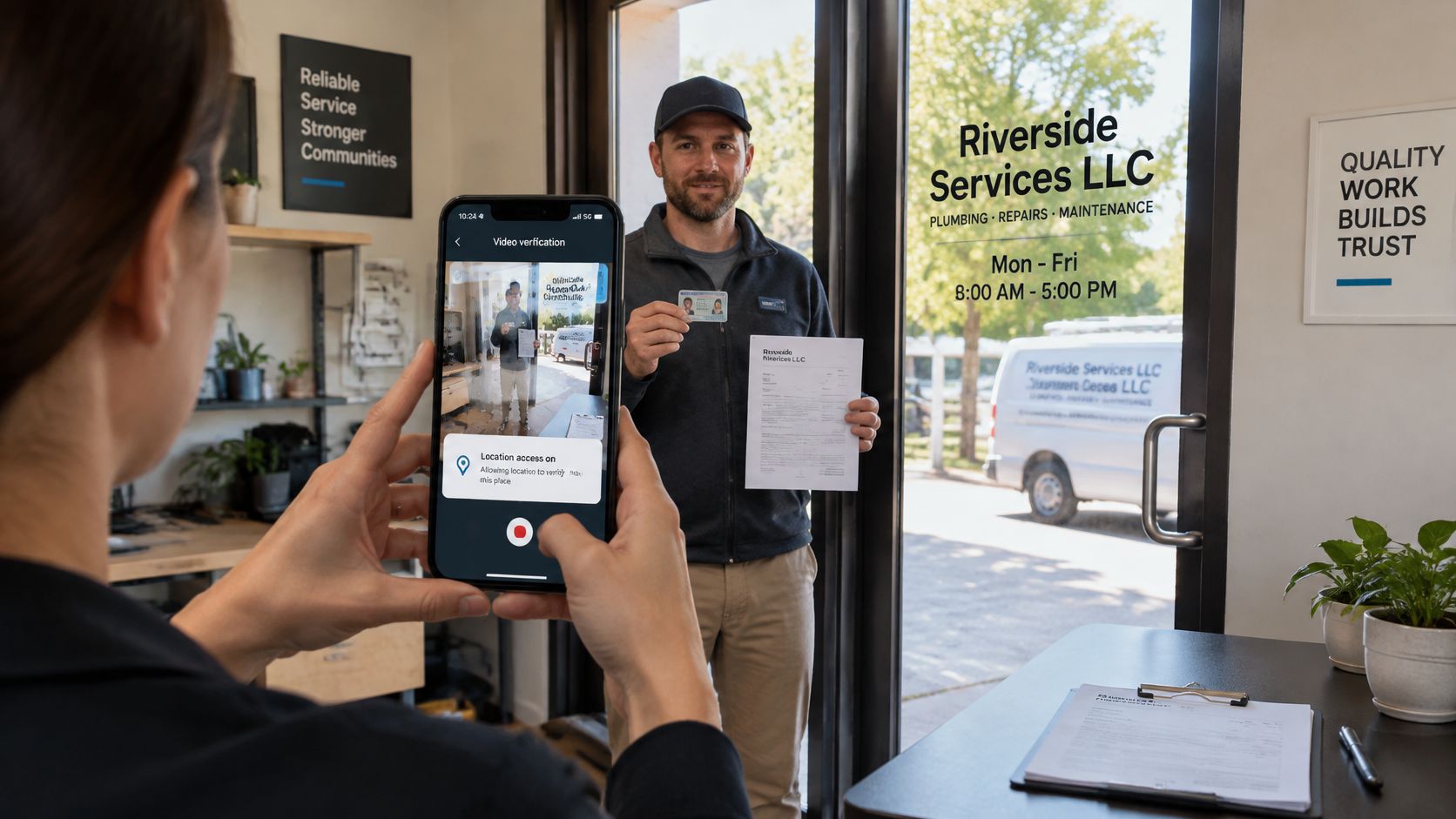
A verification video is evidence, not a promotional spot. Google needs to connect a real business, its location or operating base, and the person claiming management authority. Attractive editing won’t help establish those facts.
Google’s community verification guide describes mobile evidence of the location, business operations, and management access, and identifies bulk verification for organizations managing 10 or more locations after account approval. Consult the live guidance before recording because the requested evidence and interface can change.
Prepare the person and the phone
Use a mobile device, allow the required camera and location permissions, and check your connection along the route you intend to film. The authorized owner or manager needs to be physically present and able to demonstrate access.
Have keys ready and choose evidence before starting. Avoid exposing customer information: use tools, equipment, access controls, or paperwork that establishes the business without displaying private appointment or payment details.
Follow a continuous evidence route
-
Start outside with recognizable context. Show the street, building entrance, or storefront surroundings so the location isn’t just an unidentified room.
-
Show permanent signage matching the profile name. Frame the sign clearly enough to read. Don’t substitute a temporary printout made only for the recording.
-
Demonstrate access. Open the business door and enter when applicable. This helps distinguish a manager from someone who can merely stand outside.
-
Show real operations and management control. Include a staff-only space, tools, inventory, a point-of-sale system, branded equipment, or suitable business paperwork. Choose evidence that fits your actual business.
-
Keep the recording continuous. Don’t add edits, filters, music, or prerecorded segments. Complete the recording through Google’s mobile workflow rather than preparing a desktop-uploaded marketing video.
Match the evidence to the business
For a retail counter, a useful route runs from the street to the sign, through the entrance, and into a locked stock room. Showing access to the register or operational equipment strengthens the connection between the person filming and the business.
For a mobile service company, the evidence might include a branded vehicle, specialized tools, and job paperwork at the operating base. Don’t stage a home office as a customer-facing shop if customers never visit it.
A live video call uses comparable evidence in real time with a Google representative. Be ready to move the camera and demonstrate access when asked, rather than delivering a rehearsed sales pitch.
Show what only an authorized operator could access, not just what any passerby could photograph.
Multi-location teams may need to verify profiles separately unless their account qualifies for bulk verification. Keep a location-specific evidence plan so one branch’s sign or documents don’t appear in another branch’s submission.
Track first-submission result, rejection reason, resubmission count, and days to a decision internally. Those records help your team improve preparation without turning its experience into an unsupported public pass-rate promise.
Fix a Failed or Delayed Verification
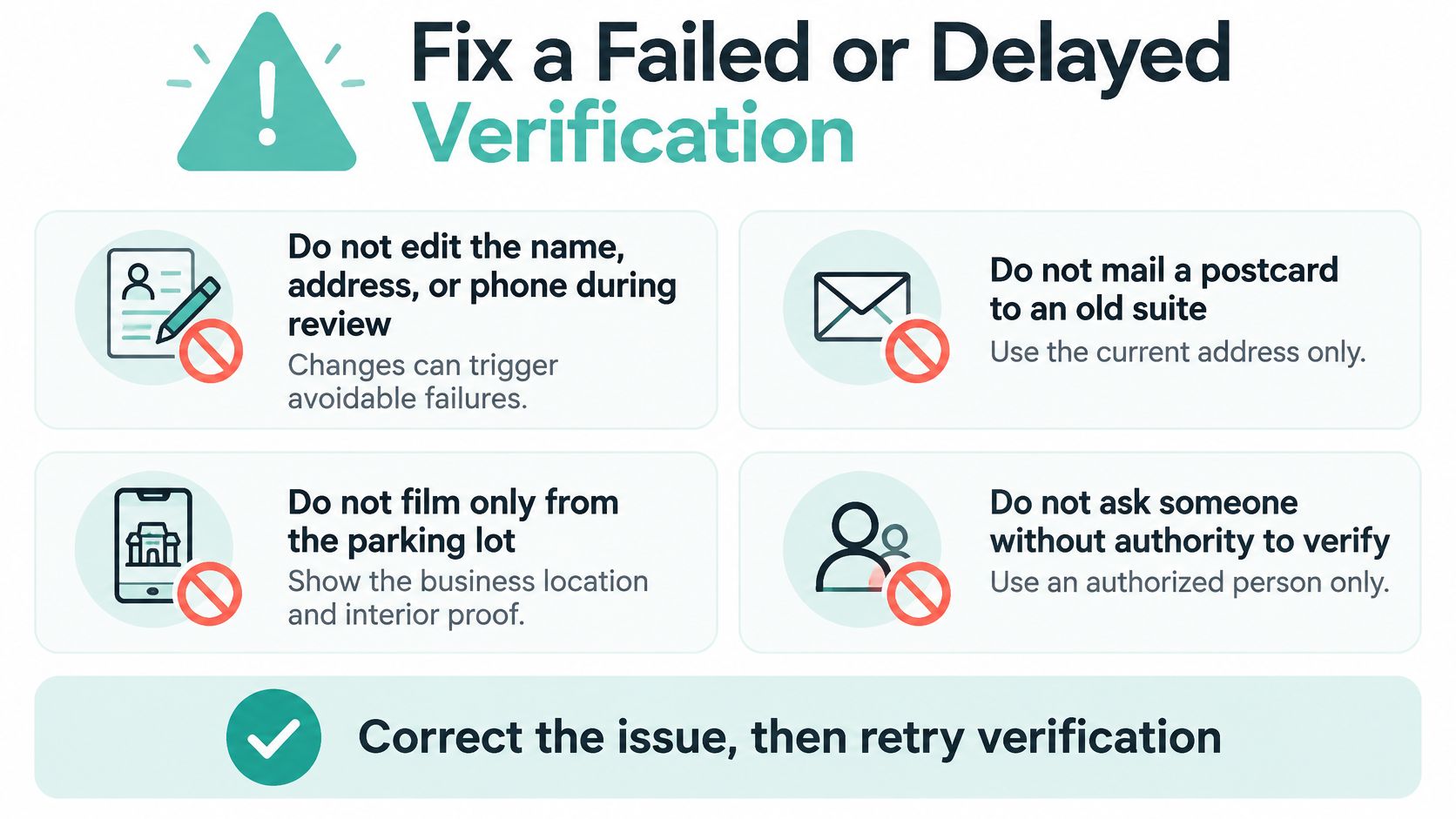
Changing the name, address, or phone while a review is open is an avoidable source of trouble. Other preventable mistakes include sending a postcard to an old suite, filming only from the parking lot, and asking someone who isn’t on site or authorized to provide evidence.
Creating a second profile after rejection doesn’t resolve the first profile’s problem. Diagnose the outcome before taking another action.
Verification problems and what to do next
The causes below are possibilities to investigate, not a substitute for Google’s exact message.
| What you see | Likely cause | Next action |
|---|---|---|
| Code never arrives | Listed phone, email, or mailing address doesn’t match the destination you’re checking | Confirm the profile contact and use another method only if Google still displays it |
| Video rejected | Footage missed signage, access, or operations, or was edited or filmed off site | Reshoot one continuous mobile video at the real location |
| Request stays pending | Review is open, or core details were edited during review | Leave name, address, phone, and category unchanged until Google decides |
| Verified, then suspended | Verification and ongoing eligibility are separate | Correct the address, name, or service-area setup, then use Google’s appeal process rather than a new profile |
For a missing postcard, check the suite and the person who receives mail before assuming Google sent nothing. For a rejected video, read the feedback before reshooting; repeating the same route with better lighting won’t solve missing proof of management.
A pending request needs a different response from an explicit rejection. If Google hasn’t asked for another submission, avoid generating new requests merely to feel that something is happening.
Build a useful support record
Before contacting support or starting an appeal, record:
- Method used. Note whether the submission involved a code, recording, or live interaction.
- Submission date. Keep your confirmation and any subsequent notices together.
- Exact status message. Copy the wording or retain a screenshot instead of summarizing it as “Google won’t verify me.”
- Relevant correction. Explain the concrete issue you fixed, such as an outdated suite or missing location evidence.
Strict proof requirements sit within a broader anti-abuse effort. Google removed more than 13 million fake Business Profiles in 2025, according to Google’s annual anti-abuse figures as reported by Zolyp’s Business Profile statistics summary. That enforcement figure isn’t a verification success rate or a forecast of your waiting time.
If the profile is suspended, follow the suspension notice into Google’s own appeal process and check its current Help Center requirements before submitting. Don’t assume that an earlier accepted video overrides an address or representation problem.
No universal review timeline is established by the sources cited here. Check Google’s current expectations and your profile’s status rather than relying on a guessed number of days.
Use a Verified Profile as Your Public Identity
A verified profile should describe the same business a prospect reaches by phone, visits in person, or finds on your website. Before treating verification as finished, check that those experiences agree.
For a shop, that means a recognizable entrance, accurate opening hours, and a working contact number. For a service business, it means an honest service area, a clear description of the work offered, and no suggestion that customers should visit a private operating base.
Finish the information customers need
Complete the practical details that help someone decide whether to contact you:
- Hours. Set regular hours and update exceptions so customers don’t plan around an opening time you can’t honor.
- Services. Describe the actual work you accept, using language customers recognize.
- Photos. Show the current storefront, team, tools, vehicles, or finished work where appropriate.
- Website destination. Send visitors to a current page that explains the service and how to make an inquiry.
A bakery customer might need to know whether the shop is open for collection. A homeowner looking for a plumber might need to know whether the business serves their neighborhood and handles their type of repair. Those are different decisions, and the profile should answer the relevant one plainly.
Use the guide to optimizing your Google Business Profile for more calls to turn a verified but incomplete listing into a more useful customer-facing resource. Verification establishes management access; the ongoing profile work is making the information accurate and actionable.
Assign ownership of future changes
Keep one person responsible for checking proposed changes against the actual business. Other team members can supply updated hours, photos, or service details, but someone should confirm that the published version stays consistent.
Maintain a simple internal reference containing the approved business name, public phone, website, location or service-area setup, and authorized account owners. Update it when the business changes, not whenever someone wants to experiment with the profile.
For teams ready to extend their presence beyond the listing, Adwave is a good fit for that later step, and our small-business multichannel guide is a useful next read. For help with our service, contact support with your business website and the step you need help with, or book a call with the team.
Keep the immediate priority clear: customers should encounter one recognizable business, with current details and a reliable way to get in touch.
Adwave offers a free website analysis and lets you preview and approve ads before launch, a separate next step once your public business identity is accurate. Visit Adwave to explore that analysis using the website customers find through your verified profile.