Ready in minutes
AI builds your ad from a single prompt

July 07, 2026
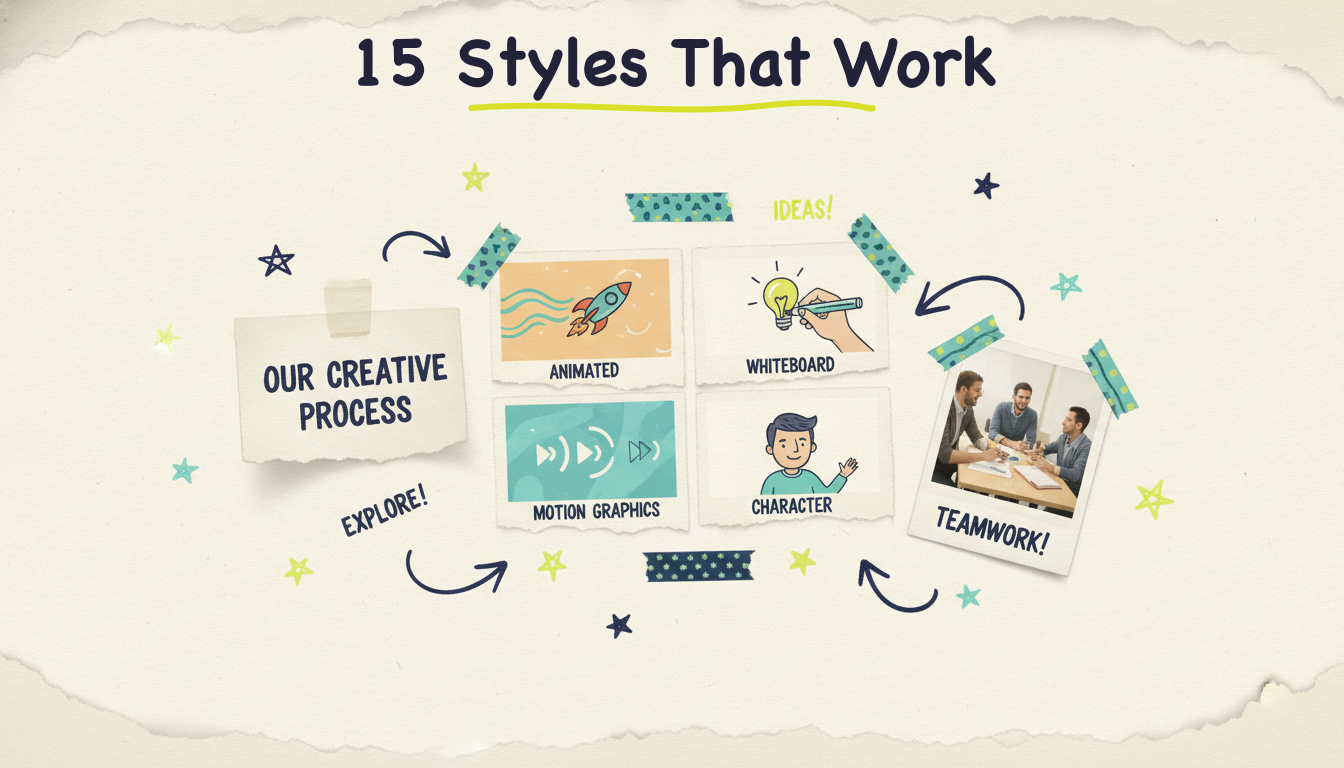
The explainer video style that works best is the one that fits your message, your audience, and where the video will live. There's no single "best" look. A whiteboard animation that lands in a classroom would feel out of place in a product ad, and a slick motion-graphics spot would fall flat as a customer testimonial. This guide walks through 15 explainer video styles that consistently perform in 2026, what each one is, when to reach for it, and a quick example so you can picture it. Then we'll show you how to actually produce several of these styles with AI, without hiring an animator or opening a timeline editor.
Here's the thing: most people obsess over the script and treat the visual style as an afterthought. But style is what makes a viewer trust you in the first three seconds, before they've heard a word. Let's break down the options so you can pick with intent instead of defaulting to whatever's easiest.
Before the list, one quick framing. A "style" is really two decisions stacked together: the visual treatment (animated, live-action, text-driven, and so on) and the narrative angle (problem-solution, comparison, testimonial, and so on). You'll often combine one of each, a story-driven explainer can be animated, a data-driven one can use motion graphics. Your choice usually comes down to how abstract your topic is, who's watching, where the video will live, and how human versus polished you want it to feel. We'll flag those trade-offs as we go.
What it is: A fully illustrated video where characters, objects, and scenes are drawn or generated rather than filmed. This is the classic "explainer video" look most people picture, colorful, friendly, and flexible.
When to use it: When your topic is abstract or hard to film. Software, financial concepts, processes that happen behind the scenes, anything you can't point a camera at. Animation lets you visualize the invisible.
Example: A budgeting app shows little animated coins flowing into labeled jars as a narrator explains how automatic savings works. You could never film that, but animation makes it instantly clear.
What it is: A hand appears to draw illustrations on a whiteboard in real time as the narration unfolds. Simple, sketch-like, and weirdly hypnotic.
When to use it: For educational content, step-by-step logic, or anything where you want to feel like a patient teacher walking someone through an idea. The "being drawn as you watch" effect holds attention on longer explanations.
Example: A nonprofit explains how donations turn into clean-water wells, with each stage sketched out on the board so viewers follow the chain from dollar to outcome.
What it is: Animated text, shapes, icons, and data that move with intention. No characters, just designed elements gliding, building, and transitioning. Clean and modern.
When to use it: For product launches, brand videos, and B2B explainers where you want a premium, corporate-polished feel. Great when your "story" is really a set of features or numbers.
Example: A cybersecurity company animates a shield forming around a network diagram while stats about threats blocked count up beside it.

What it is: Real (or realistically generated) people and environments instead of illustration. Faces, hands, real spaces. It reads as authentic and grounded.
When to use it: When trust and relatability matter more than visualizing something abstract. Services, local businesses, and anything where you want viewers to see "people like me."
Example: A home-services company shows a technician arriving at a house, greeting a homeowner, and finishing a repair, so the video sells the experience, not just the service.
What it is: A recording of an actual screen, an app, a dashboard, a website, with narration explaining what's happening. The most literal way to show software.
When to use it: For SaaS onboarding, feature walkthroughs, and any "here's how the tool works" explainer where seeing the real interface builds confidence.
Example: A project-management tool records itself creating a task, assigning it, and moving it across a board while the voiceover explains each click.
What it is: Words themselves are the visual. Text animates on screen, timed to the narration, with size, weight, and motion carrying the emphasis.
When to use it: When the language is the point, a bold value proposition, a punchy manifesto, a quote-driven message. Also strong for social feeds where many viewers watch without sound.
Example: A recruiting startup animates phrases like "Hire in days, not months" so each promise slams onto the screen in rhythm with the voiceover.
What it is: A recurring character or mascot guides viewers through the story. The character gives your brand a face and an emotional anchor.
When to use it: When you want personality and continuity across multiple videos, or when a relatable protagonist makes an abstract problem feel personal.
Example: A meal-kit brand follows "busy Dana" through her chaotic weeknight, then shows how the product rescues her dinner, so viewers root for a character, not a feature list.
What it is: A focused tour of your product's key features and flow, part demo, part explainer. Can be animated, screencast, or a blend.
When to use it: On product pages, in sales follow-ups, and for shoppers who are close to deciding and want to see exactly what they're getting.
Example: A booking platform walks through searching, comparing, and reserving in under a minute, so a prospect sees the whole path from problem to booked appointment.
What it is: A real or realistic customer tells their story, framed as an explainer for the problem your product solves. The proof does the persuading.
When to use it: Mid-to-late funnel, when skeptics need social proof more than another feature pitch. Trust-heavy industries lean on this hard.
Example: A fitness app features a member describing where they started, what changed, and the result, intercut with visuals of the app in use.
What it is: Numbers, charts, and statistics animated into a narrative. The story is the data, and motion makes it digestible.
When to use it: When your credibility comes from evidence, market reports, research summaries, ROI cases, "state of the industry" pieces. Great for B2B and thought leadership.
Example: A marketing platform animates a bar chart climbing as the narrator explains how much faster campaigns launch, turning a dry stat into a moment.

What it is: A beginning, middle, and end with real narrative tension. A protagonist faces a problem, struggles, and finds resolution. Emotion carries the explanation.
When to use it: When you want the video remembered, not just understood. Brand films, mission videos, and campaigns where feeling matters as much as facts.
Example: A small bakery tells the story of its founder's first failed loaf, the years of practice, and the shop that exists today, so the product arrives wrapped in a story you care about.
What it is: A side-by-side that contrasts the old way with the new way, or your solution against the alternative. Structure makes the value obvious.
When to use it: When your advantage is clearest in contrast, when you're displacing an incumbent habit, or when buyers are actively weighing options.
Example: A meal-delivery service splits the screen: "grocery run, chopping, cleanup" on one side, "unbox and cook in 20 minutes" on the other. The gap sells itself.
What it is: The video answers the handful of questions viewers always ask, one at a time, in quick succession. Structured, scannable, reassuring.
When to use it: For high-consideration purchases, onboarding, and support, wherever objections and confusion slow people down. It preempts hesitation.
Example: An insurance startup runs through "How fast is a claim?", "What's covered?", and "Can I cancel anytime?" with a crisp answer and visual for each.
What it is: A clear, sequential explanation of your process or mechanism, usually three to five steps, that shows the machinery behind the promise.
When to use it: When "how does this actually work?" is the main barrier to trust. Service businesses, marketplaces, and anything with a non-obvious process.
Example: A solar company shows the four steps from consultation to installation to savings, so a homeowner understands the journey before they ever book a call.
What it is: The foundational explainer arc. Name a pain, agitate it a little, then present your product as the fix. Almost every other style borrows from this one.
When to use it: As your default when you're not sure which style fits. It's the safest, most reliable structure for a homepage or ad explainer.
Example: A scheduling tool opens on a double-booked calendar and a stressed owner, then reveals how automated booking ends the chaos. Problem, then relief.
Still deciding? Here's a quick reference that maps each style to the job it does best.
A word of advice: don't try to blend six styles into one video. Pick a primary treatment and a primary narrative angle, then commit. The most confusing explainers are the ones that couldn't decide what they wanted to be.
If you want the underlying structure that most of these styles hang on, our companion guide on how to make an explainer video with AI walks through the four-beat script (problem, solution, how-it-works, call to action) and the exact production steps. This post is about the look. That one is about the build.
Knowing the styles is the easy part. Producing them used to mean a different specialist for each one: an illustrator for animation, a motion designer for graphics, a videographer for live-action, a mixing engineer for the audio. That's what made explainers expensive and slow.
That's changed. With an agentic video creator like Wavemaker, Adwave's AI video generator, you describe the explainer you want and an AI production team handles the research, script, generated visuals, voiceover, music, and a quality-control pass. You're not editing on a timeline, you're directing in plain language. Here's how Wavemaker maps onto the styles above.
You have a few on-ramps depending on what you already have. Type a free-form prompt describing your explainer. Hand it a topic and let the AI research and script it. Paste a URL so it scrapes your brand colors, imagery, and messaging into a creative brief. Or upload a document, images, or existing footage. Any of those becomes the starting point for the video.

Once you've given it a starting point, Wavemaker writes the script and turns it into an AI storyboard using one of 21 presets. Those presets are how you steer toward a style. Want a clean, modern motion-graphics feel? A warmer character-driven story? A punchy, text-forward treatment for social? The preset shapes the visual direction of the whole video before anything renders, so you catch the look early, when it's cheap to change.
This is where an agentic generator pulls ahead of the slideshow tools that just stitch stock clips together. Wavemaker generates custom images and video clips for your storyboard, with subject consistency so your characters and product don't morph from shot to shot. That's what makes styles like animated, character-driven, and story-driven actually possible, because the visuals are built for your video instead of pulled from a generic library.
Every style needs audio that feels finished. Wavemaker generates an AI voiceover for your script (and on paid plans, you can design a custom voice to match your brand), then layers in BPM-aware music with audio ducking, which just means the music drops under the narration and rises in the gaps. You don't hand-mix anything. It arrives sounding mixed.
Your first cut lands close, but a style is worth dialing in. Wavemaker's chat editing lets you adjust in plain language, no timeline, no keyframes. Try things like:
"Make it feel more like a whiteboard sketch."
"Swap the music for something more upbeat."
"Make the comparison section a clear before-and-after."
"Give the intro a bolder, text-forward look."
Each refine costs a few credits and takes a couple of minutes, so you can nudge the style until it matches what you pictured. Most videos generate in about two to five minutes to begin with.
Explainers rarely live in one place, so Wavemaker exports in the aspect ratios you'll actually use: 16:9 for your website and YouTube, 9:16 for TikTok and Reels, plus 1:1 and 4:5 for feed posts. The free plan exports at 480p with a watermark, which is genuinely handy for testing a style before you commit. Paid plans remove the watermark and go up to 4K, so your homepage explainer looks as sharp as everything around it.
Bottom line: the style you choose is a creative decision, and the production is now a few minutes of directing instead of weeks of specialist work.
What's the most popular explainer video style? Animated explainers and motion graphics are the two most common, because they handle abstract topics well and look polished without needing a film crew. That said, "popular" isn't the same as "right for you." Live-action and testimonial styles often outperform animation when trust and relatability matter more than visualizing something invisible.
Can I mix explainer video styles in one video? You can, but do it carefully. Combining a visual treatment with a narrative angle (say, motion graphics with a problem-solution structure) works well because those are different layers. Stacking multiple visual treatments in one short video usually just looks unfocused. Pick one primary look and one primary story arc, then commit.
How long should an explainer video be? Most explainers land between 30 and 90 seconds regardless of style. Thirty seconds suits ads and social, sixty is the workhorse length for product and how-it-works videos, and ninety gives concept or onboarding explainers room to teach. Style doesn't change the math much, shorter almost always beats longer.
Which explainer style is best for a homepage? Problem-solution and product walkthrough styles tend to win on homepages, because visitors want to understand what you do and why it matters fast. If your product is abstract, an animated or motion-graphics treatment helps. If trust is your hurdle, a live-action or testimonial angle can work harder.
Do I need design skills to make these styles with AI? No. With Wavemaker, you choose a direction through the 21 storyboard presets and refine with plain-language chat editing, so you're describing the style rather than building it. The AI handles the illustration, animation, voiceover, and mixing that each style traditionally required a specialist for.
Can I make an explainer video for free? Yes. Wavemaker's free plan gives you 75 credits, which is enough to create your first video, exporting at 480p with a watermark. It's a real free tier, so you can test a style and the full workflow before deciding whether to upgrade for higher resolution and no watermark.
The best explainer video style is the one that fits your message and your audience, not the one that's trendiest this quarter. Now that you've seen all 15, you can choose with intent: match the visual treatment to how abstract your topic is, match the narrative angle to where your viewer sits in their decision, and commit to one clear direction.
Then make it. Create your first video free with 75 credits, no credit card required. Describe the explainer you want, pick a direction with the storyboard presets, and refine the style with a quick chat until it looks exactly right.