
You probably have business data scattered across more places than you realize. Your laptop holds proposals and invoices. Your website host stores pages and forms. A shared drive has contracts, logos, and photos. Someone on your team keeps the latest sales spreadsheet on a desktop nobody else touches. Then one morning, a file is gone, a drive won't open, or a login has been compromised.
That's when backups stop feeling like an IT chore and start looking like what they really are. Business continuity.
Most small business owners already know they should back things up. The problem is that backup advice often swings to two extremes. It's either written for enterprise IT teams, or it's so basic that it doesn't help you make real decisions. What follows is the practical middle ground. It's for the owner who needs customer records, website files, and creative assets protected without turning backup planning into a second full-time job.
That Sinking Feeling When Data Disappears
Monday at 8:12 a.m., your team is ready to work. Sales wants the latest customer list. Billing needs invoices. A staff member tries to update the website. Then the trouble starts. A shared folder will not open. Recent files are missing. Your site shows content you did not publish.
That kind of morning does not feel like a technical problem. It feels like the floor dropping out from under the business.
Data loss can start with something small. One person deletes the wrong folder. A laptop drive stops responding. A synced cloud folder spreads a bad change to every device. A hacked website wipes out pages, forms, and media files. If your company depends on customer records, website files, accounting documents, or campaign assets such as Adwave video creatives, one missing piece can stall work across the whole day.
What business owners often assume
Small business owners usually hear some version of, "It is in the cloud, so it must be backed up." That assumption causes trouble. Sync is not the same as backup. Sync works like a mirror. If a file is deleted, corrupted, or encrypted by ransomware, the mirror can copy the problem too.
Website hosting can create the same false confidence. Your provider may keep server snapshots, but those copies may not cover every plugin setting, form submission, design change, or uploaded asset you care about. If your website brings in leads, basic protection matters too, including website security basics like SSL and access controls. Security reduces risk. Backups give you a way back when prevention fails.
Practical rule: If losing a file would interrupt sales, billing, delivery, or customer service, keep a backup copy you can restore on demand.
There is also a difference between backup and recovery. Backup means a copy exists. Recovery means you can put that copy back into use fast enough to keep the business running. If a device has already failed and you are trying to salvage the original storage, a specialist in professional data recovery can be useful. That is emergency repair, not business continuity planning.
What a useful backup plan needs to answer
A good plan should answer three questions in plain language:
What do we protect first? Start with the files that keep the business operating, such as customer lists, accounting files, signed documents, website files, product photos, and marketing assets.
How much recent work can we afford to lose? An hour of changes feels very different from a full day of orders or edits.
How quickly do we need access again? Some data can wait until tomorrow. Some needs to be back before lunch.
Those answers help you decide what to back up, how often to do it, and where to store copies. That is the difference between having data somewhere and being able to keep serving customers when something breaks.
Why Backups Are Your Business Lifeline
Backups aren't just about avoiding inconvenience. They protect revenue, reputation, and your ability to keep serving customers when something breaks.

A business can limp along without many things for a day or two. It can't function well without access to current information. If your scheduling files vanish, jobs get missed. If your customer records disappear, follow-up stalls. If your site goes down, leads and sales don't wait politely until you sort it out. Good backups shorten the distance between a problem and a stable operating day.
Downtime is a business problem first
Owners often treat backups as something technical because the tools are technical. But the impact shows up in ordinary business terms:
Sales stall when your site, CRM, or order files aren't available.
Operations slow down when staff can't find current forms, pricing, or project files.
Customer confidence drops when you can't answer basic questions or fulfill work on time.
That's why backup planning belongs next to insurance, cash flow, and vendor planning. It protects the business from interruption.
A practical companion to this mindset is basic site hardening. If your website matters to lead generation, it's worth reviewing website security basics and SSL guidance so prevention and recovery work together.
Backups matter even more in ransomware events
The backup conversation has changed. It used to focus heavily on accidental deletion and hardware failure. Those still matter, but attacks now target backups too. Modern guidance from Splunk's overview of data backup strategies emphasizes that backup design has moved beyond simple duplication toward adversary-aware recovery, where immutable backups and offline storage are treated as important defenses against ransomware.
That phrase sounds technical, but the idea is simple. If an attacker can reach every copy of your data, then copies alone won't save you. At least one copy needs stronger separation.
A backup that sits in the same blast zone as the original data can fail at the exact moment you need it most.
Think of backups like business insurance you can use
Insurance helps after a loss. Backups help you continue operating through one. That's the difference.
If your website host has an issue, your offsite backup helps you rebuild. If a staff member overwrites a key file, versioned backups let you roll back. If malware encrypts local data, a clean backup can let you restore rather than negotiate. That doesn't eliminate stress, but it can keep an ugly event from turning into a business shutdown.
Choosing Your Backup Architecture
The right backup setup depends less on technology trends and more on how your business works day to day. Start with a simple mental model. A local backup is like keeping a copy of important papers in a fire-resistant safe at your office. A cloud backup is like keeping a copy in a bank vault across town. A hybrid backup does both.
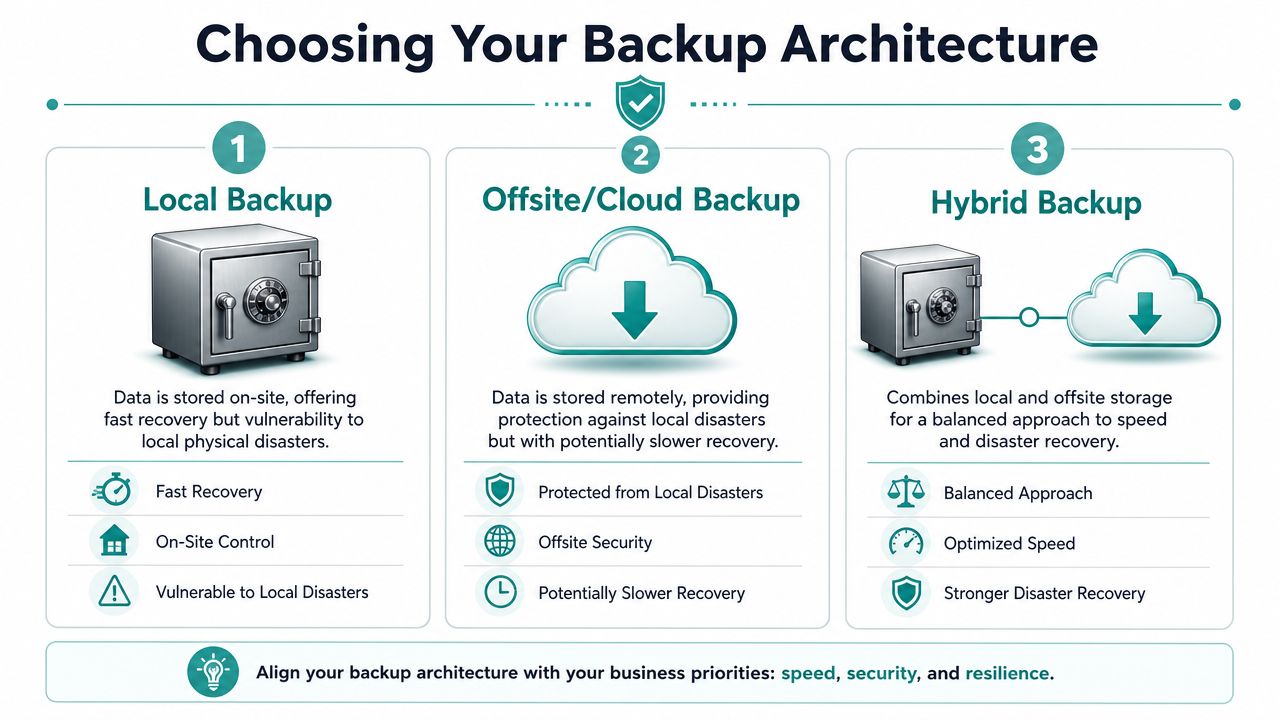
For many small businesses, hybrid is the easiest architecture to defend. It gives you one copy that's fast to restore and another that survives local trouble.
If your website is central to how customers find you, platform choice also affects what needs protection. This comparison of small business website builders like Squarespace, Wix, and WordPress can help you think through where files, plugins, forms, and content may live.
Local, cloud, and hybrid in plain English
Here's the quick decision framework:
Local backup works well when you need fast restores. If someone deletes a folder, restoring from a nearby device is usually quicker. The weakness is obvious. Fire, theft, flood, or ransomware in the same environment can affect both the original and the backup.
Cloud backup puts distance between your business and your backup copy. That's its biggest strength. The tradeoff is that large restores can take longer, and recovery depends on your provider setup and internet access.
Hybrid backup combines speed and separation. It's often the most practical fit for SMBs because it reduces the “all eggs in one basket” problem.
Full, incremental, and differential without the jargon fog
Backup methods confuse people because the names sound more technical than they are. Use a paper file cabinet analogy.
A full backup is a complete photocopy of every folder in the cabinet. It's the easiest to understand and restore, but it takes more time and storage.
An incremental backup copies only what changed since the last backup of any kind. Monday might copy two changed files. Tuesday might copy three more. It saves space, but restoring can involve rebuilding from several pieces.
A differential backup copies what changed since the last full backup. If the full backup happened Sunday, Monday copies Monday's changes. Tuesday copies Monday and Tuesday changes. It grows larger over time, but restore can be simpler than a long chain of incrementals.
A simple chooser for SMBs
If you're stuck deciding, choose the setup that still works when your office, one device, or one user account is unavailable.
The goal isn't to pick the fanciest architecture. It's to pick one you'll maintain.
Building Your Policy with the 3-2-1 Rule
A backup policy matters most when something goes wrong at the worst possible time. Your office internet is down, a staff laptop is stolen, or a ransomware attack locks shared folders. In that moment, “we save files to the cloud” is not a policy. A policy gives clear instructions about what gets copied, where those copies live, how often they run, and how fast the business needs to recover.
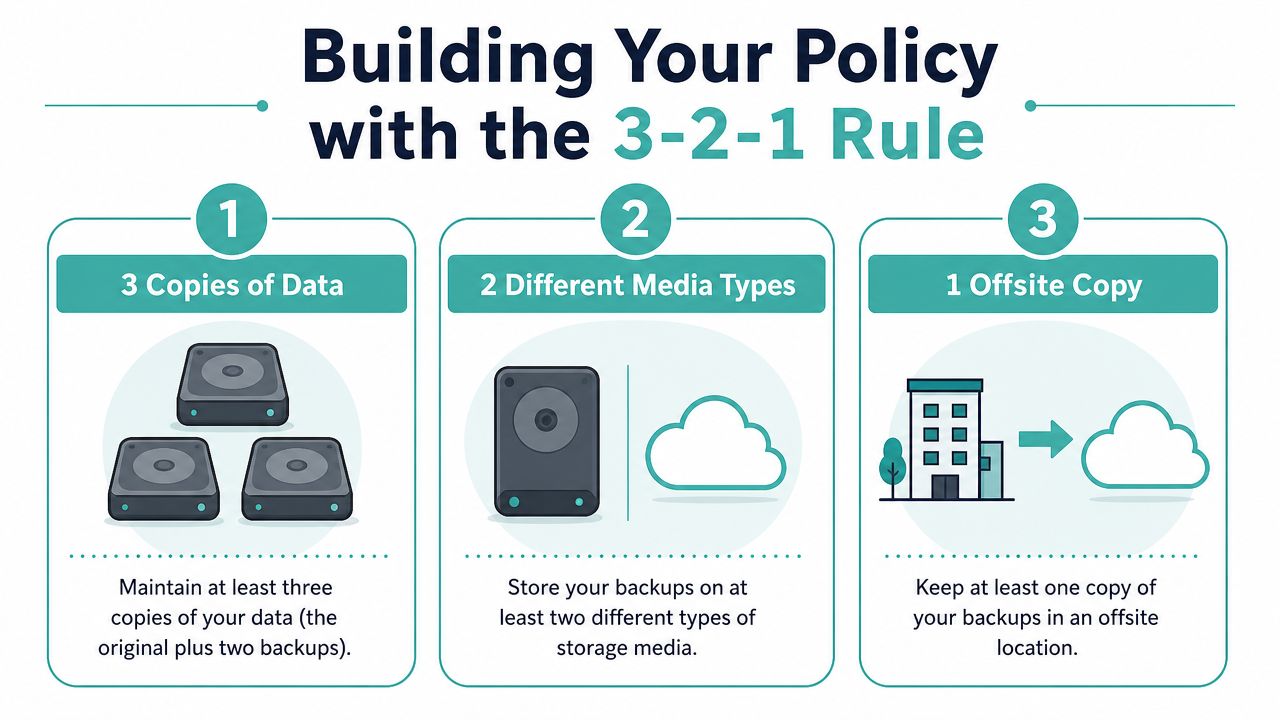
The 3-2-1 rule is still the clearest starting point for small businesses:
3 copies of your data
2 different types or locations of storage
1 copy kept off-site
That framework lasts because it deals with ordinary business failures, not just dramatic disasters. A file can be deleted by mistake. A server can fail. An office can become inaccessible. One copy leaves too much to chance.
For a small business, 3-2-1 often looks like this:
The live version of your files in daily use.
A local backup on a separate device or appliance for fast restores.
A cloud or other offsite backup stored away from your main location.
Use your actual business data when you set this up. Customer lists, invoicing records, website files, and marketing assets should all fit into the plan. If your site brings in leads, your backup policy should cover more than the homepage. It should include forms, databases, images, landing pages, and any media tied to campaigns, especially if you rely on content similar to Adwave video creatives or maintain budget-built sites based on guides like building a business website on a $500 budget.
Keep backups separate from the working files. Cloud sync can copy deletions or corruption to other devices, so check that you can restore earlier versions.
Modern threats add another requirement. Some businesses now extend 3-2-1 to 3-2-1-1, with one copy that is isolated or locked against change. Cloudian's backup architecture guidance explains this as protection against attacks that target backups along with production data.
Two terms make this practical.
RPO, or Recovery Point Objective, is the amount of recent data you can afford to lose. If losing a full day of orders would create billing problems and customer complaints, your backups need to run more often than once a day.
RTO, or Recovery Time Objective, is how long you can afford to be down. If your team can work around a file outage for half a day, that is one standard. If your website, booking system, or shared drive needs to be back in under an hour, that is a different standard entirely.
These are business decisions first, technical decisions second. They tell you how often to back up, which systems deserve faster recovery, and where it makes sense to spend more for better protection.
A good backup policy answers five plain-language questions:
What data are we protecting?
Where are the copies stored?
How often do backups run?
Who checks that they worked?
How quickly must each system be restored?
Once those answers are written down, backups stop being an IT chore and start doing their real job. They keep the business operating when a bad day hits.
A Practical Backup Plan for Your Business
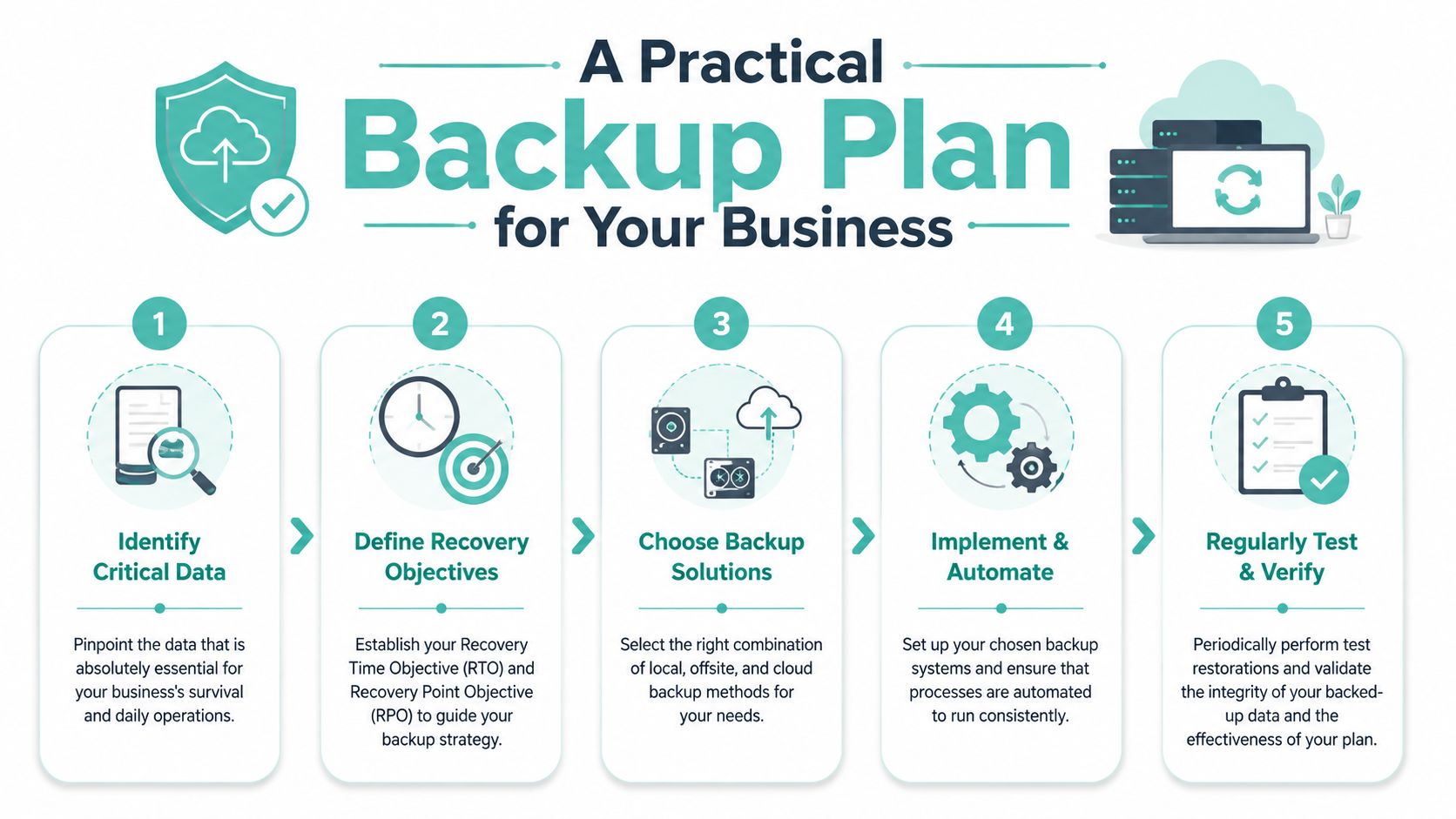
A practical backup plan starts with one question. If your office lost access to its files at 2 p.m. today, what would you need first to keep serving customers, getting paid, and communicating with your team?
That question shifts backups from an IT task to a business continuity decision. You are not trying to protect every stray file equally. You are deciding what your business cannot afford to lose for even a day.
Start with the data that keeps the business running
Begin with a short inventory. One page is enough.
List the data tied directly to revenue, customer service, operations, and compliance:
Customer and sales data such as CRM exports, lead lists, estimates, invoices, and appointment records
Website assets including site files, databases, forms, images, landing pages, and ecommerce records
Financial and legal records such as bookkeeping files, tax documents, contracts, and payroll material
Internal operating files like SOPs, templates, pricing sheets, and project folders
Marketing assets including logos, ad creatives, photos, edited videos, brand files, and campaign reports
Small businesses often remember accounting data and forget the files that feed future sales. Marketing assets are a common blind spot. Rebuilding product photos, ad copy, design files, or edited campaign videos can take days of staff time, even if no law requires you to keep them.
That matters if your business depends on content and promotion to bring in leads. If your team manages landing pages and creative in-house, this guide to building a business website on a lean budget also helps reduce unnecessary website sprawl, which makes backups easier to manage.
Set backup frequency by business impact
Use the pace of change and the cost of rework to set your schedule.
If your customer list changes all day, backing it up once a week is too slow. If your brand archive changes once a month, daily backups may be more than you need. As noted earlier, your RPO and RTO give you the answer. They tell you how much recent work you can afford to lose and how long each system can stay unavailable.
A simple starting point looks like this:
Use this as a baseline, not a rulebook. A booking-based business may need near-real-time protection for appointments. A design studio may care more about source files and revision history.
Turn the plan into a repeatable routine
A backup plan fails when it lives only in software settings that nobody reviews. It works when ownership, storage, and documentation are clear.
Set it up in this order:
Assign one owner. One person should check backup status, review alerts, and know who to call if a restore is needed.
Automate the jobs. Busy teams skip manual tasks, especially during sales pushes, staff changes, or website launches.
Store copies in separate places. If every copy lives in the same account, server, or office, one incident can wipe out all of them.
Write down what is protected. Note the system, backup location, access permissions, and the basic restore steps.
Update the list after every change. A new SaaS tool, a redesigned website, or a new creative workflow creates new data that needs coverage.
A good rule is simple. If a system supports sales, service, finance, or marketing, it belongs on the backup list.
Consistency matters more than complexity. A clear plan your team follows every week will protect the business far better than an ambitious setup nobody maintains.
Testing Backups and Planning for Disaster
A backup that's never been restored is still a question mark. That surprises business owners because backup software often gives a reassuring green checkmark. But a successful backup job doesn't always mean a successful recovery.
That's why modern guidance puts so much weight on validation. HYCU's discussion of modern cloud backup strategies emphasizes routine validation and recovery drills because the critical question is often left unanswered: can you restore today, cleanly and fast enough?
A simple restore test any SMB can do
You don't need a dramatic simulation. Start small and repeat it.
Try this once a month:
Pick one non-critical file that was backed up recently.
Restore it to a test location, not over the original.
Open it and confirm usability. Don't stop at “the file exists.”
Record how long it took and whether anything was confusing.
Fix one weak point you noticed, even if it's just missing access permissions or unclear folder labels.
That single habit teaches you more than years of passive backup logs.
Build a one-page disaster recovery sheet
When something goes wrong, people don't think clearly under pressure. A short written plan helps.
Your one-page document should include:
Critical systems such as accounting, CRM, website, email, and shared storage
Backup locations for each system
Primary contacts including internal owner and outside vendors
Restore order so staff know what comes first
Access details for the people authorized to begin recovery
Last test date so you know whether the plan has been proven recently
If your website is part of your lead engine, redesigns and rebuilds are also moments to check backup coverage. This website redesign checklist is a good reminder that new pages, media, and forms often create restore dependencies people forget to document.
Don't wait for a crisis to discover that the only person who knows how to restore the website is on vacation.
What testing often reveals
Restore drills usually expose ordinary, fixable problems. Wrong file paths. Outdated access credentials. Missing plugin copies. A database export nobody labeled properly. None of these are glamorous IT issues. They're process gaps.
That's good news. Process gaps can be fixed before they become business interruptions.
Start Small But Start Today
A lot of owners put off backups because they assume the plan has to be perfect before it's worth doing. It doesn't. The first useful version is usually simple. Protect the files your business would miss tomorrow, store a copy somewhere separate, and make sure someone can restore it.
That small step does something important. It turns backups from a vague intention into an operating habit.
If you zoom out, the path is straightforward. First, treat backups as a business continuity decision, not just an IT task. Then choose an architecture that matches your risk. Build a policy around clear recovery goals. Put a repeatable schedule in place. Test it, because recovery is what matters. That sequence is enough to move from “we should really do this” to “we know what happens if something breaks.”
You don't need to finish everything this week. You do need to start.
Pick the single most critical set of data in your business today. For some companies, that's the customer list. For others, it's the accounting file or website database. Create a separate backup, confirm where it lives, and note who can restore it. Then build outward from there.
If your business is also investing in growth, protect the assets that power your marketing along with the data that runs operations. Adwave is a strong fit for small businesses that want a simpler way to create, launch, and track TV advertising without the usual production burden. As your campaigns, video creatives, and performance reporting become part of your business value, they deserve the same backup discipline as your website files, customer records, and financial documents.


