
You’re posting consistently, the offer is solid, and the copy is fine. But the graphic still looks like it was thrown together between customer emails and payroll. This is a common situation for a lot of small businesses. Design matters on social, but many teams don’t have an in-house designer, and hiring one for every post doesn’t make sense.
Creating social media graphics without a designer is completely realistic now. Free tools give you templates, stock assets, resizing, brand controls, and enough editing power to produce polished posts fast. In practice, the biggest win isn’t fancy design. It’s getting from idea to finished post without wasting an afternoon.
This guide focuses on the tools that help non-designers ship work. Some are built for speed, some for better branding, and some for heavier editing when templates aren’t enough. If you also work in a niche audience space, this roundup of best free graphic design software for churches is a useful companion read.
1. Canva
Canva is still the default recommendation for most small businesses because it removes friction. You open it, search for the format you need, swap in your text and images, and you’re moving. According to Invoke Media’s Canva guide, the free tier includes thousands of professionally designed templates and over 1,000,000 free images, which is why it works so well for teams that need volume without a designer.
In actual day-to-day marketing, Canva’s biggest strength is speed. The same source notes that real B2B campaign testing found Canva’s free tier handled 80% of design needs. That tracks with how it is typically used: promos, quote cards, story graphics, carousels, event posts, and simple video assets.
Quick start workflow
Start with one template category only. Don’t browse everything.
Search by format first: Use “Instagram post,” “LinkedIn carousel,” or “Story” so the canvas size is right from the start.
Replace one thing at a time: Swap headline, then brand colors, then image. Most messy Canva designs happen when people change everything at once.
Save a repeatable style: Pick two fonts, one accent color, and one layout rhythm, then use it across the week.
Practical rule: If a Canva post looks too much like a template, remove one decorative element, increase white space, and shorten the headline.
The trade-off is real. Canva makes it easy to create competent graphics, but it also makes it easy to look generic. The fix isn’t switching tools. It’s building a lightweight system. A simple social media content calendar in 30 minutes helps you reuse formats without repeating the exact same post design.
Visit Canva.
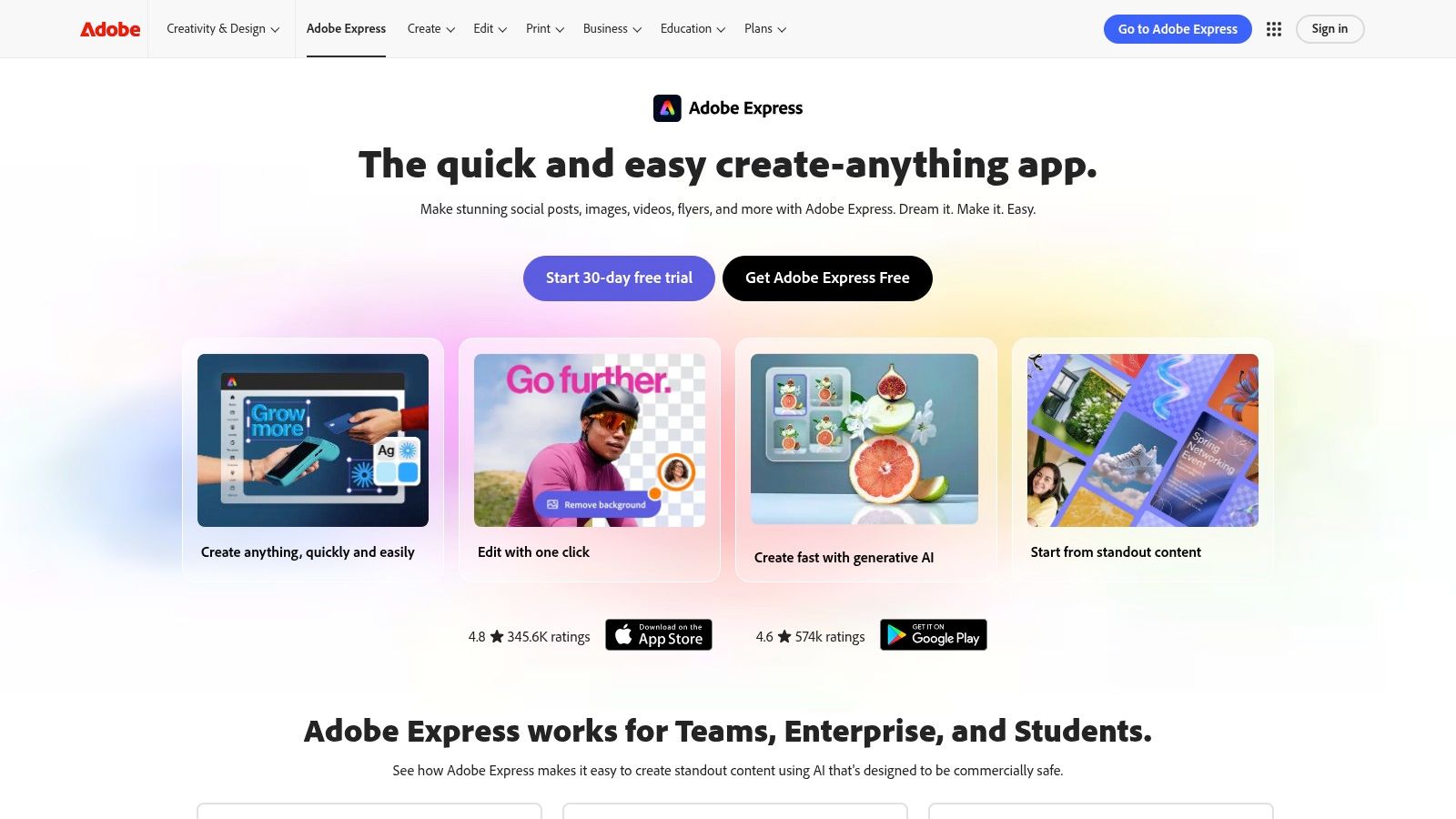
2. Adobe Express

Adobe Express is the tool I’d pick when the post needs to feel a little more polished than standard template content. It still works for beginners, but it gives you more room to refine text, layering, and image treatment without jumping into full Adobe software.
Its standout advantage is AI built into the workflow. If you need a background variation, a quick image concept, or text effects that don’t look flat, Express is often faster than hunting for another template. The downside is that it’s not quite as intuitive as Canva for absolute beginners, so first-time users usually need a few extra minutes to get comfortable.
Quick start workflow
Use Adobe Express when you already know the message and want help with execution.
Pick a close-fit template: Don’t look for perfect. Find one with the right structure.
Use AI selectively: Generate or edit the image, then stop. Too much AI in one graphic usually makes it feel off-brand.
Lock the hierarchy: Headline first, supporting line second, logo last. Express is strongest when you keep the composition simple.
If you manage content in batches, Express also fits nicely with publishing workflows. That matters when your bottleneck isn’t design quality but getting content approved and scheduled. Pairing creative production with a practical stack of social media scheduling tools for small business saves more time than chasing marginal design upgrades.
Good Express graphics usually start with strong typography. Weak ones start with too many effects.
Visit Adobe Express.
3. Microsoft Designer
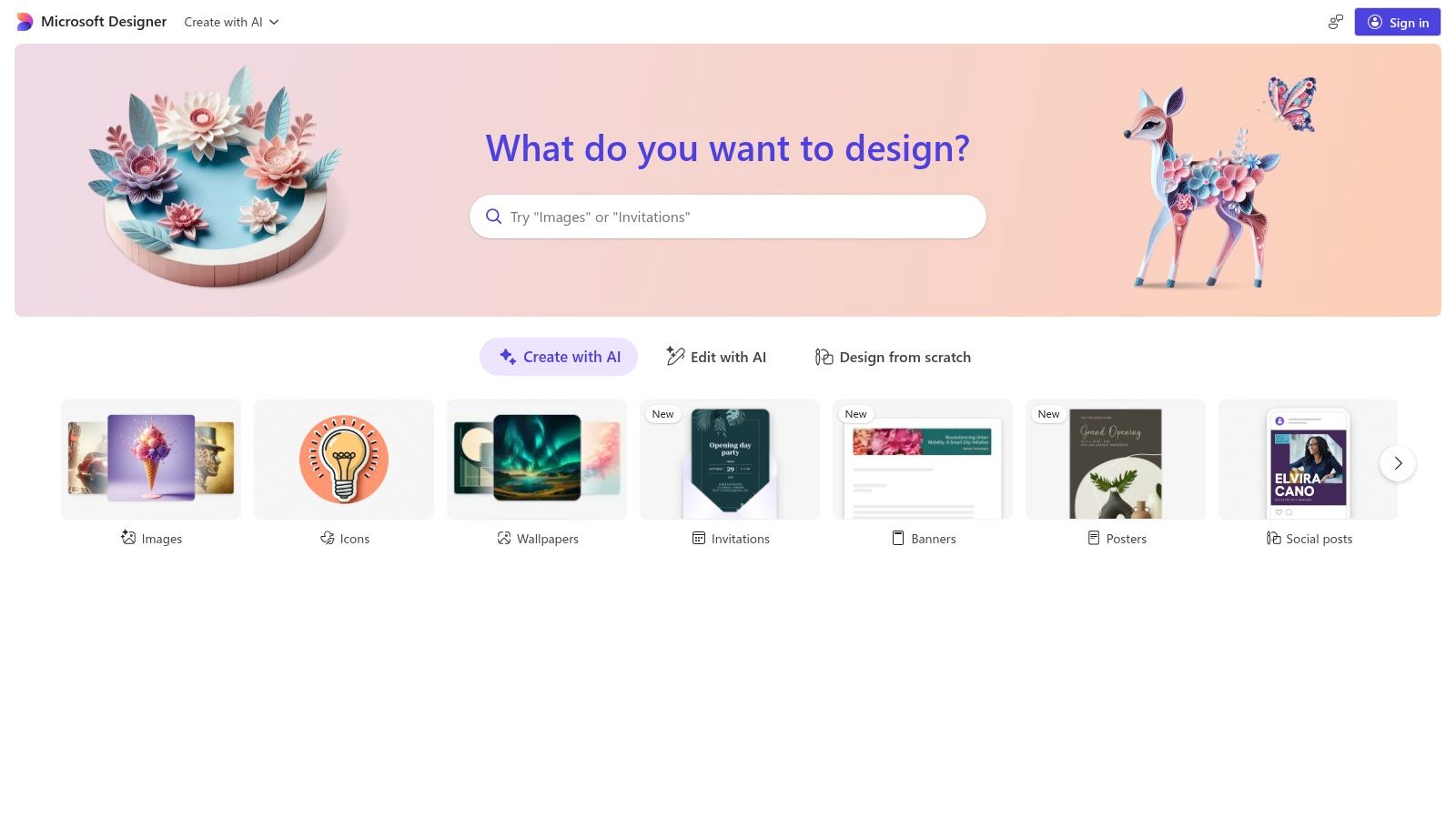
Microsoft Designer is useful when the blank page is the primary problem. Some tools assume you already know the layout, image style, and copy direction. Designer is better when you have a rough idea and want the software to generate a starting point.
That makes it especially helpful for busy owners and marketers who get stuck before they even begin. Type a prompt, review a few directions, and refine the least-bad option into something usable. This isn’t the tool for pixel-level control. It’s the tool for momentum.
Quick start workflow
Prompt quality matters more here than in template-led apps.
Describe the audience and offer: “Instagram post for a local coffee shop fall drink special” works better than “make a promo graphic.”
Choose one direction fast: Don’t keep regenerating forever. Pick the option with the clearest hierarchy.
Rewrite weak copy manually: AI can suggest layouts faster than it can write a compelling offer.
The trade-off is control. Designer gets you ideas quickly, but it won’t satisfy someone who wants to nudge every element into place. I’d use it for concepting, fast promos, and creative block. I wouldn’t use it as my only brand design tool if consistency matters across a large content calendar.
Visit Microsoft Designer.
4. VistaCreate
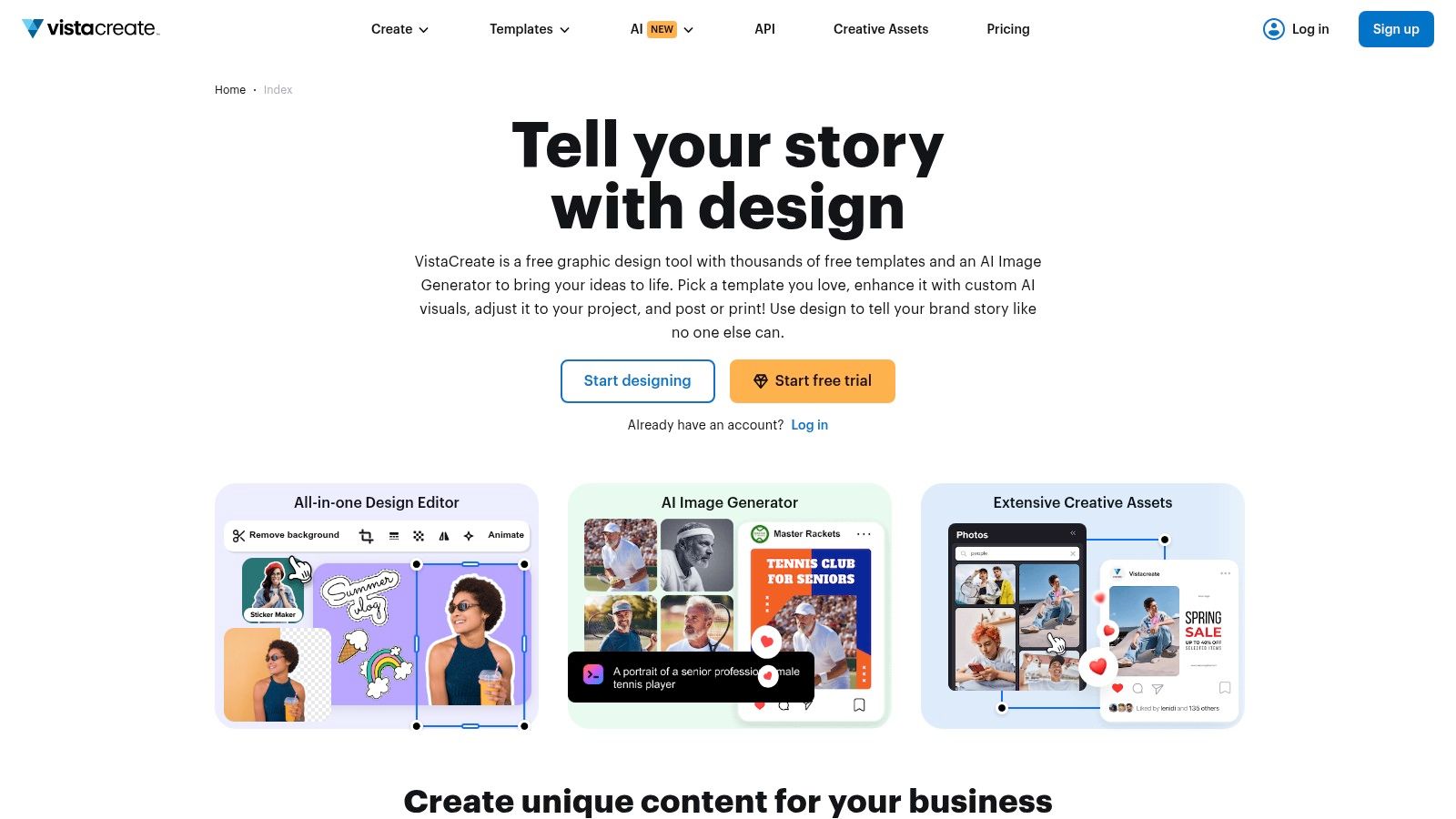
VistaCreate is strong when static posts aren’t enough and you want motion without learning full video editing. A lot of businesses know they should create more dynamic story content, but they don’t have the time or skill set for proper animation. VistaCreate closes that gap nicely.
Its animated templates and moving objects are the reason to use it. If you’re running retail promos, event reminders, limited-time offers, or short story sequences, it gives you more energy than a standard image post without asking for much setup.
Where it works best
VistaCreate shines on content that needs movement but not production complexity.
Stories and reels support graphics: Motion text, simple transitions, and animated backgrounds work well here.
Promo posts: Limited-time offers feel more noticeable with movement.
Event graphics: Dates, times, and calls to action become easier to spot when animation is restrained.
Use motion to draw attention to useful information.</p>
The trade-off is depth. VistaCreate is easy to use, but it doesn’t feel as broad or as refined as the biggest platforms for everyday design work. I’d keep it as a specialist tool for animated content, not necessarily the only app in the stack.
Visit VistaCreate.
5. Photopea
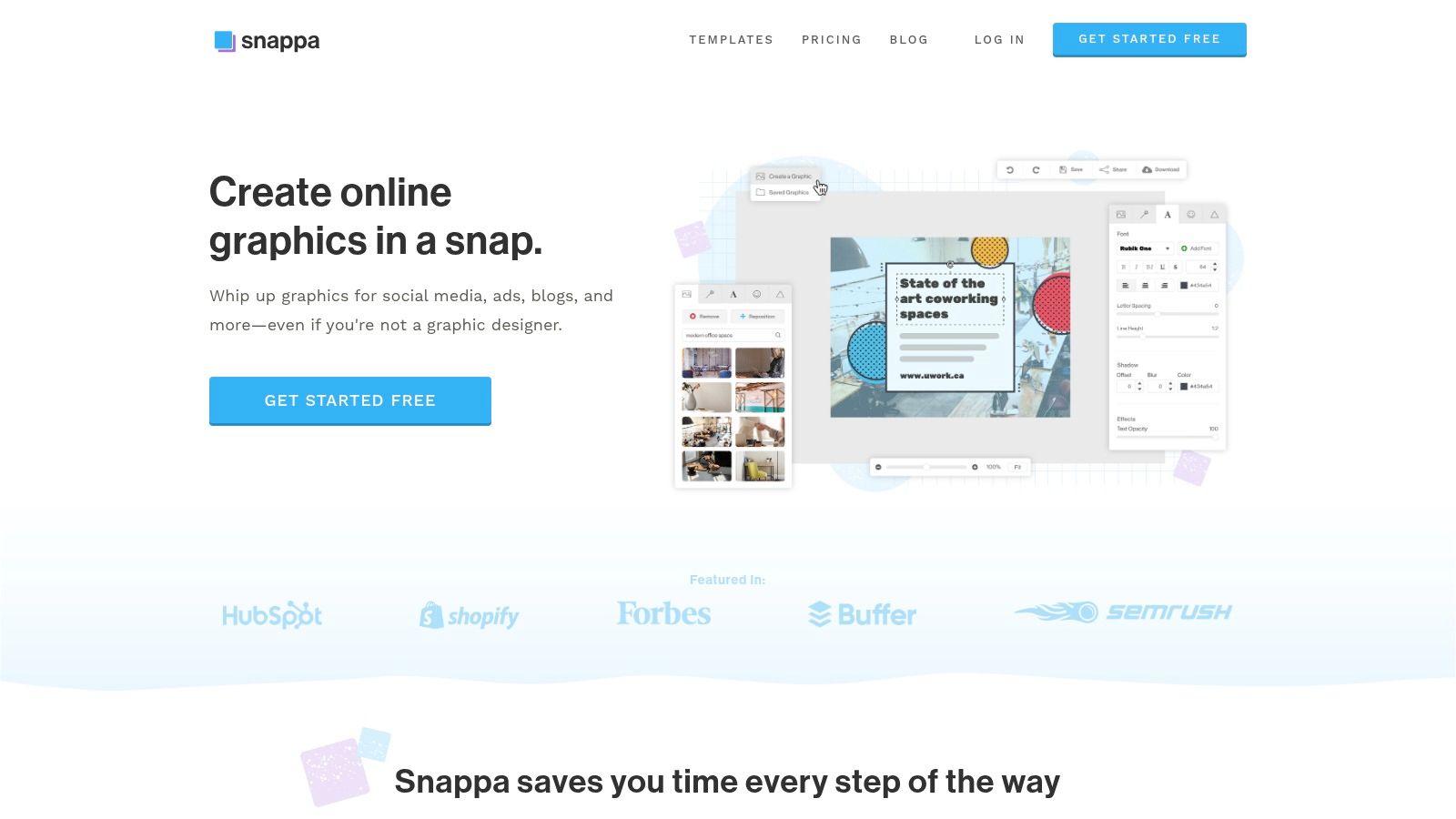
Photopea is what you use when a template app hits a wall. It’s browser-based, layer-based, and much closer to Photoshop than the drag-and-drop tools on this list. That makes it a bad first tool for most non-designers and a very useful backup tool for specific situations.
If a designer sends you a PSD and you need to update text, replace a photo, or export a new size, Photopea can save the day. Same story if you need masks, smart objects, detailed selections, or more precise image work than lightweight tools allow.
Quick start workflow
Keep the job narrow. Photopea punishes wandering.
Open the existing file first: It’s best for editing supplied assets, not inventing a social post from nothing.
Touch only what matters: Update text, image, and export settings. Leave the rest alone if you’re not comfortable.
Export a web-friendly final: Check dimensions before downloading so the post matches the platform.
This tool has a learning curve. There’s no getting around that. If you’re better served by a traditional editor and want another serious photo workflow to compare against, Affinity Photo is worth looking at separately.
Visit Photopea.
6. Pixlr
Pixlr is a good middle ground if Canva feels too light and Photopea feels too heavy. The split between Pixlr X and Pixlr E is useful. One side is faster and simpler. The other gives you more editing control.
That makes Pixlr practical for businesses that create social posts and also need occasional cleanup work. Product cutouts, quick background edits, layered image tweaks, and basic promotional graphics all sit comfortably here.
Quick start workflow
Start in the simpler editor unless you know you need more.
Use Pixlr X for speed: Good for straightforward social graphics and image swaps.
Move to Pixlr E only for real edits: Layers, more detailed adjustments, and heavier manipulation belong there.
Finish with platform context: A polished graphic still needs the right caption and audience targeting if you want more real Instagram followers.
The trade-off is a slightly fragmented experience. Switching between editors can interrupt flow, and some free-plan limits can get annoying if you’re producing at volume. Still, for marketers who need both convenience and editing flexibility, Pixlr earns its place.
Visit Pixlr.
7. Snappa
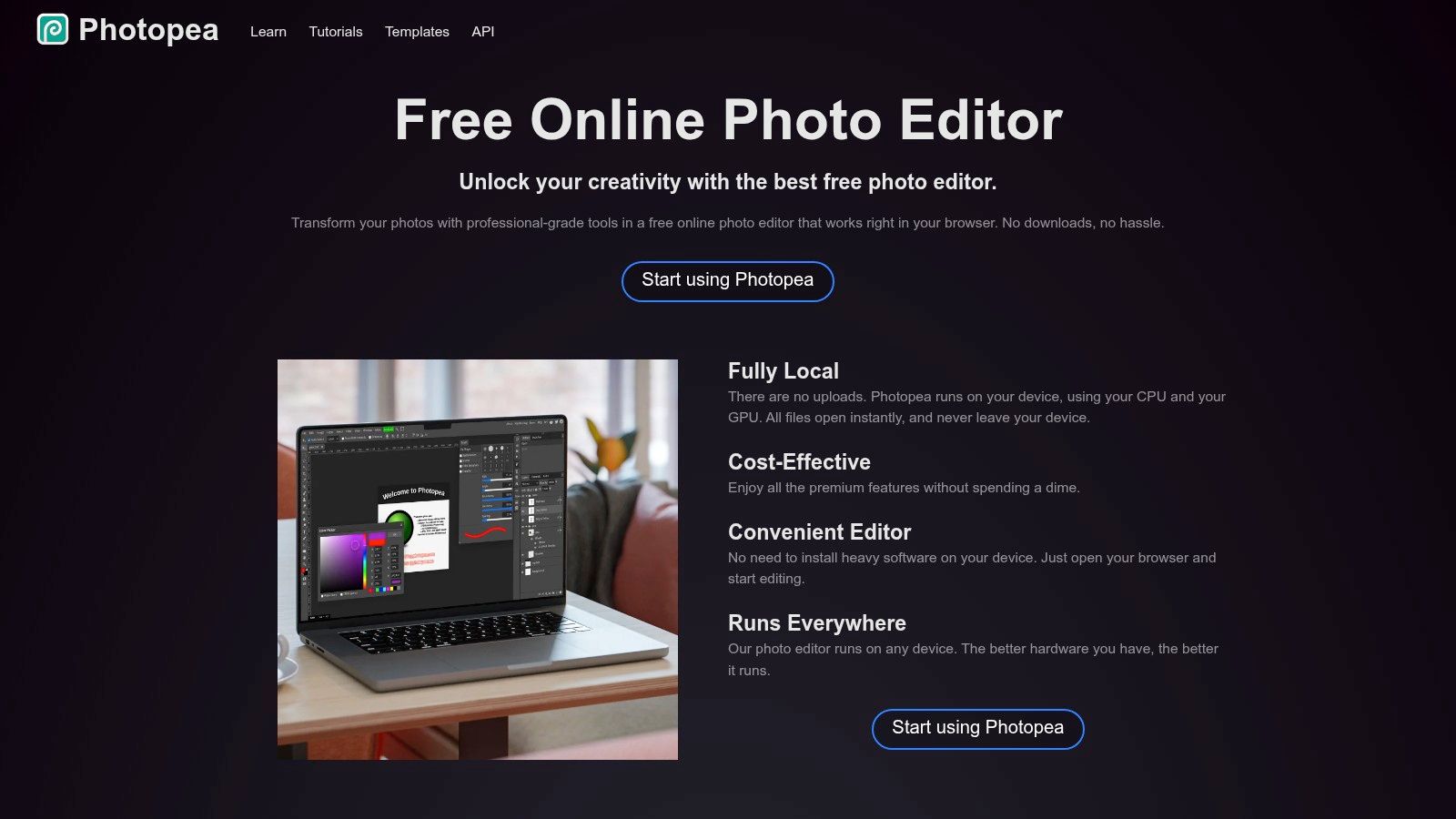
Snappa is for people who don’t want a giant design platform. They want to make the graphic and move on. That focus is its strength.
The interface stays out of your way, which matters if you only create occasional social images or need quick supporting visuals for campaigns already in motion. You won’t get the same breadth as Canva or the same AI push as Adobe Express, but you also won’t spend half your time navigating features you don’t need.
Why teams keep it around
Snappa fits best when design is a supporting task, not a central function.
Fast turnaround: Good for last-minute promo graphics and simple announcements.
Low mental overhead: Easier to train on than bigger platforms.
Clean template editing: You can produce a decent post without much setup.
Its main weakness is scale. If your team publishes daily across several channels, the limitations show up quickly. If you need a few polished graphics each month and want minimal friction, Snappa is still one of the easier tools to live with.
Visit Snappa.
8. Piktochart
Piktochart is the one I reach for when the post has to explain something. Most social design tools are built around aesthetics first. Piktochart is stronger when clarity matters more than trendiness.
That’s especially useful for B2B brands, educators, consultants, service businesses, and anyone repurposing blog content into slides or carousels. If you’re breaking down a process, presenting takeaways, or visualizing simple data, Piktochart gives you cleaner structure than general-purpose social apps.
Quick start workflow
Think in slides, not in single graphics.
Lead with one takeaway: The first panel should make the point, not introduce the topic vaguely.
Use charts sparingly: Only include visual data if it helps understanding.
End with a clear next step: Save, comment, visit, book, or message.
This is also where measurement matters. Informational content often gets praised internally and ignored externally. Tie design choices back to what your team is tracking with a sensible social media metrics guide so the carousel supports a business goal instead of just looking organized.
The best educational graphics feel obvious after you see them. That usually means the structure is working.
Visit Piktochart.
9. PosterMyWall
PosterMyWall is a strong utility player. It doesn’t get mentioned as often as the bigger names, but it’s very practical for social managers who need quick one-off graphics and short video assets.
Its biggest appeal is convenience. You can move from template to finished post fast, and the workflow stays simple. That makes it handy for seasonal promos, restaurant specials, event reminders, and local business posts where speed matters more than fine control.
Where it earns its keep
PosterMyWall is a good fit when you need useful output now.
One-off campaign assets: Sale posts, local events, holiday reminders.
Short-form visual content: Basic motion and video templates without much editing pain.
Simple team usage: Easier to hand off than heavier design tools.
The limitation is ceiling, not floor. It’s easy to make something decent. It’s harder to make something distinctly branded and refined. For many small businesses, that’s an acceptable trade-off.
Visit PosterMyWall.
10. Desygner
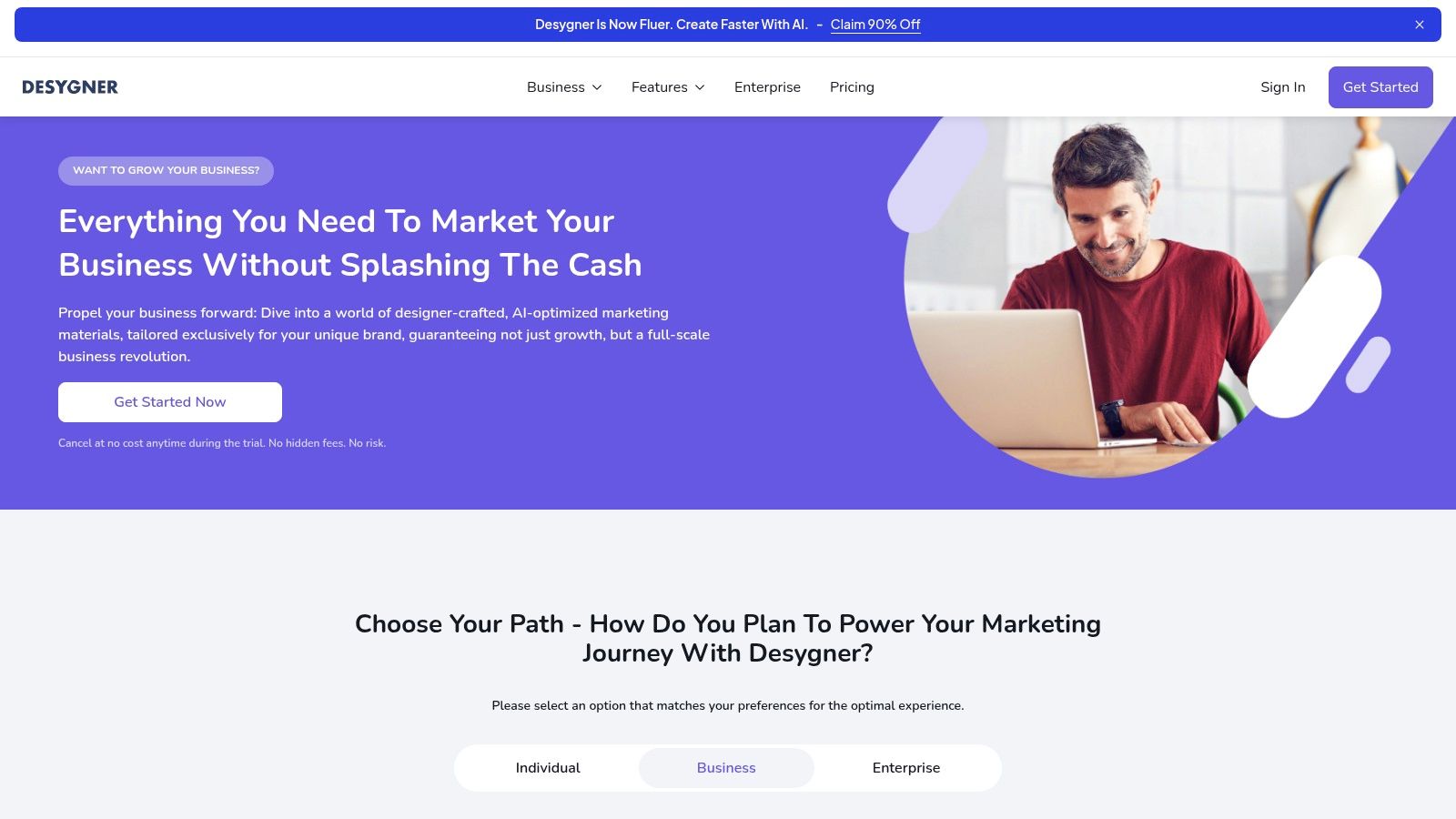
Desygner is underrated for businesses that already have marketing materials and want to repurpose them. If you’ve got flyers, menus, brochures, PDFs, or price lists sitting around, Desygner helps turn those assets into social content faster than rebuilding everything from scratch.
That makes it especially useful for local businesses. Restaurants, real estate teams, salons, clinics, and retail stores often have lots of offline collateral but inconsistent social execution. Desygner helps bridge that gap.
Quick start workflow
Start with an existing asset instead of a blank social template.
Import the PDF or branded piece: Use what you already have.
Extract one message per post: Don’t cram the whole flyer into Instagram.
Standardize your brand elements: Keep logo placement, colors, and font choices consistent across exports.
The interface isn’t the slickest on this list, but it solves a practical business problem. If your challenge is less about designing from scratch and more about turning existing materials into usable social content, Desygner is a smart pick.
Visit Desygner.
Top 10 Free Social Media Graphics Tools Comparison
Your Turn to Create Go from Idea to Eye-Catching in Minutes
The best free design tool isn’t the one with the longest feature list. It’s the one your team will use every week. For most businesses, that means starting with Canva or Adobe Express, then adding a specialist tool only when a real need shows up, like animation, data visuals, or layered editing.
If you’re doing this without a designer, keep the workflow simple. Choose one main tool. Build two or three repeatable post formats. Lock in your colors, fonts, and logo placement. Then spend your time on the offer, the hook, and the publishing rhythm instead of endlessly tweaking graphics.
There’s also a bigger strategic point here. Social graphics help you stay visible, explain offers, and build familiarity. They’re great for day-to-day attention. But they aren’t the only channel worth building. Once a business has a clear message, a recognizable visual style, and a repeatable creative workflow, it often makes sense to expand into channels that build broader local awareness.
That’s where Adwave fits naturally. If you can turn a strong offer into a clean social post, you’re already doing part of the creative thinking needed for video advertising. Adwave gives small businesses a practical path from lightweight digital creative into TV advertising without the usual production overhead. For local brands that have outgrown social-only promotion, that’s a meaningful next step.
Growth usually doesn’t come from one perfect post. It comes from repeated exposure across multiple touchpoints. Social graphics can support launches, promotions, reviews, educational content, and audience engagement. TV can widen the top of the funnel and put your brand in front of local viewers who may never have seen your Instagram feed.
So start small. Pick one of the free tools above. Build a post for your next offer today. Don’t aim for brilliant. Aim for clear, on-brand, and published. Once the process feels easy, you can scale the same discipline into bigger campaigns, stronger distribution, and channels that move beyond the feed.
If you’re ready to move beyond social graphics and get your brand in front of local audiences on premium TV, Adwave is a strong next step. It helps small businesses create, launch, and measure broadcast-ready ads in minutes, with AI-powered creative, flexible budgeting, and placement across 100+ premium channels, making it a practical choice for turning your marketing message into wider local reach.


