
You've got a website. You're running some mix of search, social, email, referrals, maybe even local advertising. Leads come in, but the answer to the obvious question is still fuzzy: what's driving business?
That's where a lot of small business owners stall with Google Analytics 4. They open it, see unfamiliar menus, hear terms like events, properties, and streams, and assume the setup is more technical than it needs to be. In practice, the hard part isn't clicking through the screens. It's deciding what deserves to be measured.
A local bakery might care about catering form fills and map clicks. A real estate team might care about listing inquiries and phone taps. A service company might care about quote requests after a TV campaign or direct visits after a postcard drop. GA4 becomes useful when it answers those business questions clearly.
Practical rule: If your analytics setup can't help you decide where to spend your next marketing dollar, it's not finished.
That's the frame for this walkthrough. The point isn't to build a complicated analytics system. The point is to build one that helps you judge channel performance, spot friction on your site, and connect online behavior to revenue-focused outcomes. If you also need a simple way to think about return, Adwave has a helpful guide on how to measure marketing ROI that pairs well with this process.
Your First Step in Data-Driven Growth
A lot of first GA4 setups start from the same place. The business is active. The website looks decent. Marketing is happening. But reporting still lives in scattered places: a few numbers from your website platform, some ad platform dashboards, maybe a call log, maybe a spreadsheet.
That setup usually creates false confidence. You can see activity, but you can't see the full path from attention to action.
What most small businesses need
You don't need every report in Google Analytics. You need a small set of answers:
Which channels bring people in
Which pages hold attention
Which actions signal buying intent
Which campaigns create lift beyond clicks
That last point matters more than many GA4 tutorials admit. Not every ad produces a neat click trail. Local TV, streaming ads, direct mail, sponsorships, and offline word of mouth often show up indirectly through direct traffic, branded searches, repeat visits, and later conversions.
The better way to think about GA4
Treat GA4 like a business dashboard, not a traffic counter.
If you set it up around pageviews alone, you'll end up with a lot of charts and very little clarity. If you set it up around lead submits, phone clicks, bookings, purchases, or quote requests, you'll have something you can use in an actual marketing meeting.
A clean GA4 setup is less about collecting more data and more about collecting the right signals consistently.
That's the walkthrough from here forward. Build the account correctly. connect the site. define the actions that matter. test everything. then keep a short reporting view that helps you make decisions quickly.
Laying the Foundation Your GA4 Account and Property
Google Analytics 4 is now the standard starting point for new setups because GA4 became the default Google Analytics property type after Universal Analytics was retired. Google's official setup starts at Google Analytics setup instructions, where you click “Start Measuring,” create an account, create a property, and add a data stream.

Understand the three layers first
GA4 is easier once the structure clicks:
Account means the top-level container for the business.
Property usually represents one website or app you want to measure.
Data stream is the actual source of incoming data, such as your website.
For most small businesses, the clean setup is one account for the business, one property for the main website, and one web data stream for that site.
Walk through the setup in the right order
When I'm on a shared screen with a client, I keep naming simple and practical.
Create the account Use the business name, not a campaign name or a person's name, unless there's a very specific reason to do otherwise.
Create the property Name it after the site or brand you want to measure. This keeps things readable later if you add more websites.
Set the reporting time zone and currency This is one of those small setup choices that causes big confusion later if it's wrong. Your reports won't match your working day or your sales values if these settings are off.
Add a web data stream Enter your main site URL and your stream name.
Enable Enhanced Measurement Google recommends turning this on for websites. It automatically captures common interactions such as page views and other user actions.
Save the Measurement ID Once the stream is created, GA4 gives you a Measurement ID. You'll use that to connect the website.
Naming choices that save headaches later
Messy naming doesn't break GA4, but it does make reporting harder. A few habits help:
Use business-first names: “Smith Family Dental” is better than “Main Website Final.”
Keep property names stable: Don't rename properties every time the site gets redesigned.
Match your stream to the site: If your main site is one stream, label it clearly.
What works: simple names, one clear property, one clearly labeled web stream. What doesn't: duplicate properties, vague labels, or setting up a second property because the first interface felt confusing.
Why this foundation matters
GA4 uses an event-based model, not the old session-centric approach. That shift matters because the platform now expects you to think in terms of user actions and signals, not just visits. If the account structure is sloppy at the start, everything downstream gets harder: event setup, conversion reporting, attribution, and channel analysis.
The goal here isn't perfection. It's order. A clean foundation gives you one trustworthy place to measure what your marketing is doing.
Connecting Your Website and Installing the GA4 Tag
This is the point where many small business owners hesitate. The account exists, the property is ready, the data stream is there, and now GA4 asks you to connect the site. That sounds technical, but the decision is usually simple.
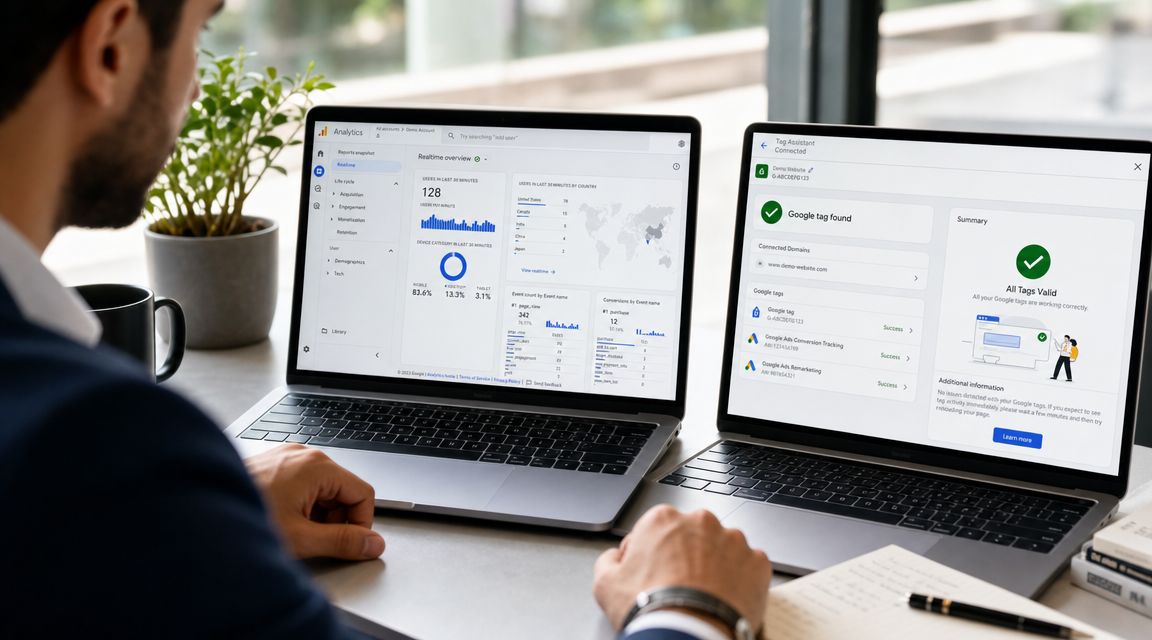
Create the analytics account, property, and web data stream. Install the tag, then use a separate browser or device to verify traffic in Realtime. If traffic is missing, check tag placement, consent settings, and ad blockers. (this GA4 small-business setup guide)
Choosing your installation method
Here's the plain-English version.
When direct install makes sense
Use gtag.js if your site is straightforward and you want the fastest path live.
This is often the right choice for a small WordPress brochure site, a simple Squarespace site, or a basic custom site where you or your developer can paste the tag into the global header. You'll copy the Google tag from the web stream instructions and place it on every page through the site-wide header area.
That usually means:
WordPress: header injection setting, theme setting, or a trusted analytics plugin
Shopify: theme code or a site-wide integration method
Squarespace: code injection in the site header
Custom site: the shared head section in your template files
When GTM is the better path
Use Google Tag Manager if you expect your setup to evolve.
GTM is useful when you know you'll want to track form submissions, button clicks, phone taps, or campaign-specific actions without editing the site every time. It adds another layer, so it isn't the fastest first setup, but it's more flexible once you're running.
For many owners, the choice is this: if you want basic measurement today, go direct. If your site is becoming a serious marketing asset, use GTM.
A few installation habits that prevent bad data
Place the tag site-wide: A tag on only some pages creates holes in your reporting.
Use the correct Measurement ID: Mixing properties is more common than people think.
Test from a different browser or device: Your own session may be filtered or cached differently.
Check Realtime before moving on: Don't assume the install worked.
Follow the setup instructions for your website platform and verify that analytics receives test traffic.
The biggest mistake here isn't choosing the “wrong” install method. It's skipping verification and discovering weeks later that your data never collected properly.
Configuring What Matters Core Events and Conversions
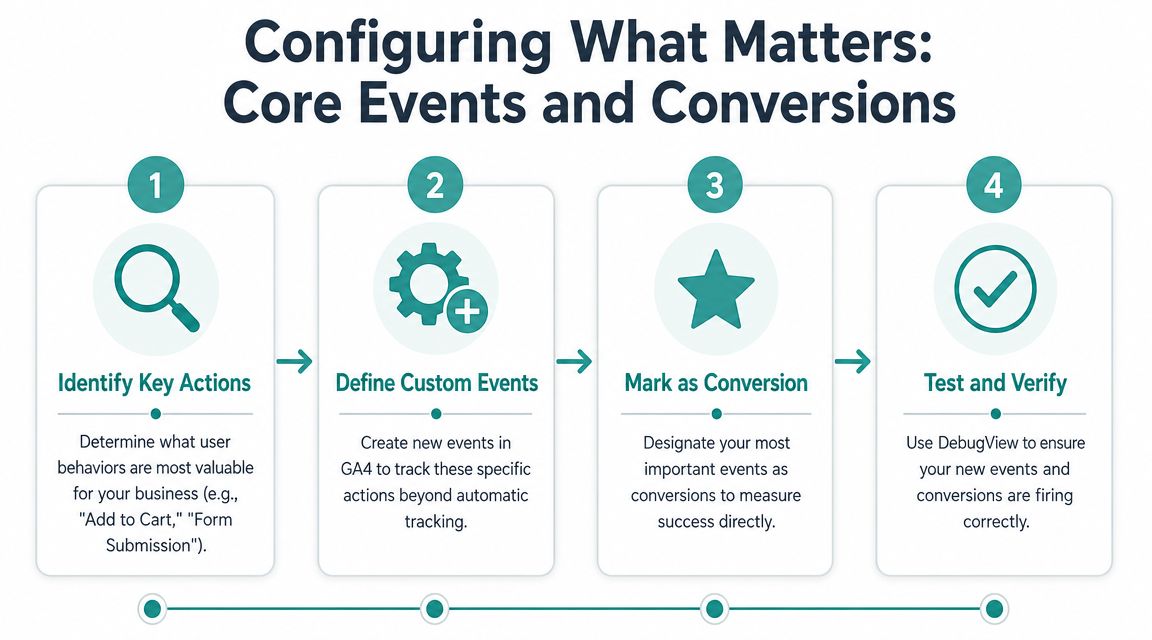
Once the tag is firing, GA4 starts collecting activity. That doesn't mean it's measuring your business well yet. Automatic events are useful, but pageviews and scrolls alone won't tell you which marketing is producing leads or sales.
For small businesses, one of the biggest mistakes is tracking too many low-value actions instead of a short list of business-critical conversions. Best-practice guidance stresses defining your core KPIs first, then extending data retention, filtering internal traffic, and keeping UTM tagging consistent so attribution stays useful, as covered in these GA4 best practices.
Start with business actions, not platform features
Before you create anything in GA4, list the actions that matter commercially.
For most small businesses, that list is short:
Lead generation sites: contact form submit, quote request, call click, booking request
Ecommerce sites: add to cart, begin checkout, purchase
Local service businesses: appointment booking, phone click, location page engagement
Content-driven businesses: demo request, newsletter signup, resource download
If an action doesn't help you evaluate revenue potential or sales intent, it probably doesn't belong in your first conversion set.
How to choose your core events
A good first filter is simple. Ask whether you'd care if this action increased after a campaign launch.
If the answer is yes, it may deserve event tracking. If the answer is “interesting, but not that important,” don't prioritize it yet.
Here's a practical way to sort them:
Must-track actions These are outcomes tied closely to sales. Form submissions, bookings, purchases, quote requests.
High-intent signals These don't close the loop on their own, but they often precede a sale. Phone taps, add-to-cart, financing form starts.
Context-only activity Scroll depth and outbound clicks can be helpful, but they usually shouldn't be your headline KPI.
Mark conversions sparingly
GA4 lets you mark important events as conversions. That feature is powerful, and it gets messy fast if you overuse it.
Better benchmark: your reporting should answer revenue-oriented questions such as lead submits, calls, bookings, or purchases, not just pageviews and sessions.
A practical first setup usually means marking only the handful of events that represent real success. That keeps reports readable and makes attribution more useful.
A simple conversion setup checklist
Pick your top business actions first
Create or verify the corresponding events
Mark only the key ones as conversions
Exclude your own traffic where possible
Use consistent campaign tagging so channel reporting stays clean
Review event naming regularly to catch duplicates or confusion
What works and what usually doesn't
What works: a tight list of conversions tied to lead quality or sales outcomes.
What doesn't: turning every button interaction into a conversion because the platform makes it easy.
That trade-off matters. Too few conversions, and you miss buying signals. Too many, and every report becomes noise. The sweet spot is a short set of actions that your team would discuss in a weekly review.
Validating Your Data and Measuring Ad Performance
A working tag isn't the same as trustworthy reporting. That gap matters most for smaller businesses, because when traffic is limited, bad data can distort decisions quickly.
A common beginner step is to check Realtime or use Tag Assistant. That's necessary, but it isn't enough. The deeper question is whether the data is decision-grade. That includes issues like attribution delays, channel misclassification, referral problems, internal traffic, cross-domain behavior, and whether your key events are being counted, as explained in this guide to validating GA4 for small businesses.
Run a practical QA pass
When I audit a fresh GA4 install, I don't look at charts first. I test scenarios.
Try these checks:
Realtime check: Visit the site from another device and confirm activity appears.
Key action test: Submit a test form, click the phone number, or complete a test purchase path.
Internal traffic review: Make sure your own office visits aren't inflating the numbers.
Referral review: Check whether third-party tools or payment steps are showing up as unwanted referrals.
Cross-domain check: If users move between domains during the journey, confirm the session doesn't break.
Expect differences across platforms
This catches many owners off guard. GA4 won't always match what you see in ad dashboards.
That doesn't automatically mean something is broken. Privacy changes, attribution logic, consent settings, and reporting delays all affect how platforms count activity. The important thing is to understand the pattern, not chase exact parity between every tool.
If Google Ads, Meta, and GA4 all tell slightly different stories, that's normal. The problem starts when the differences are large enough to change your decision and you can't explain why.
Measuring more than click-based advertising
GA4 demonstrates greater value than a lot of technical tutorials suggest.
Google Ads is relatively direct. You can connect campaign traffic, watch landing page behavior, and compare conversions by channel. But many local businesses also run advertising that doesn't rely on a click. Local TV, streaming placements, radio, sponsorships, flyers, and community campaigns often create a delayed response.
In those cases, GA4 can help you watch for supporting signals:
Direct traffic changes
Branded search interest reflected in landing activity
Lift in high-intent pages
More calls, bookings, or form submissions during campaign windows
That's one reason businesses using TV advertising often keep GA4 open alongside their media dashboards. Adwave, for example, is a TV advertising platform for small businesses that can place ads across 100+ premium channels including NBC, Hulu, and ESPN, with campaigns starting at $50, according to Adwave's company information. In practice, GA4 helps you compare site behavior during and after those campaign periods so you can judge the broader response, not only the platform-level delivery data. If you want a framework for that analysis, Adwave's guide on how to measure advertising effectiveness is a useful companion.
A simple interpretation habit
Don't ask only, “Did this ad get clicks?”
Ask, “Did this ad create more of the right website behavior?”
That's the question that makes GA4 useful for real-world advertising, especially when the customer journey starts offline and finishes online.
Building Your First Simple Reporting Dashboard
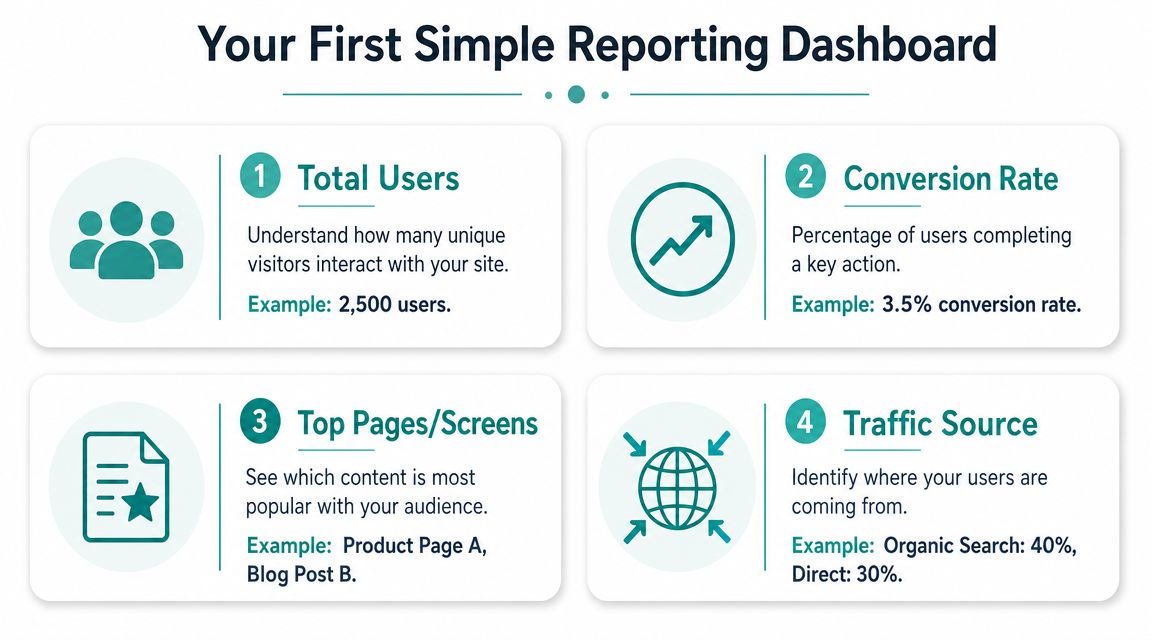
Once the setup is live and your key conversions are in place, the final step is making GA4 readable. Most small business owners don't need dozens of reports. They need one clear snapshot they can review quickly.
The easiest way to build that is to focus your dashboard around decisions, not metrics for their own sake.
The four views worth keeping front and center
I'd start with these cards or report views:
Users and traffic trends This gives context. You want to know whether visibility is rising, flat, or falling.
Top pages and landing pages These show where interest concentrates and where campaigns are sending people.
Conversions by channel Business value becomes evident. It helps answer which channel is attracting useful traffic.
Recent campaign behavior Keep one view that helps you compare launches, promotions, or ad periods against what happened on the site.
Keep the dashboard blunt and practical
A good first dashboard should help you answer questions like:
Are we attracting the right people?
Are they landing on the pages we expected?
Are they taking the actions we care about?
Which channel deserves more budget or more scrutiny?
That's enough for a useful weekly review.
What to leave out at first
Don't overload the dashboard with every engagement metric GA4 offers. If you add too much, the report becomes something you built once and stopped using.
Leave out anything that doesn't change a decision. Add it later only if you find a recurring need.
The best small-business dashboard is the one someone opens every week.
If you also want a local visibility layer next to GA4, Adwave has a straightforward resource on Google Business Profile insights and how to interpret them alongside website behavior.
If you're starting to connect website analytics with broader advertising performance, Adwave is worth looking at. It gives small businesses a way to launch and track TV advertising while GA4 helps measure what happens on the site afterward, especially around direct visits, branded interest, and conversion activity during campaign periods.


