Your website probably already has the raw material for a resource library. A few blog posts. A PDF you send after sales calls. A checklist buried in someone's inbox. Maybe a video walkthrough your team recorded once and never reused.
That scattered content creates friction. Prospects ask the same questions, your team repeats the same answers, and useful assets stay hidden instead of helping people discover your business. A strong resource library fixes that. It puts your expertise in one place, makes your site easier to use, and gives visitors a reason to come back.
If you're figuring out how to create a resource library on your website for the first time, think bigger than a downloads page. Done well, it becomes a system for education, lead generation, and long-term trust.
Why a Resource Library Is a Secret Weapon for Growth
A small business site often loses momentum at the exact moment a prospect gets serious. They visit your service page, click around for proof that you know what you're doing, and hit a dead end. There are a few blog posts, maybe an FAQ, but no clear place to keep learning. Many people leave and keep comparing.
A resource library fixes that gap. It gives people a reason to stay on your site longer, answer more of their own questions, and come back when they are ready to act.
A good library turns scattered expertise into a working sales and education system. Instead of relying on a date-based blog archive, you organize content around the questions, problems, and decisions customers are already trying to sort out. That makes your website more useful for first-time visitors and easier for search engines to understand over time.
A library keeps useful content working longer
Small businesses usually already have enough raw material to build a strong library. The problem is that the best content is often trapped inside day-to-day operations and never shaped into a repeatable asset.
It usually shows up in places like:
Sales follow-up emails that explain your process clearly
Proposal documents that answer common objections
Older blog posts with advice that still holds up
Recorded demos or webinars that teach better than a written page
Client checklists, worksheets, or forms people would use
Left alone, those assets expire faster than they should. They get buried, duplicated, or forgotten. A library gives them structure, context, and a clear role in the customer journey.
Practical rule: A resource library should reduce repeated explanation, not create another pile of content to manage.
Why it outperforms a standard blog
A standard blog is organized by publish date. A resource library is organized by usefulness.
That difference changes how people use your site. Visitors do not browse by month unless they are looking for news. They browse by need. They want pricing guidance, implementation steps, mistakes to avoid, examples, templates, and answers to the questions they have not asked you yet.
That is why a well-run library can support growth on several fronts at once. It helps attract search traffic, gives prospects confidence before they contact you, and shortens the time your team spends answering the same questions from scratch. It also creates a base you can keep improving, instead of constantly chasing new content ideas with no system behind them. If you already publish regularly, a simple planning tool like this three-month content calendar template can help tie your library to an actual publishing rhythm.
There is also a maintenance advantage here that business owners often miss. Blog archives tend to decay gradually. Posts age, links break, screenshots go out of date, and no one owns the cleanup. A resource library is easier to maintain because it gives you named categories, clear priorities, and a reason to review content on a schedule. That turns the library from a one-time project into an asset that gets stronger with use.
For a local service business, that can mean fewer low-fit inquiries and better-informed leads. For a consultant, agency, or ecommerce brand, it can mean stronger trust before the first conversation. In both cases, the result is the same. Your site does more of the teaching, and your team spends more time closing the right opportunities.
Planning Your Library for Maximum Impact
A weak library starts with random content creation. A useful one starts with decisions.
Before you design a page or upload a single file, define who the library is for and what job it needs to do. If you skip that step, you'll end up with a mixed bag of content that feels busy but doesn't move the business forward.
Start with audience questions, not content ideas
The fastest planning shortcut is to list the questions customers already ask.
Separate them into three groups:
Early-stage questions These are basic questions people ask before they trust you. Think pricing models, terminology, timelines, or what to expect.
Decision-stage questions These help someone compare options. Case studies, checklists, service explanations, and implementation guides fit here.
Post-purchase questions These support customers after they buy. Setup guides, FAQs, forms, and maintenance instructions often belong in this bucket.
Once you do that, patterns appear. Those patterns become your content pillars.
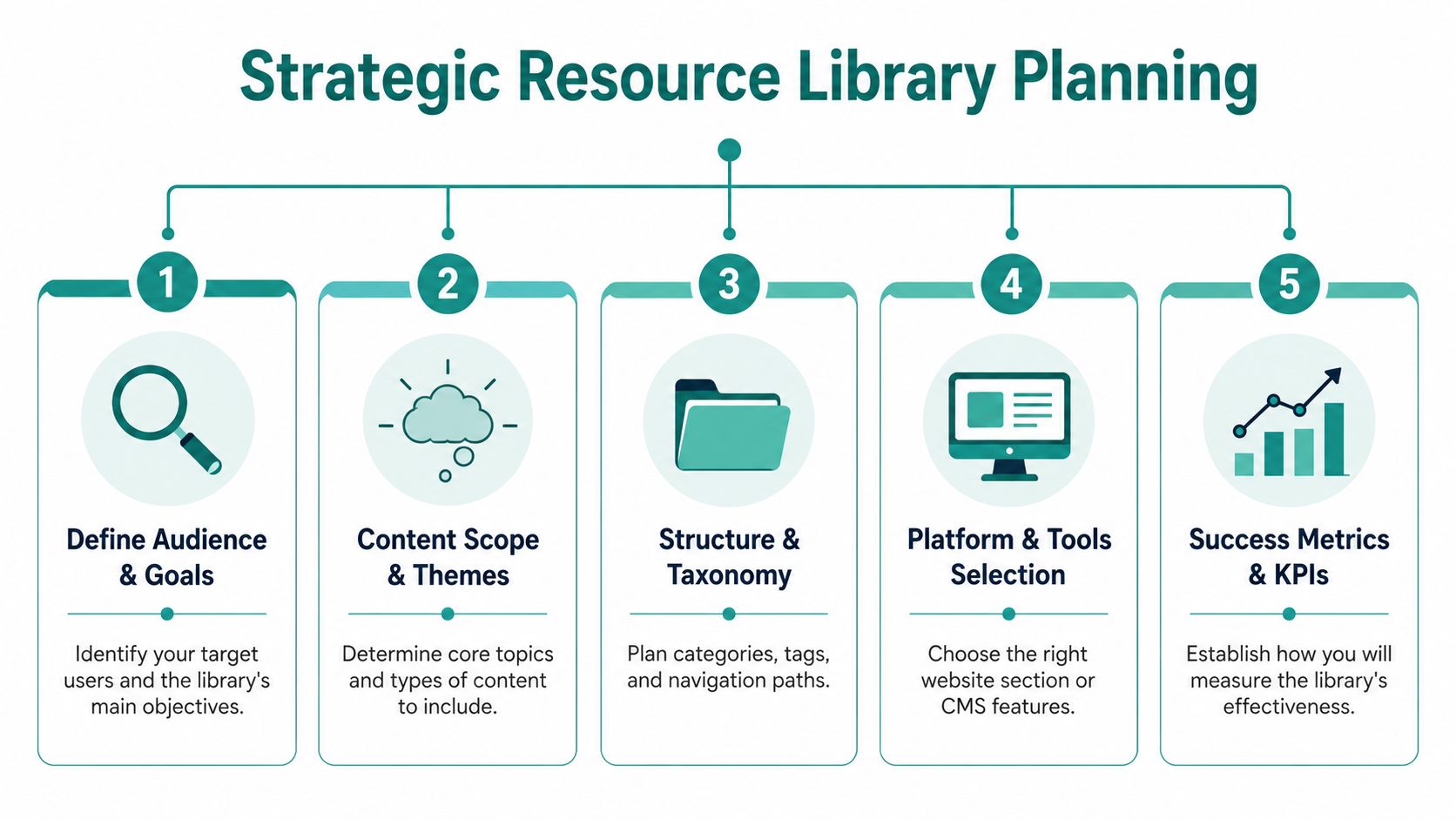
Match the library to a business goal
Not every resource library should behave the same way. A business trying to build awareness will structure it differently than one trying to collect leads or support existing customers.
Use a simple planning lens:
Set scope before you start building
A common mistake is launching with too little substance. Verified guidance from
says building an effective digital resource library demands a minimum of 10 to 300 pieces of content to balance SEO value and audience usefulness, and new resources should be added at least once a month to keep the library fresh.That range is wide for a reason. A local business doesn't need hundreds of assets on day one. But it does need enough material to feel intentional.
A practical starter plan looks like this:
One pillar topic per main service or audience need
Several supporting resources under each topic
A publishing rhythm your team can sustain
One owner who keeps it organized
If you need help mapping the first few months, use a three-month content calendar template to turn ideas into a realistic rollout instead of a vague plan.
Build the first version around what your audience needs most now, not around every idea your team has ever had.
Gathering and Creating Your Core Content
Most businesses don't need to start from zero. They need to recognize what they already have.
A strong library often begins with repackaging existing material into formats people can browse, download, or revisit. That's faster, cheaper, and usually smarter than trying to create everything new.

Audit what already exists
Start by pulling content from the places businesses usually overlook:
Published content such as blog posts, FAQ pages, and older guides
Sales material including pitch decks, one-pagers, proposal sections, and product sheets
Service documents like onboarding instructions, prep checklists, and intake forms
Media assets such as recorded demos, webinar clips, and training videos
Internal knowledge from repeated email answers and customer call notes
This process usually reveals two things. First, you already have more usable content than you thought. Second, much of it needs editing so it serves a broader audience instead of a one-to-one sales conversation.
Choose formats people will use
Resource libraries work best when they include different content types, not just articles. The same verified YouTube guidance cited earlier notes that strong libraries should include a mix of step-by-step tutorials, industry articles, videos, and downloadable assets like templates or cheat sheets.
That mix matters because visitors consume information differently. Some want a fast checklist. Others want a detailed article or walkthrough video.
A practical mix for a small business might include:
Guides for common questions and decisions
Checklists for task-based problems
Spec sheets or forms for buyers who need details
Case studies and white papers to show how your expertise works in practice
Short videos that explain a process visually
Redstart Creative's resource library advice also highlights the value of case studies, white papers, spec sheets, checklists, forms, and teaser-based gated content for turning education into prospect engagement.
Create pieces with a clear job
Every asset should answer one of three questions:
If one asset tries to do all three, it usually gets bloated.
A local marketing agency, for example, could build a section around affordable advertising options for small businesses. One article could explain channel choices. A checklist could help owners prepare campaign inputs. A tool overview could introduce TV advertising as an accessible option.
That's where a relevant platform example can add value. Brilliant Directories' write-up on resource libraries notes that Adwave Digital's AI platform enables users to generate broadcast-ready ads from a single website URL, placing them on over 100 premium channels like NBC and Hulu with campaigns starting at just $50. For a small business audience, that kind of resource belongs in a library because it turns a vague topic like “TV advertising” into something practical and approachable.
The best library content lowers the effort required to take the next step.
Don't forget presentation
Even useful content gets ignored if it looks thrown together. Visual mock-ups help people understand what they're getting before they click. Short descriptions matter too. A title alone often isn't enough.
If you're building your first version, keep each resource entry simple:
Title
One-line summary
Format label
Category
Clear next action
That's enough to make the library feel curated instead of cluttered.
Structuring Your Library for Usability and SEO
A small business owner lands on your library looking for one answer. If the page shows a wall of mixed PDFs, blog posts, and tools with no clear path, they leave. The content may be good, but the structure makes it feel harder to use than it should.
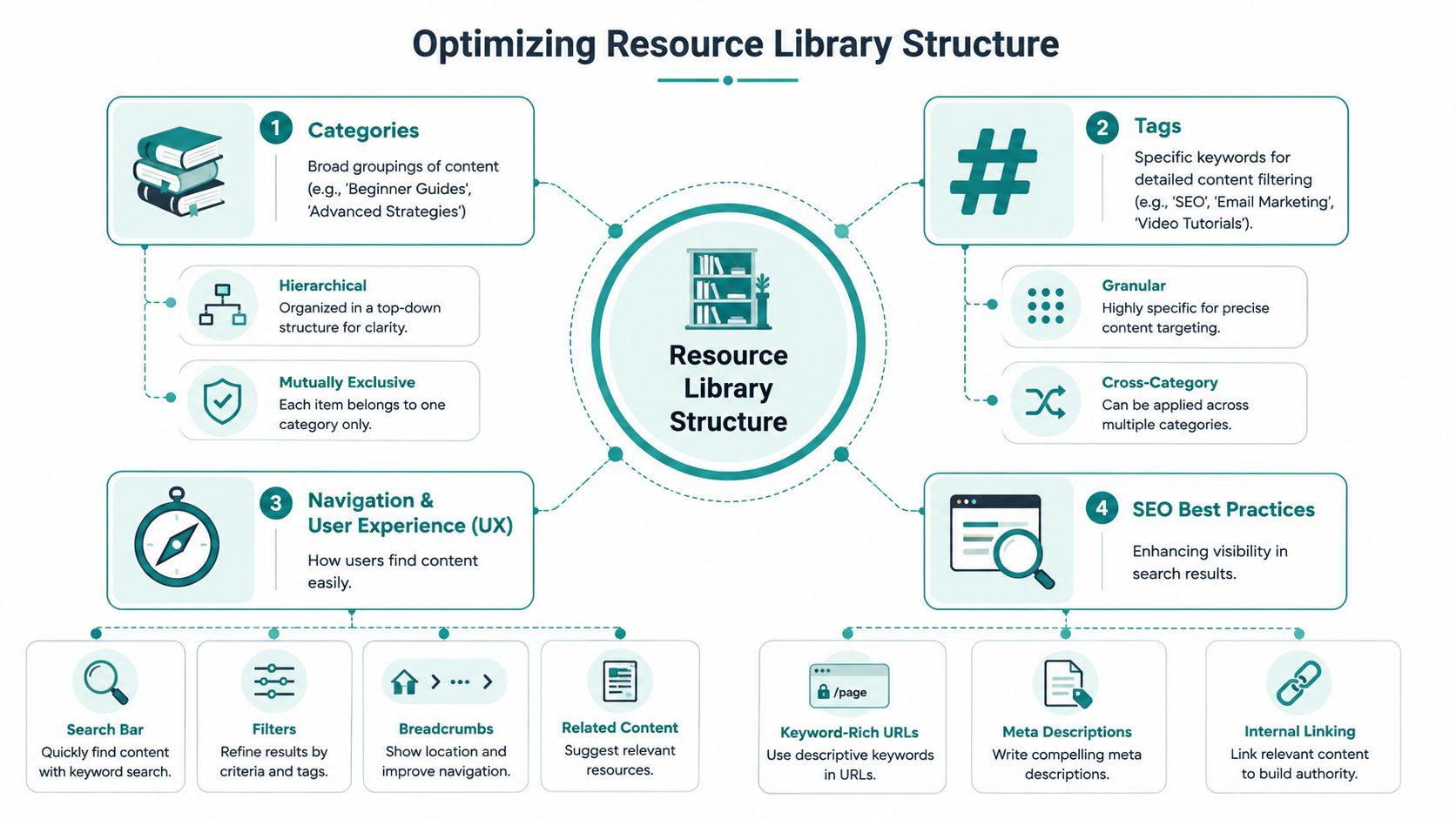
Good library structure supports the full life of the project. It helps first-time visitors find the right resource now, gives search engines clear topic signals, and makes the library easier to maintain as you add new assets over time.
Start with a structure you can keep clean
Categories should do most of the organizational work. Tags should support discovery, not replace categories.
A simple rule helps. Pick a small set of broad categories that reflect how customers look for help, then use tags for narrower themes, formats, or situations. For a real estate business, that could look like this:
First-Time Homebuyers
Sellers
Neighborhood Guides
Financing Basics
Market Updates
Then add tags such as condos, closing costs, inspections, relocation, or investment property.
Messy taxonomies age badly. Once a library grows, overlapping categories create duplicate paths, weak category pages, and extra cleanup work. A tighter structure is easier to manage six months from now, not just on launch day.
Build category pages that earn their place
Each category page should work as a real destination page, not a dumping ground for links.
That means adding a short introduction, a clear explanation of who the section is for, one featured pillar asset, and a list of related resources underneath. For example, a Financing Basics category might lead with a mortgage explainer, then point visitors to a closing-cost checklist, a rate comparison guide, and related service pages.
This approach also improves internal linking. Instead of dozens of isolated resources competing for attention, you create clusters that reinforce the topic and help visitors move naturally from overview content to specific answers.
If you want to see how larger sites expose content relationships at scale, reviewing a full website index can help you spot how pages are grouped and surfaced.
Add filters and search before the library feels crowded
Small libraries can survive with strong categories alone. Larger ones usually cannot.
Once you have more than a modest number of resources, visitors need another way to narrow the list. Useful filters often include topic, audience, format, and business stage. Search should also handle obvious terms your audience will use, including plain-language phrases rather than only your internal naming.
Test this yourself before launch. Search for the exact phrases a customer would type. Click through your filters. Try to break the experience. If common searches return weak results, the library will feel disorganized even when the content itself is strong.
Keep URLs, titles, and internal links predictable
Library architecture affects search performance at the page level.
Use short, plain-language URLs. Write titles that make the topic clear without clever wording. Keep similar resource types formatted the same way across the library. That consistency helps users scan faster and gives your team a repeatable standard for future uploads.
Internal links matter here too. Category pages should point to pillar resources. Pillar resources should link to supporting articles and relevant service pages. Supporting articles should link back up to the category or pillar page where it makes sense. If your team is still building the article layer, this guide on writing blog posts that rank on Google is a useful companion.
The goal is simple. A visitor should know where they are, what they found, and what to open next. If your library does that well, it becomes easier to use, easier to expand, and far less likely to decay into a forgotten content archive.
Choosing Between Gated and Open Access
A visitor finds one of your guides through Google, clicks into your library, and hits a form before they have learned anything about you. Many leave right there. The opposite problem happens too. Everything is open, traffic grows, and the library produces very few qualified leads.
Access rules shape whether your library becomes a steady business asset or a busy archive that rarely supports sales.
For small businesses, an all-or-nothing approach usually creates problems later. Gating every resource slows discovery, limits search visibility, and makes sharing harder. Leaving every high-value asset open can fill the library with activity but give your team no clear way to identify interested prospects. A hybrid model works better because it supports the full lifecycle of the library. It helps the library attract new visitors now and produce leads as the collection matures.
The trade-off in plain terms
Open access works best for resources that answer early-stage questions. These pages can rank, earn links, and help potential customers decide whether your business understands their problem.
Gated access works best when the resource saves time, reduces effort, or packages information in a way people want to keep. A worksheet, template, calculator, buyer's guide, or detailed checklist usually fits that standard better than a basic educational article.
The exchange has to feel fair. If the value is obvious, people will give you their email address. If the content feels generic, the form feels like a tax.
Gated vs. Open Access Resource Library
A practical hybrid model
This setup works well for many service businesses:
Keep open Introductory guides, blog-style educational content, FAQs, glossary pages, category hubs
Gate selectively Templates, planning worksheets, spec sheets, pricing comparison tools, premium checklists, white papers
Use preview pages Show what the resource covers, who it is for, and what outcome it helps with before asking for an email address
That structure gives the library room to do two jobs at once. Open content brings people in. Gated content identifies the visitors who want help badly enough to raise their hand.
If you are building those downloadable assets now, this guide on how to create a lead magnet that builds your email list is a useful next step.
What tends to go wrong
Two mistakes show up often.
The first is gating basic educational content too early. If someone is still learning the basics, they are rarely ready to trade contact details for information they could get elsewhere without effort.
The second is giving away every premium asset with no conversion path. That can work if your business has a very short sales cycle or strong direct-response traffic from another channel. For many small businesses, it means the library gets used but does not help build a pipeline.
Start with a simple rule. Keep discovery and trust-building content open. Gate resources that are specific, practical, and worth saving. Review performance every few months and adjust based on how people use the library, not how you expected them to use it.
Launching Promoting and Maintaining Your Library
A resource library isn't finished when it goes live. That's when the actual operating work starts.
Many businesses treat launch as the end of the project. Then links break, pages age, search terms stop matching new customer questions, and nobody notices until the library feels stale. That decline is predictable if nobody owns maintenance.
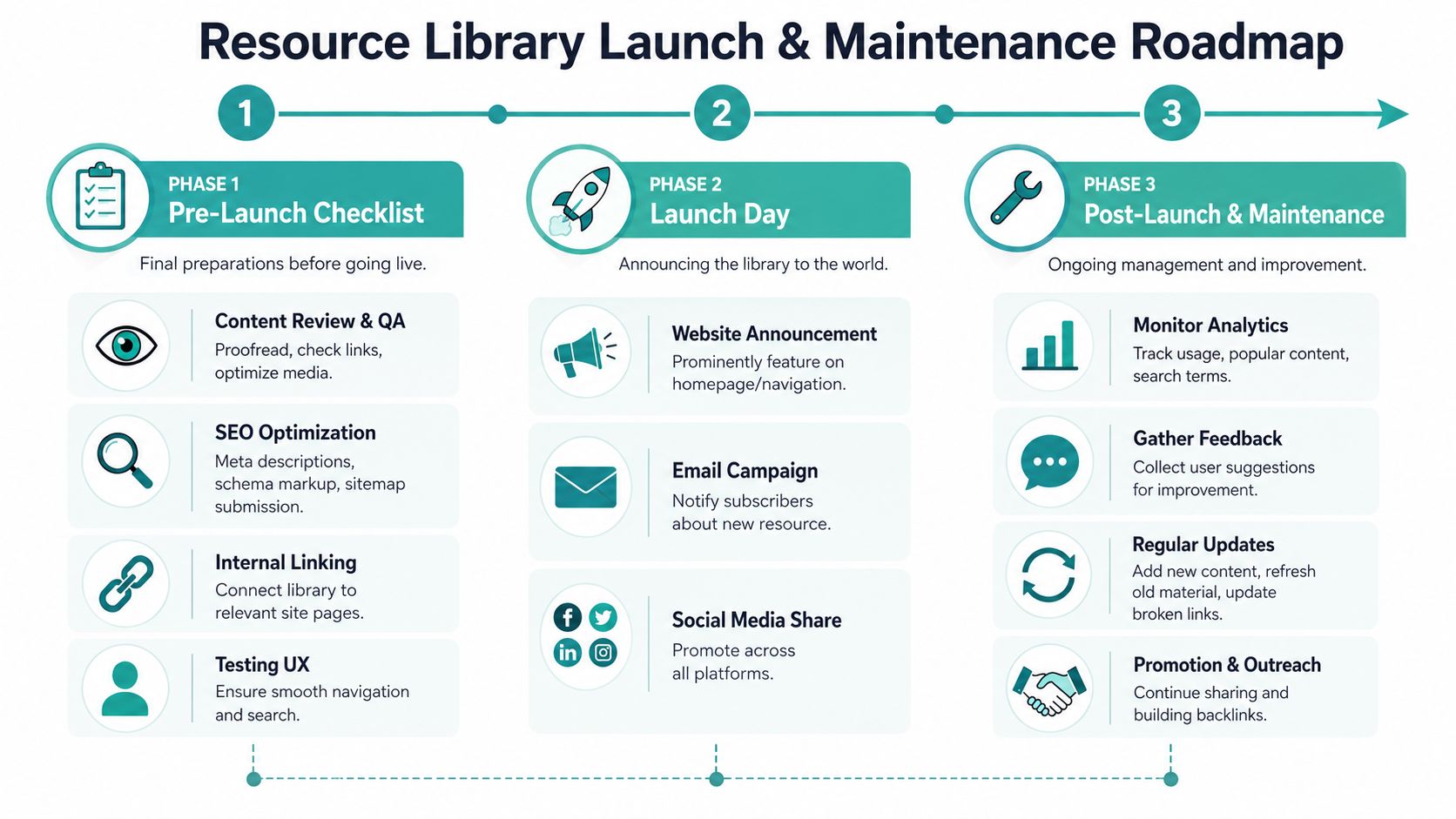
Launch it like a product, not a hidden page
Your library needs visibility from day one. Verified guidance from the earlier YouTube source recommends placing the library above the fold on the website, in the footer, and linking to it from social media and blog posts so people have multiple ways to find it.
A simple launch checklist helps:
Homepage placement so visitors see it quickly
Navigation link in the main menu or a clear secondary menu
Email announcement to current subscribers or customers
Blog and social mentions tied to your strongest resources
Internal links from service pages and related articles
Put maintenance on the calendar
This isn't optional. Graduation Alliance's guidance on maintaining a community resource library notes that resource decay accelerates within 6 to 9 months post-launch, and without a structured workflow, libraries can become “digital dead zones” with 404 errors that erode user trust.
Karl Mission's resource library framework, referenced earlier, also stresses quarterly reviews to remove outdated content, broken links, and underperforming pages while checking which categories support engagement and conversions.
Use a recurring review process like this:
Check links and files Open download buttons, forms, and page links. Fix anything broken immediately.
Review outdated information Replace old screenshots, pricing references, process steps, or service details.
Trim weak content Some pieces won't deserve a permanent place. Merge, redirect, or remove them.
Add based on real demand Use search terms, sales questions, and customer feedback to guide what comes next.
A resource library becomes an asset when someone maintains it with the same discipline used for inventory, listings, or customer follow-up.
Keep feeding the system
Maintenance isn't only cleanup. It's also expansion.
New blog posts, customer questions, webinars, and downloadable tools should flow back into the library over time. That's where repurposing matters. If you want a practical workflow for extending what you already publish, this article on turning one article into 10 pieces of content is a smart process guide.
The businesses that get the most from a resource library don't treat it as a side page. They treat it as a living knowledge base that supports marketing, sales, and service at the same time.
Frequently Asked Questions
How many resources do I need before launching
You don't need a massive archive. You do need enough content for the library to feel intentional. A focused starter version with multiple categories and a useful set of core assets is better than a nearly empty page.
Should I use my blog as the library
Usually, no. Your blog can feed the library, but the library should be organized by topic and user need, not just by publish date.
What if I only have a few assets right now
Start with what you have and package it properly. A guide, checklist, FAQ, video, and form can already create a useful foundation if they solve related problems.
What content formats work best
Use a mix. Articles explain, checklists help people act, and videos can simplify processes that are easier to show than describe.
Do I need special software
Not always. Many websites can support a basic library using categories, tags, search, and filtered page layouts. What matters most is structure and upkeep, not fancy tooling.
How often should I update it
Set a rhythm your team can maintain. Ongoing additions and regular reviews matter more than bursts of activity followed by neglect.
Should everything be free
No. Basic educational resources often work better when open, while premium templates, white papers, and specialized downloads are good candidates for gating.
If you want to pair your resource library with a practical advertising channel small businesses can use, Adwave is a strong option. Its AI-powered platform can turn a single website URL into a broadcast-ready TV ad, place campaigns across 100+ premium channels like NBC, Hulu, and ESPN, and start at $50 with automatic pacing. For businesses building a library that helps prospects learn, compare options, and take action, Adwave fits naturally as a next-step tool for affordable local visibility.